
Using Your Portfolio Contacts Dashboard
Note: Clarity’s Portfolio Contacts dashboard is a feature of Signal by EverTrue. If you have questions about Signal, please reach out to your Customer Success Manager (CSM).
Dashboard Elements
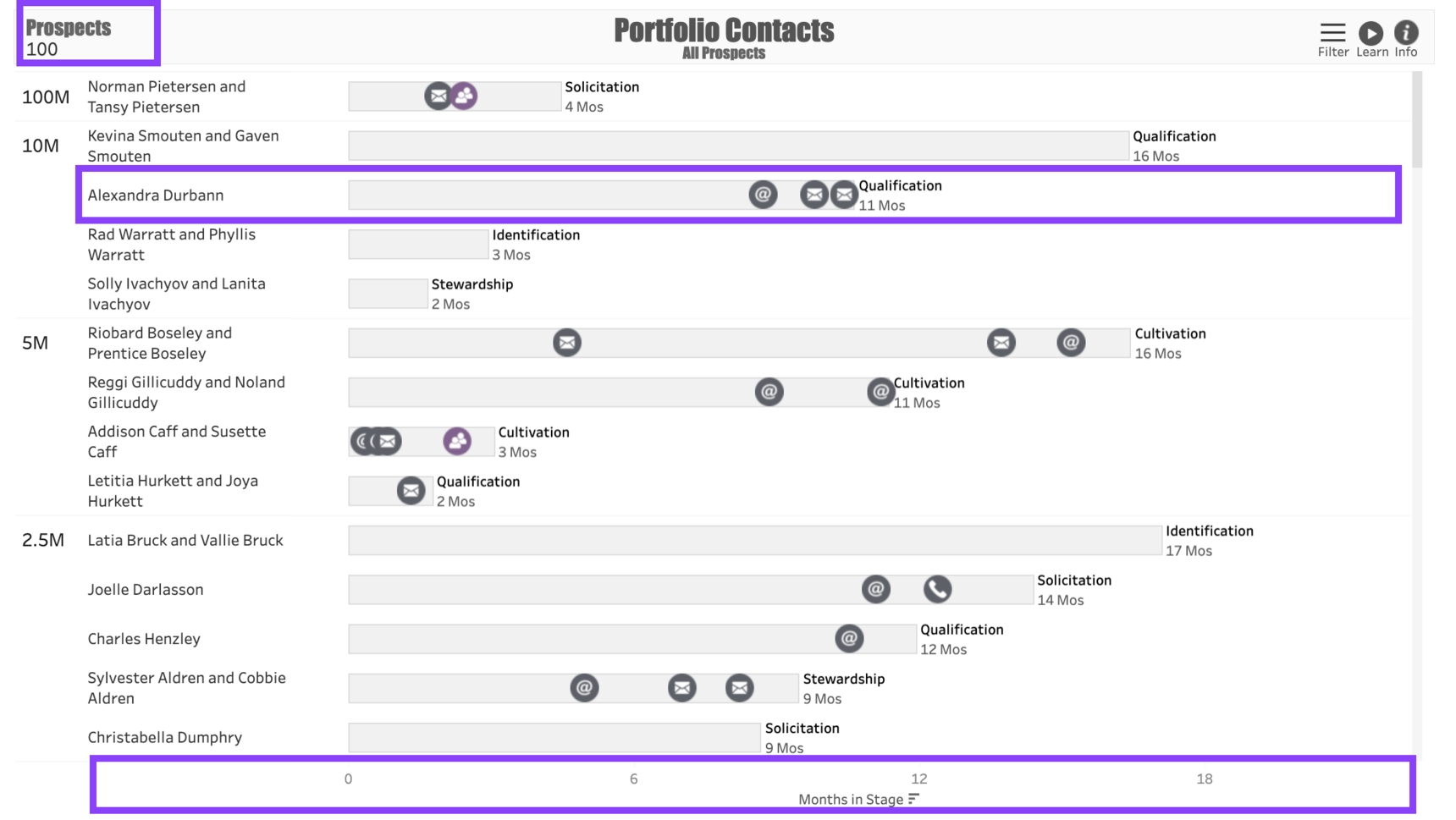
Portfolio Contacts has three important elements to help you evaluate your prospects’ relationship timeline.
In the upper left corner of the dashboard is a Prospect Count. The default count for the dashboard is 100 prospects, though this count can be extended up to 1,000 in the dashboard filter.
The body of the dashboard shows Prospects arranged by their Gift Capacity. Each prospect name is followed by a Timeline showing how long the prospect has been in their current Stage. Along the timeline are Icons representing the timing and nature of each touchpoint that has happened since the prospect entered their current stage. Hovering over any of the icons will cause a Tooltip to appear that summarizes the Interaction represented by the icon.
At the bottom of the dashboard is a Timeline showing the number of months represented in the dashboard. Comparing this against the prospect timeline will help you see how long the prospect has been in their current stage.
Interpreting the Dashboard Icons
The following list describes what each Interaction Icon indicates:
- Email: represented by an “@” symbol
Event: represented by a cocktail glass
Mail: represented by an envelope
Meeting - In Person: represented by a purple icon showing two people
Meeting - Virtual: represented by a video camera
Other: represented by a question mark
Phone: represented by a phone receiver
Social Media: represented by a “thumb’s up” or “like” symbol
Text: represented by a “speech bubble” icon with three dots in the middle
Note: To view summary details about any Interaction, simply hover over the Icon. To read the interaction in full, click on the link that says View Full Interaction, which will open the interaction on the prospect’s record.
Dashboard Filters
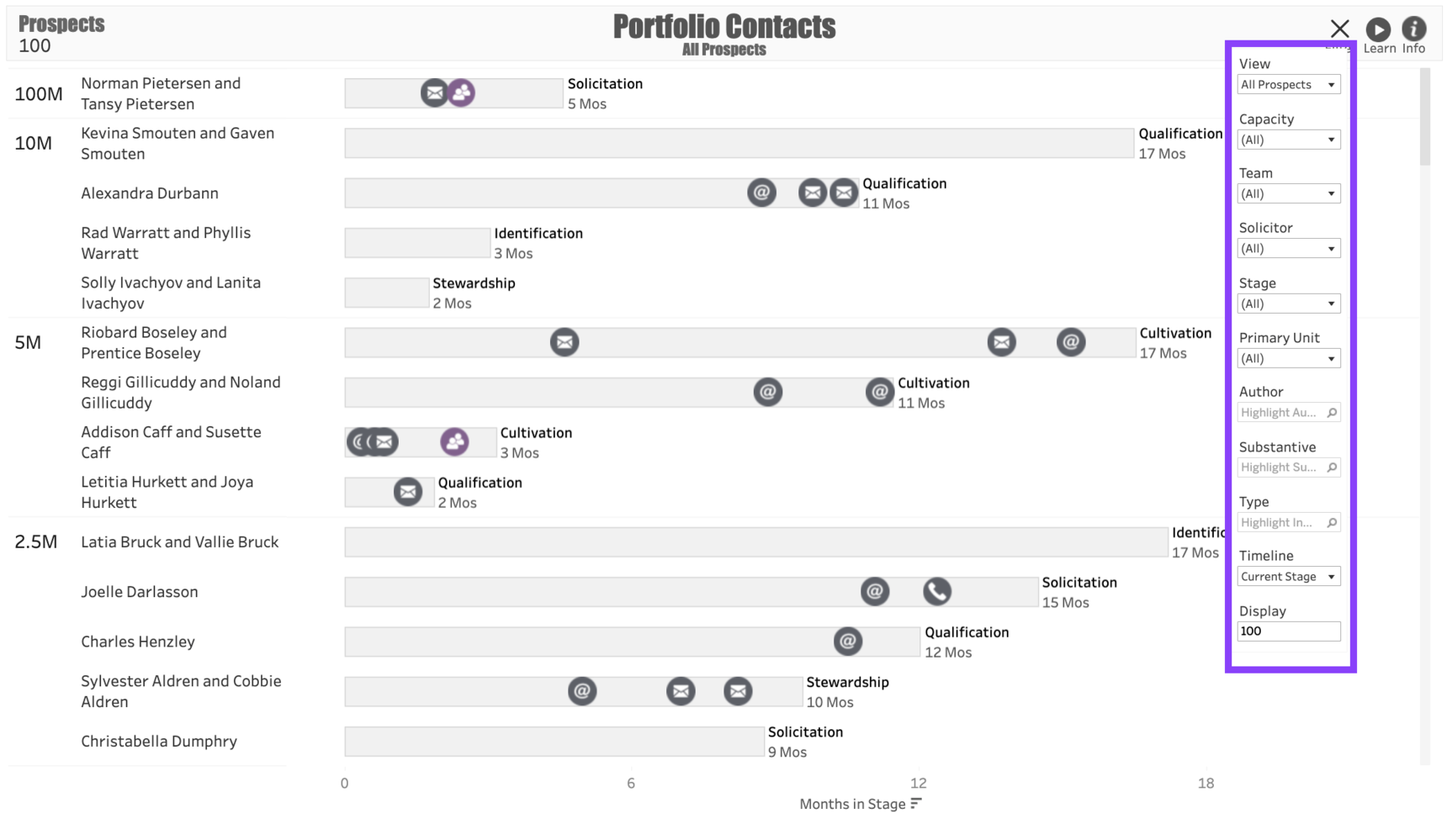
Use the following Filters to customize your dashboard:
View: This filter allows you to choose between All Prospects, prospects that are 24+ Months in Stage, and prospects that are 36+ Months in Stage. Use the latter two filters to quickly identify prospects who may be stagnating in your portfolio.
Capacity: Use to select prospects in specified gift capacity ranges.
Team: Use this filter to select one or more fundraising Teams whose portfolios you wish to view.
Solicitor: Use to select the name of one or more Portfolio Managers whose prospects you would like to view.
Stage: Use to filter in or out prospects in specific Stages.
Primary Unit: Use this to select the Primary Unit, or fundraising program category, associated with the prospect record.
Author: Choosing a specific Author will highlight the Interactions associated with the team member who authored them.
Substantive: Use this to highlight any In-Person Meetings, Virtual Meetings, or other interactions your team has coded as Substantive.
Type: This highlights all Interactions that are a specific type, such as Email.
Timeline: Use this to move back the “clock” associated with the dashboard, so you can see what activity took place with the prospects 3 Months Prior, 6 Months Prior, 12 Months Prior, 2 Years Prior, and 3 Years Prior.
Display: Allows you to change the dashboard record maximum from the default of 100 all the way up to 1,000.
Use Cases
Your dashboard views are interactive, made up of clickable and hoverable elements that enable thorough data analysis. Together, dashboard views and filters allow for endless experimentation, customization, and creativity.
Below, we offer a few ways you can strategically use the Portfolio Contacts dashboard, but we encourage you to spend time exploring the dashboard in your own time!
Stewardship Activity
You're a donor relations officer who wants to confirm that prospects in Stewardship are being regularly engaged.
Neglected High-Capacity Prospects
You manage a major gift team and want to make sure the high-capacity prospects they are assigned to are being proactively engaged.
Portfolio Review
You are a fundraiser looking for a high-level overview of your prospects’ engagement with the institution.
These are just some of the ways you can use the Portfolio Contacts dashboard to better understand your fundraising performance. Let us know how you’re using it!
For any other questions, reach out to EverTrue Support at genius@evertrue.com.
Reply
Content aside
- 9 mths agoLast active
- 17Views
-
1
Following