
Assets: Set up Email and Signature Templates
Set Up Email and Signature Templates in Assets
Why use Assets
Assets gives users a single place for email templates and signatures, instead of having to hunt for templates in the email composer.
Templates shown in the composer are the same templates stored in Assets.
Users can organize templates with shared tags, then search, sort, and filter to find the right one faster.
Templates can be reused in bulk messages and in automated email steps within cadences.
Watch the video to learn more about storing email and signature templates in the Assets area.
https://www.loom.com/share/d125aa03301b4b609b45fbfa14a83f62
Note: This article covers Cadences 2.0, the newer outreach experience. Read Cadences vs. Cadences 2.0: What’s the Difference? or go to the original Cadences 1.0 help articles.
Steps
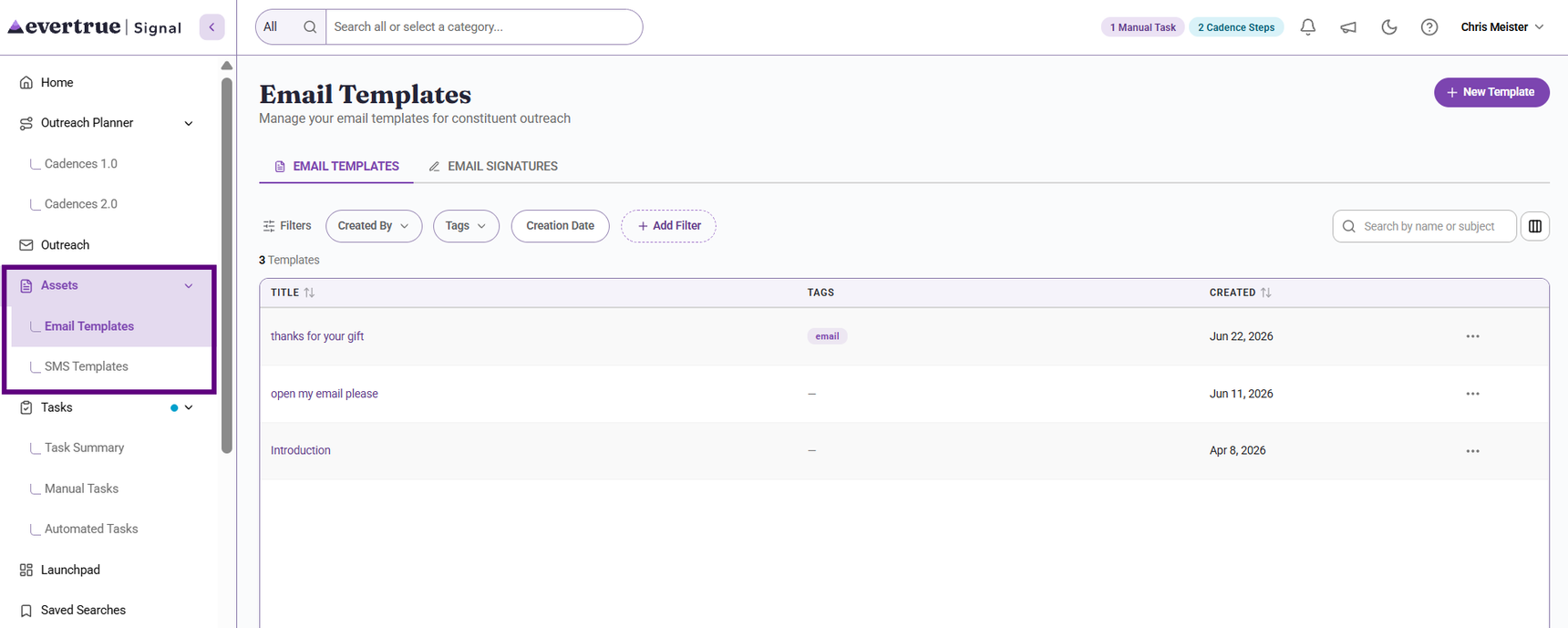
1. Open Assets and go to Email Templates, SMS Templates or Email Signatures
On the Signal Home page, go to Assets, then open Email or SMS Templates. This is now the central home for templates and email signatures.
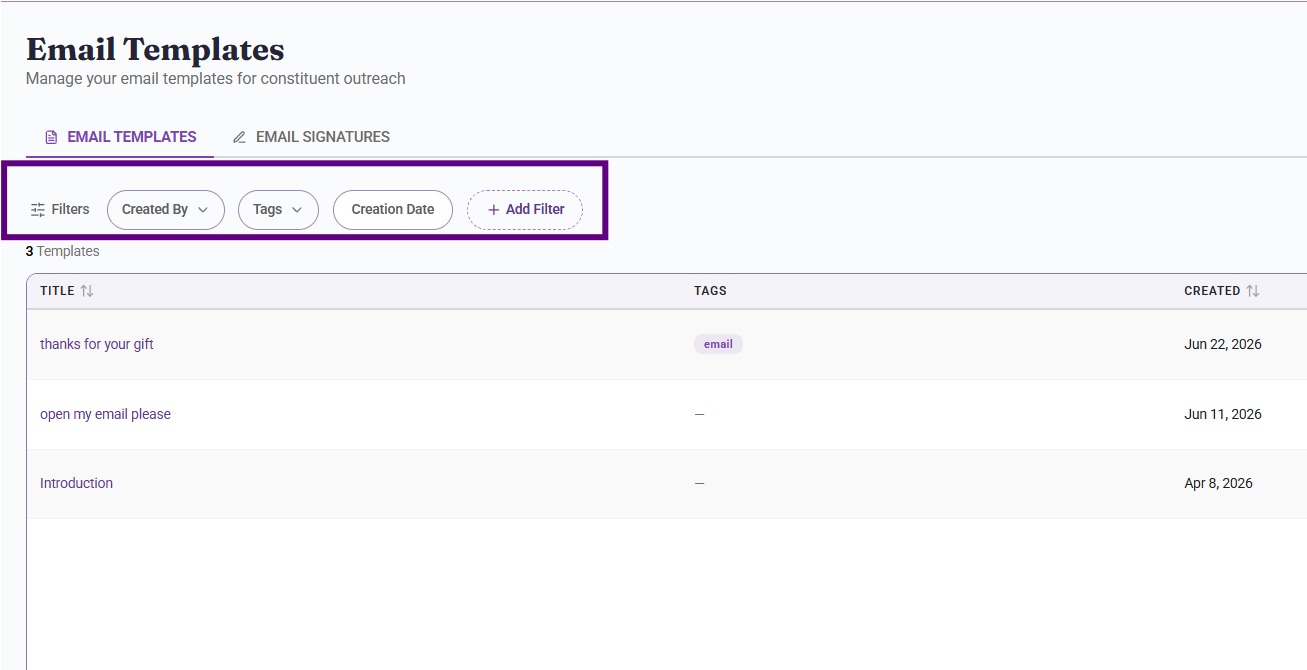
2. Review the template library
Use the table to browse your existing templates. You can search, sort, and filter to find what you need.
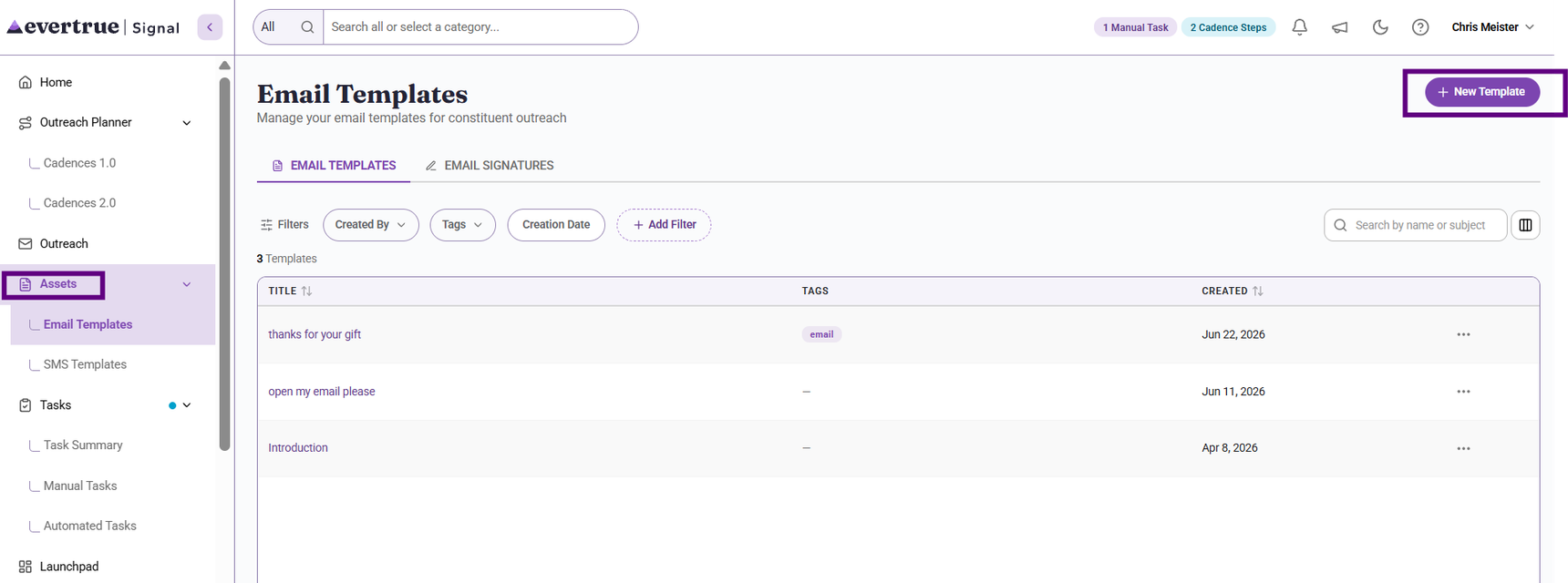
3. Create a new template or signature
Click Create New and choose Email Template, SMS Template or Email Signature. The creation process has not changed; users can manage these assets from one place.
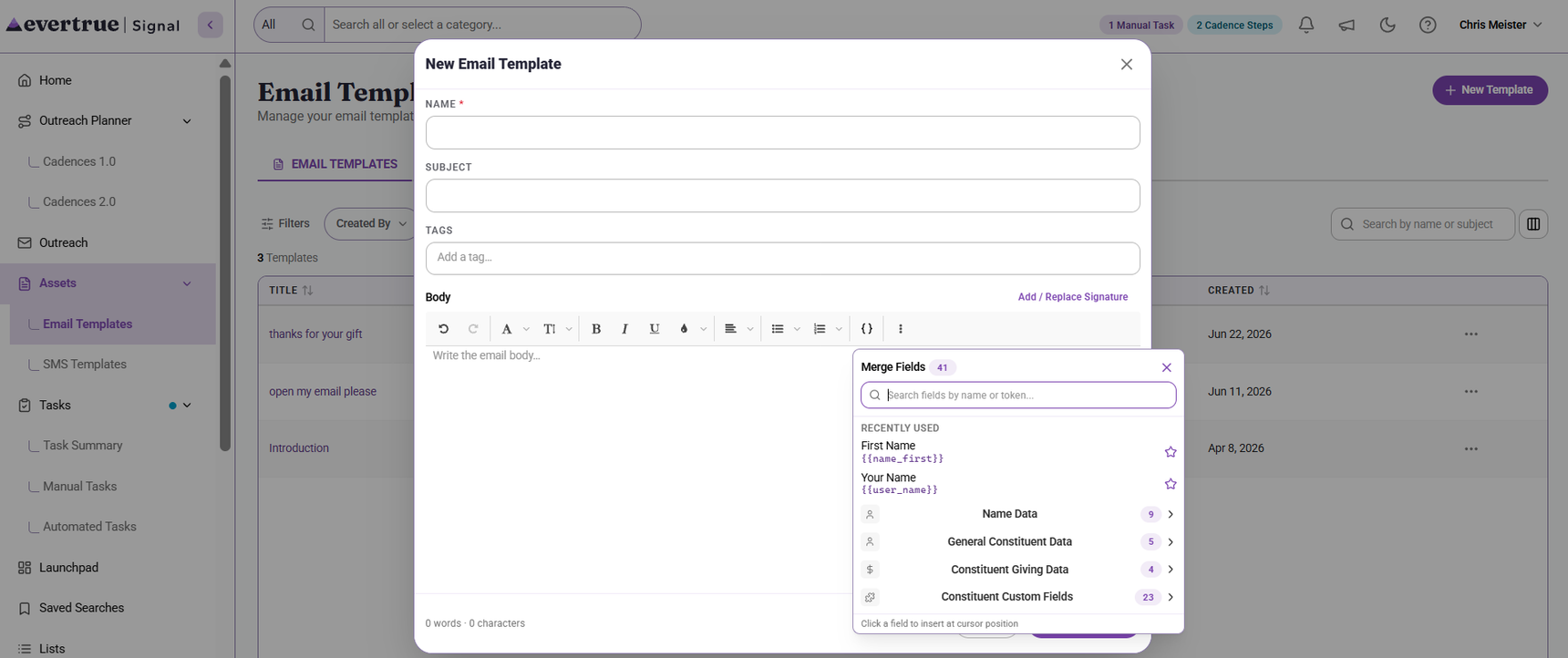
4. Build an email template
For a template, enter the name, subject line, body copy, and tags. Add signature content if needed. Use one of the many merge fields for more personalization.
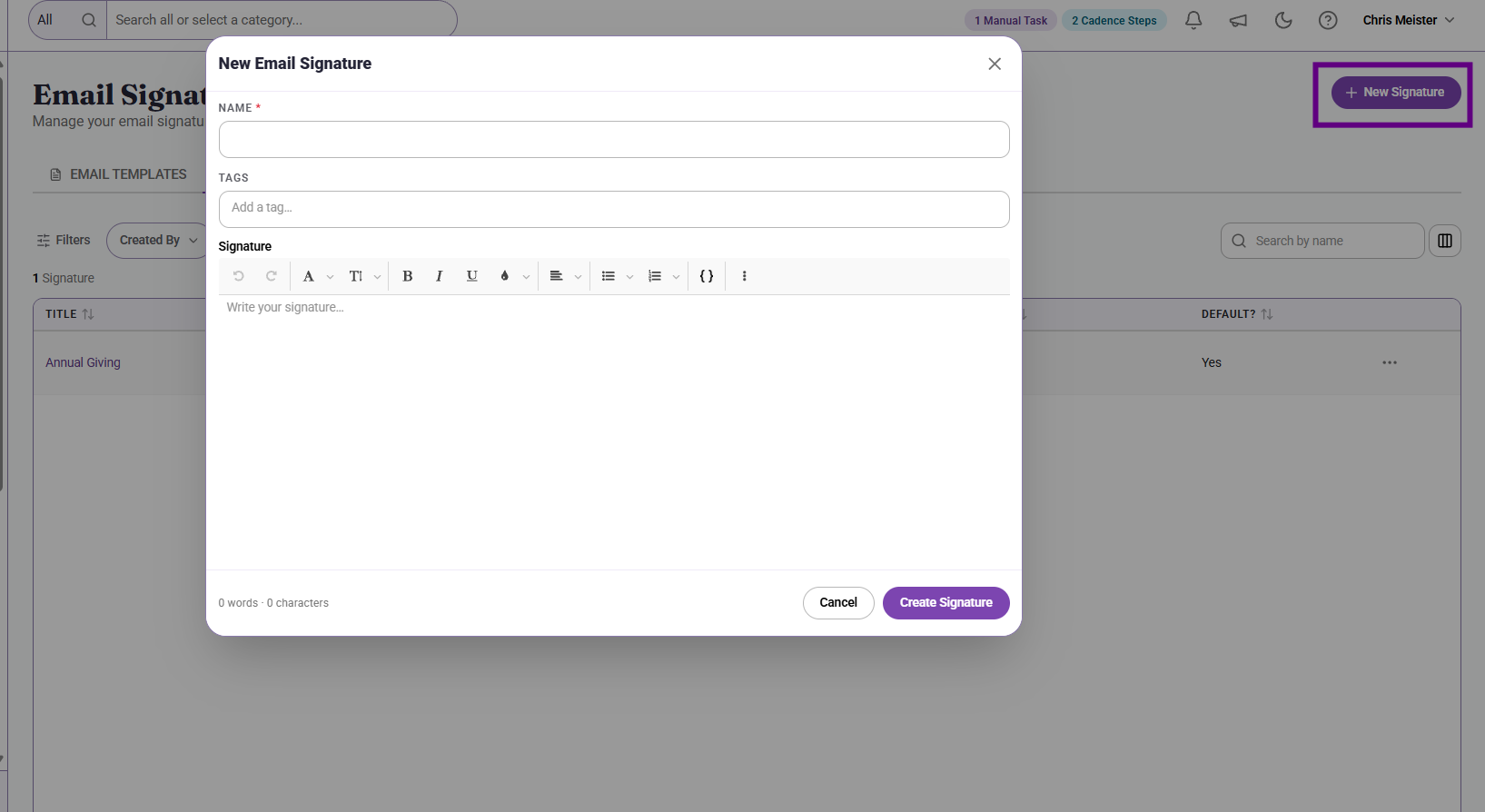
5. Build an email signature
For a signature, enter the title, body content, and tags. Users can now keep more than three (3) signatures if they want to.
Tips for Users
Use tags to organize assets
Apply tags so templates are easier to find later. Tags are shared across the organization, which supports a more consistent organization and future collaboration.
Insert the template into outreach
Use the saved template in the email composer, in a bulk message, or in an automated email step in a cadence.
Review the final message before sending
Templates save time, but users should still review the final message to make sure the content fits the specific use case.
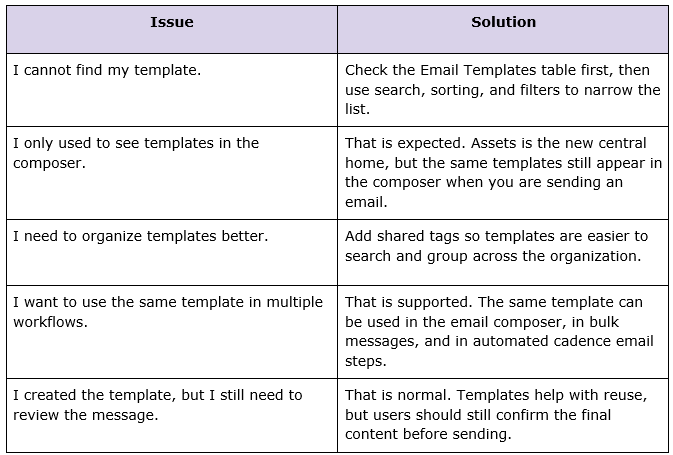
Troubleshooting
Content aside
- 4 mths agoLast active
- 78Views
-
1
Following