
DNS Setup for Cadences 2.0
Domain Name System (DNS) Setup for Cadences 2.0
Before your organization can send automated emails or bulk messages through Cadence 2.0, an organization owner must configure and verify a sending domain. This confirms that Cadence 2.0 is authorized to send from your organization's domain and helps support email deliverability.
At a glance: Users can create cadences, blueprints, bulk messages, and outreach content before DNS is verified. Automated sending and bulk message sending remain unavailable until verification is complete.
What you can do before DNS setup is complete
Cadence 2.0 remains available while DNS setup is pending. Users can continue to:
Create cadences and blueprints
Create bulk messages
Prepare and edit outreach content
Activate cadences that contain only manual steps, such as manual emails or manual research tasks
Automated sending remains locked until the domain is verified. Cadences with automated email steps cannot be published or activated, and bulk messages cannot be sent.
Who can set up a sending domain?
Only users with the Owner role can access Organization Settings and configure a sending domain. If you are not an owner, ask an organization owner to complete the setup or work with your IT team.
You will need a domain associated with your organization's email infrastructure. Examples include:
Subdomains are supported, but the domain must belong to your organization. For example, if your EverTrue login email uses asu.com, you may use asu.com, mail.asu.com, outreach.asu.com, or another valid subdomain of asu.com.
Set up your sending domain
Watch this video to see the setup.
Step-by-step setup
1. Open DNS setup
Click your name in the top-right corner of the EverTrue app and select Settings.
Then select Organization Settings. Finally, select Set Up Domain.
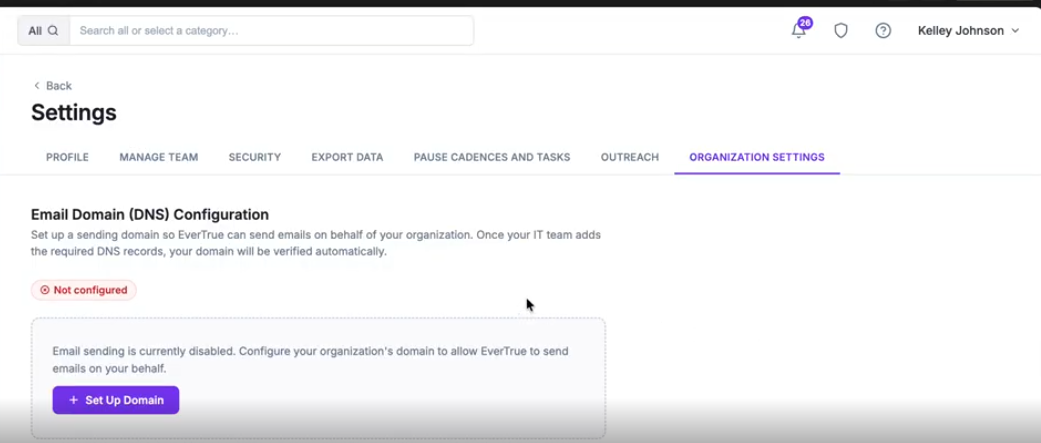
2. Enter the domain you want to send from
Type the full domain you plan to use for sending, such as mail.university.edu.
3. Generate DNS records
After you generate the records, EverTrue will show the values to add for your setup. Copy the DKIM and Return Path records.
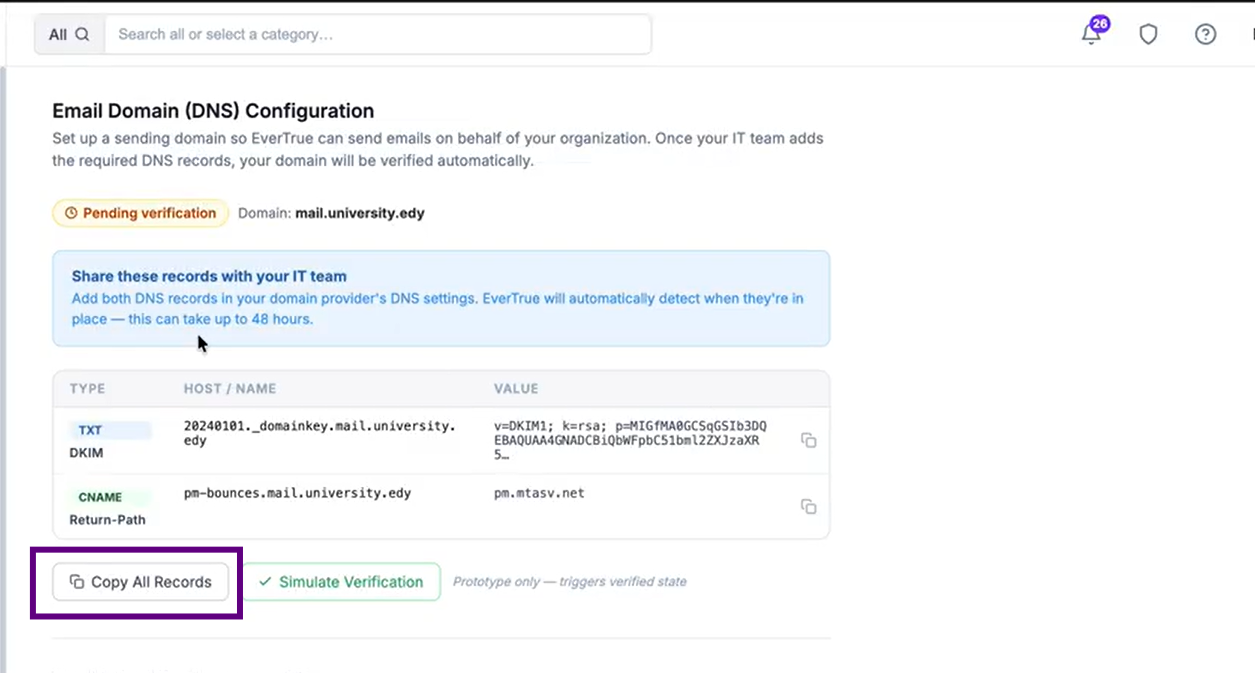
4. Add the DKIM and Return Path records to Domain Registrar
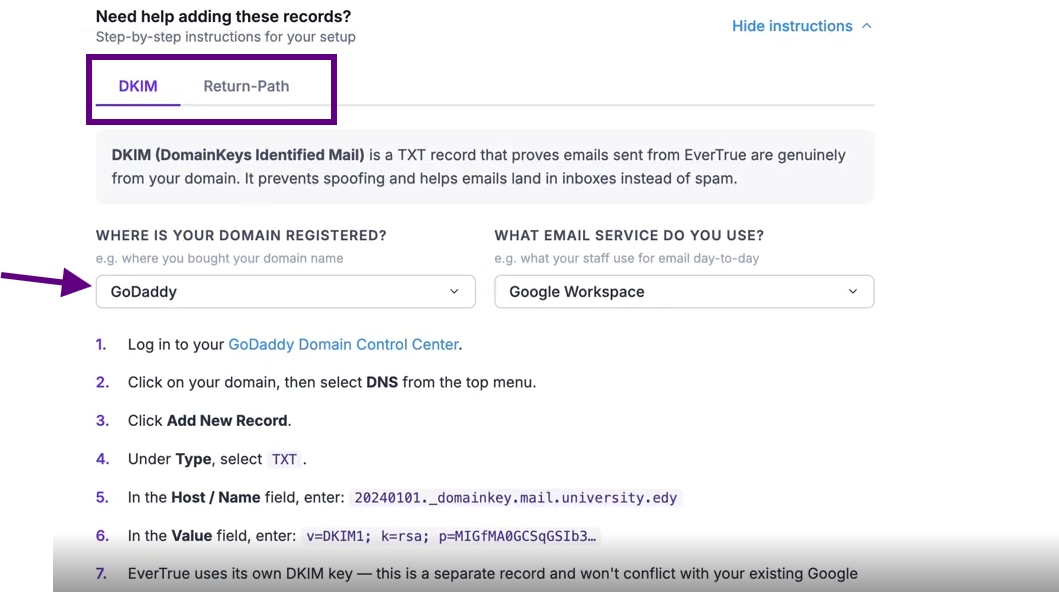
Now paste DKIM and Return Path records to the Domain Registrar or email provider settings. See image below for guidance. You can also send these records to your IT team.
5. Verify Records
After the DNS records have been added, return to Organization Settings and select Verify DNS Records.
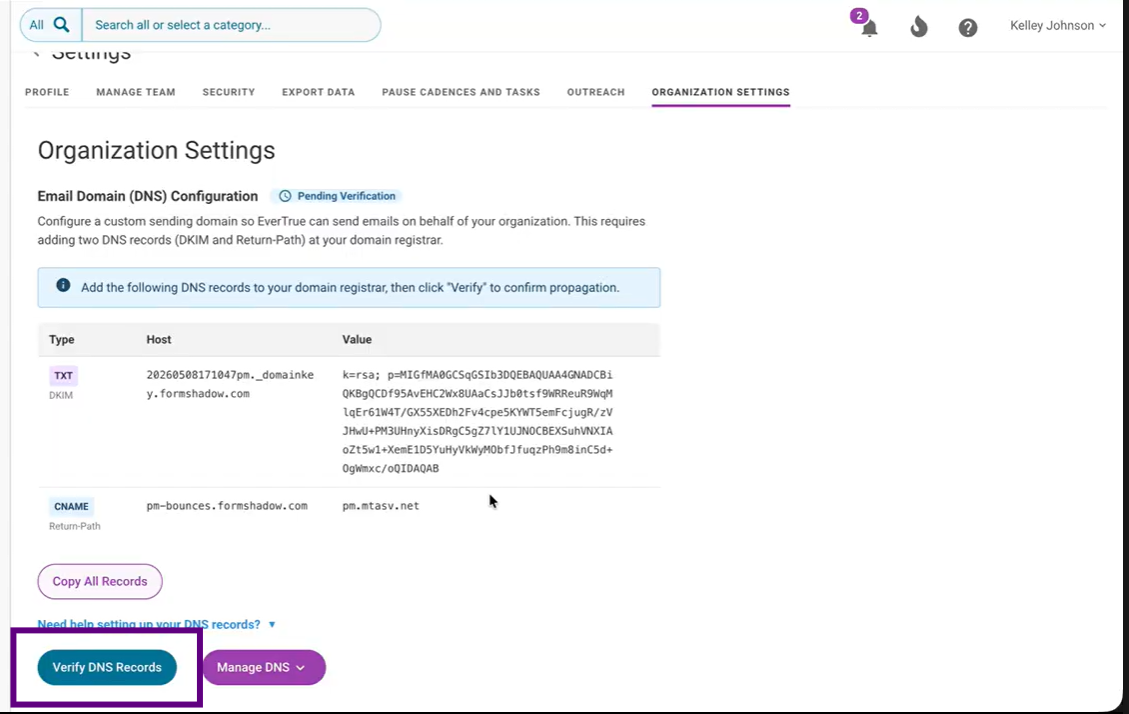
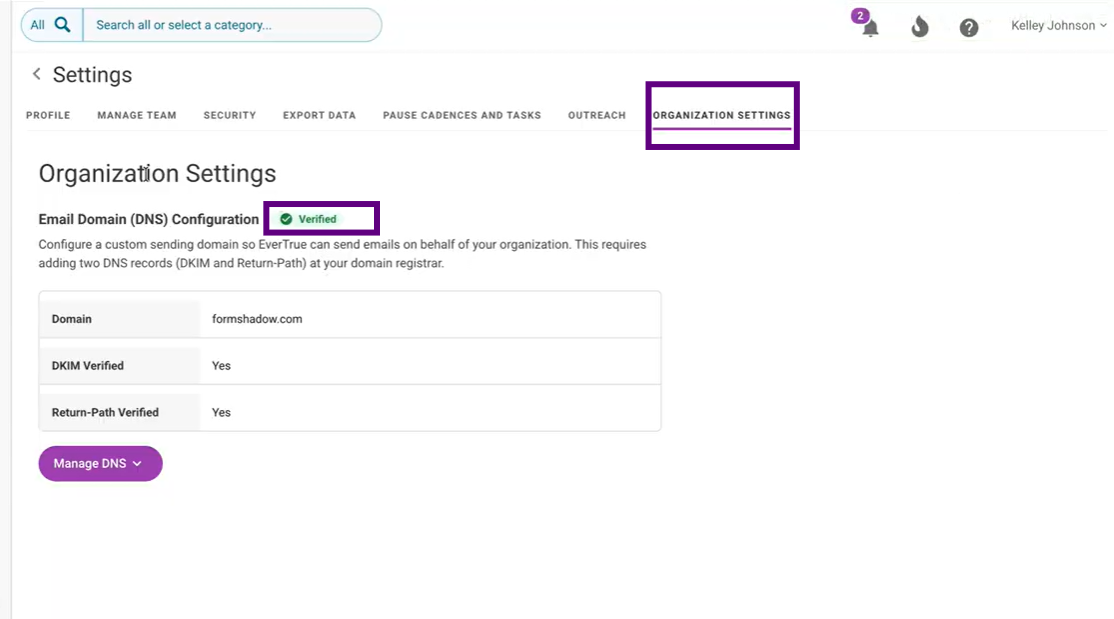
After verification, your organization can send automated cadence emails and bulk messages from the configured domain. Once verification is successful:
Automated cadences can be activated
Bulk messages can be sent
Sender details in Cadence 2.0 will reflect the verified domain
What users see while DNS is pending
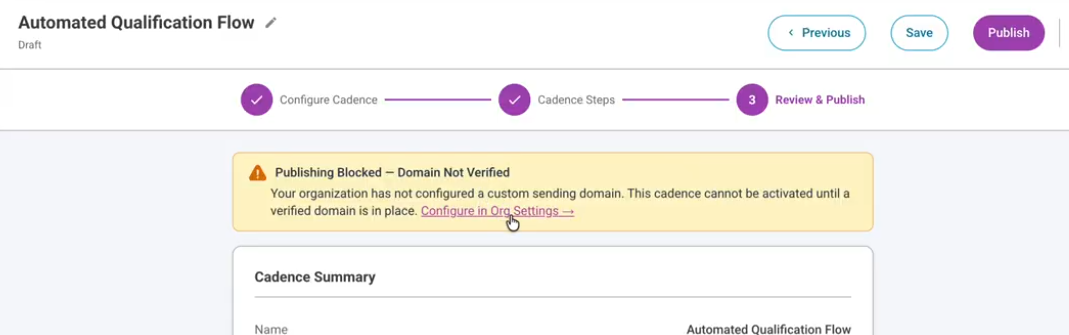
Users may see warnings while building automated cadences or bulk messages. Organization owners will see links to the Organization Settings. Publishing, activation, and sending remain blocked until a domain is verified.
If DNS becomes disconnected
If a verified domain is later disconnected:
Automated cadences move to a Paused state
Scheduled bulk messages may fail
Warning banners appear throughout Cadence 2.0
After DNS is reconnected and verified again, cadences that were automatically paused return to Active status, and users will see confirmation messaging.
Troubleshooting and common questions
Question or issue |
What to know |
Why can’t I send a cadence email or bulk message? |
DNS setup may not be complete yet. Users can build outreach before setup is finished, but sends will return an error until verification is complete. |
Who can start DNS setup? |
An EverTrue user with an owner role starts the process. |
Do I need an IT team? |
Not always. The product is designed to let users either share the records with IT or follow guided self-service steps. |
What happens after the records are added? |
EverTrue checks for the records automatically. Once detected, sending becomes available. |
Can I keep building while I wait? |
Yes. You can create cadences, bulk messages, and blueprints while waiting for DNS verification. |
Related terms
DNS: The system that maps domain information and allows the required sending records to be published.
Domain: The web or email domain your organization wants to send from.
DKIM: A type of DNS record used to help authorize email sent from your domain.
Return Path: A sending-related DNS configuration that supports email delivery and routing.
Owner role: The EverTrue permission level required to begin DNS setup.
Content aside
- 4 mths agoLast active
- 258Views
-
1
Following