
Create and Send a Bulk Message
Create and Send a Bulk Message
Use a bulk message when you want to send one email to many recipients at one time,
and the content is mostly the same for everyone, with only light personalization, such as
merge fields.
When to use a bulk message:
If you need reminders, branching logic, or follow-up steps, build a cadence instead.
If you would like bulk messages disabled for your organization, contact EverTrue Support at genius@evertrue.com.
https://www.loom.com/share/cf8322066eb94327a408031085589757
Watch the full video on how to create and send a bulk message.
Note: This article covers Cadences 2.0, the newer outreach experience. Read Cadences vs. Cadences 2.0: What’s the Difference? or go to the original Cadences 1.0 help articles.
Steps
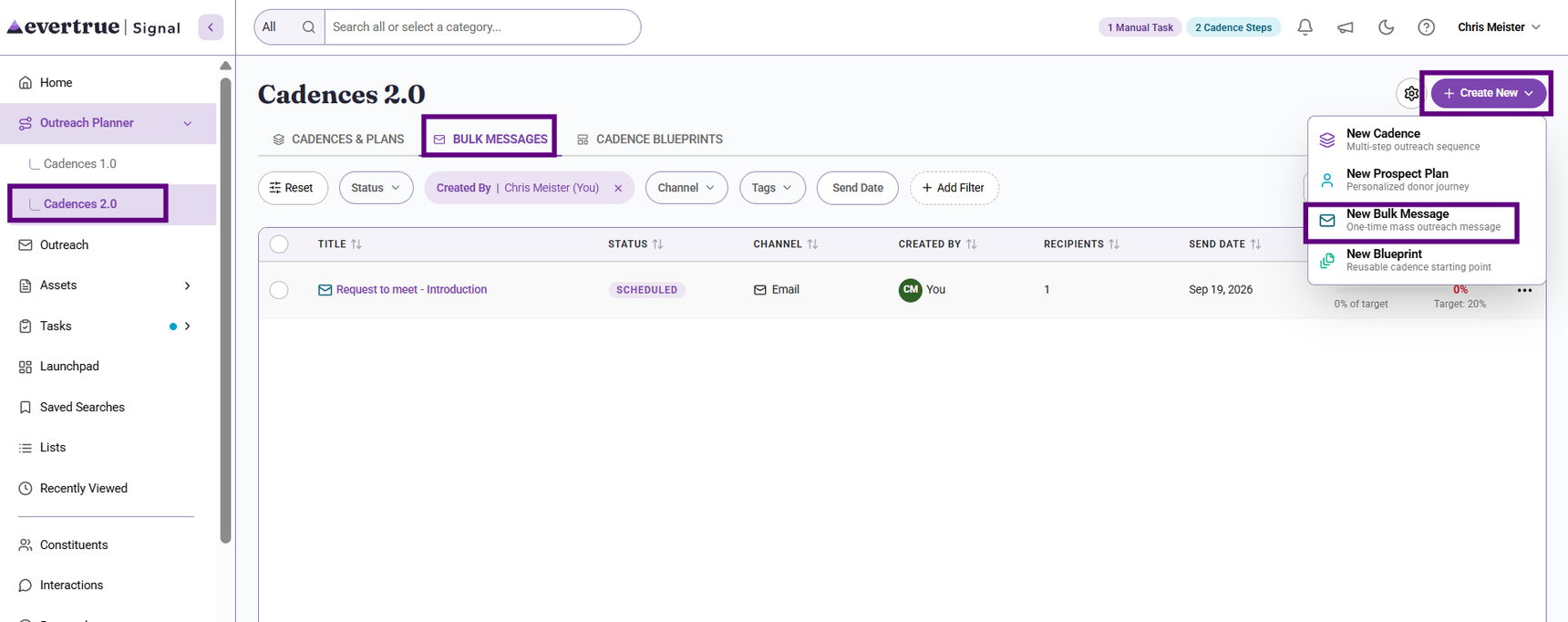
1. Open Bulk Messages and create a new bulk message
Go to Cadences 2.0 and open Bulk Messages. Start a new bulk message to launch the setup flow.
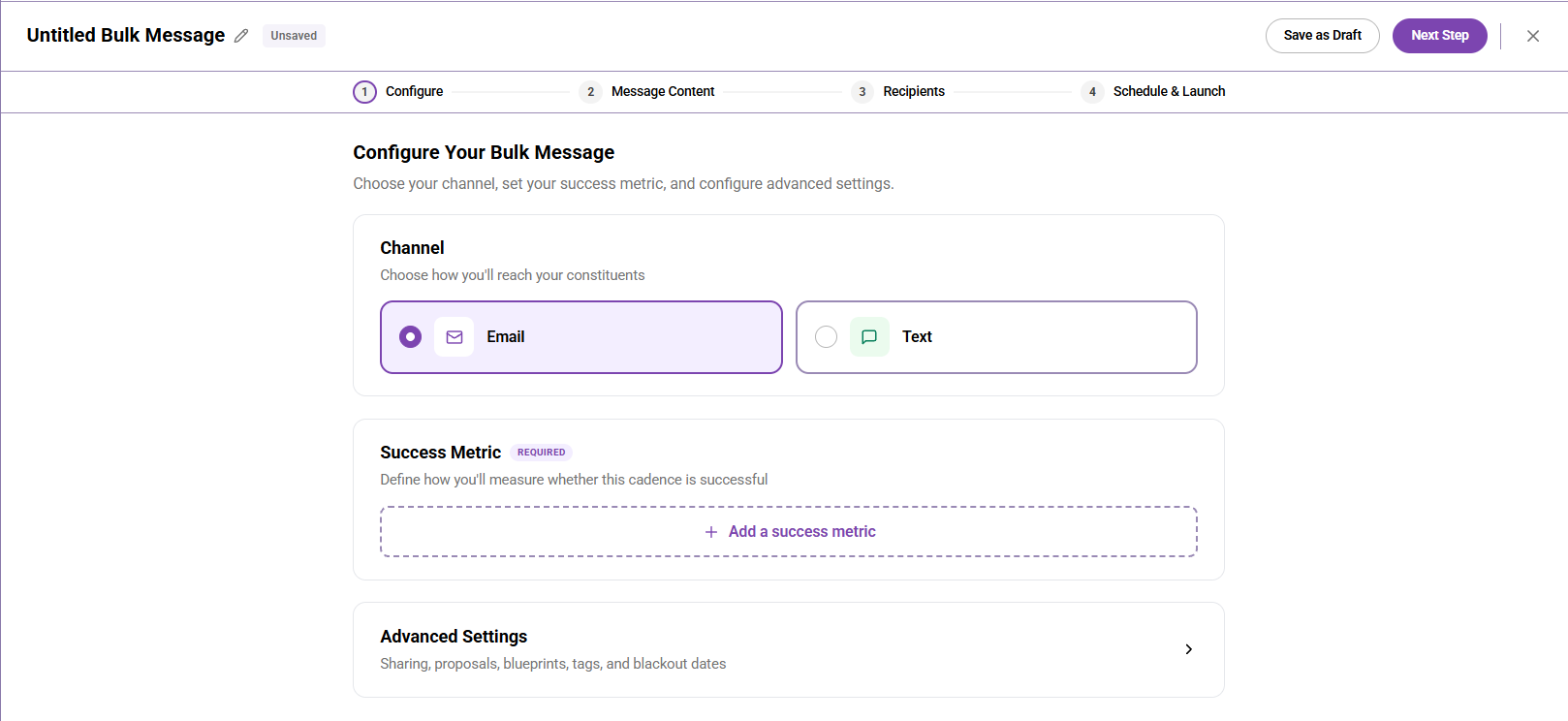
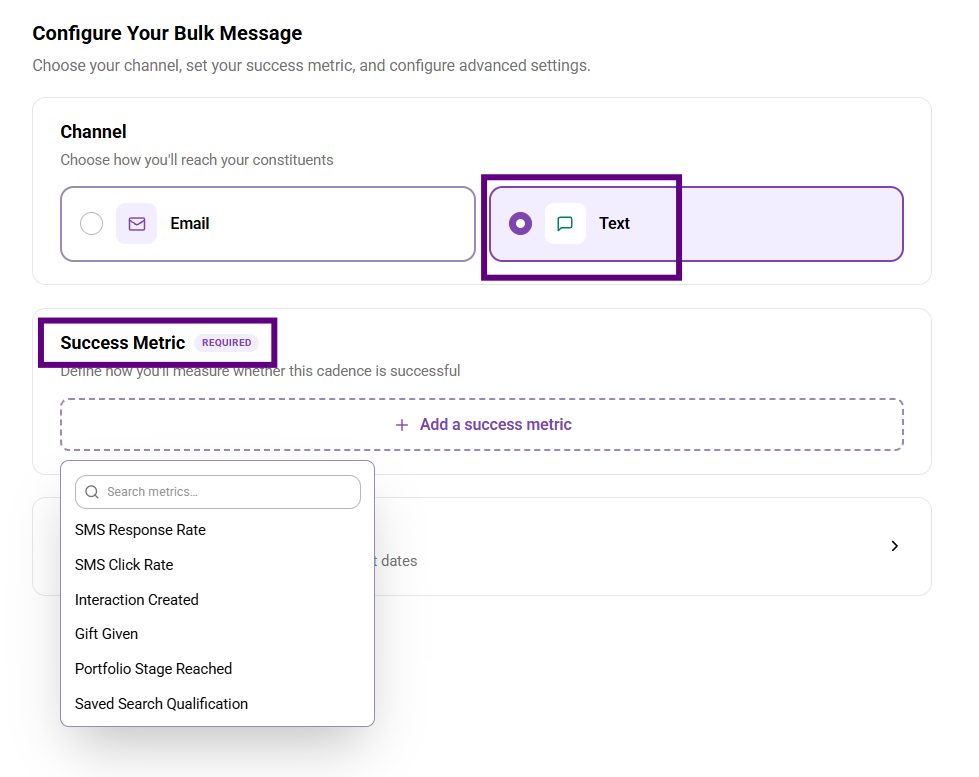
2. Choose the primary success metric
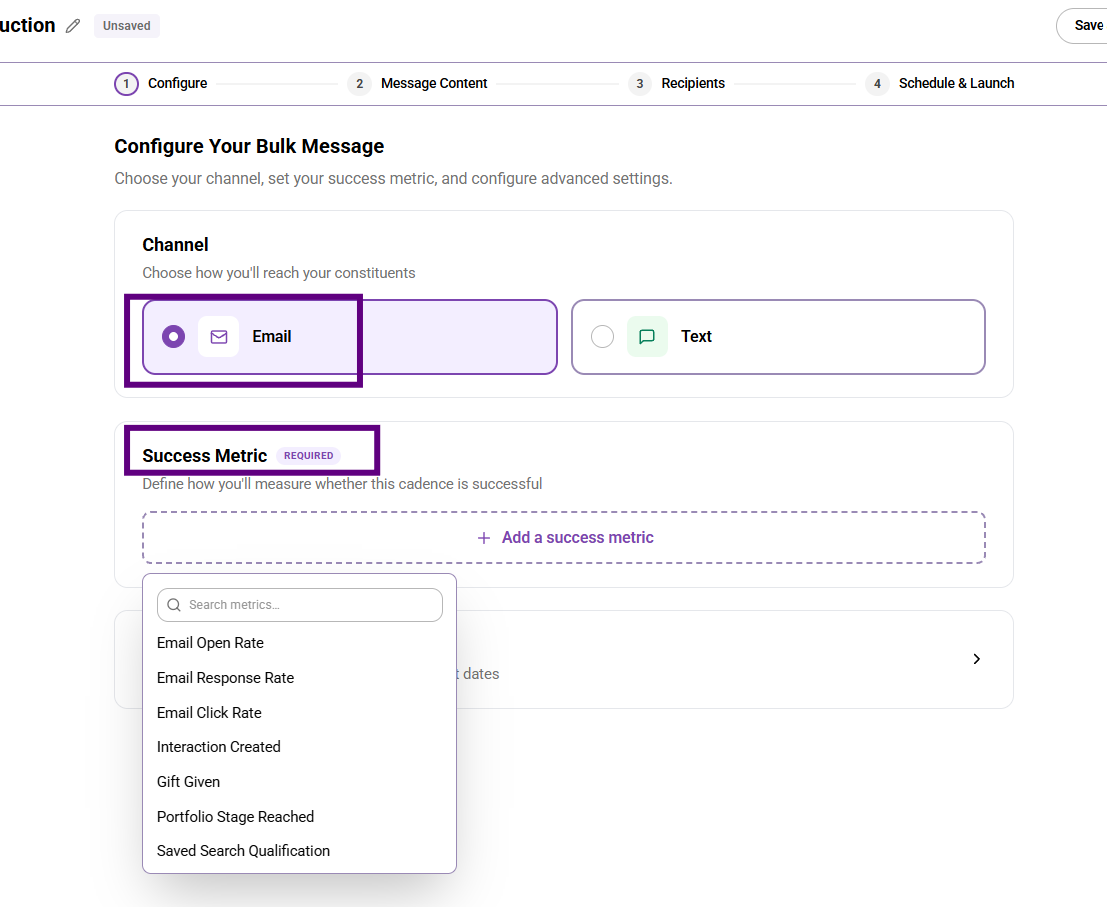
Select one required success metric that matches the real goal of the send, such as email open rate, email response rate, email click rate, interaction created, gift given, portfolio stage reached, and saved search qualification.
3. Complete the Message Content step and include a template if you want
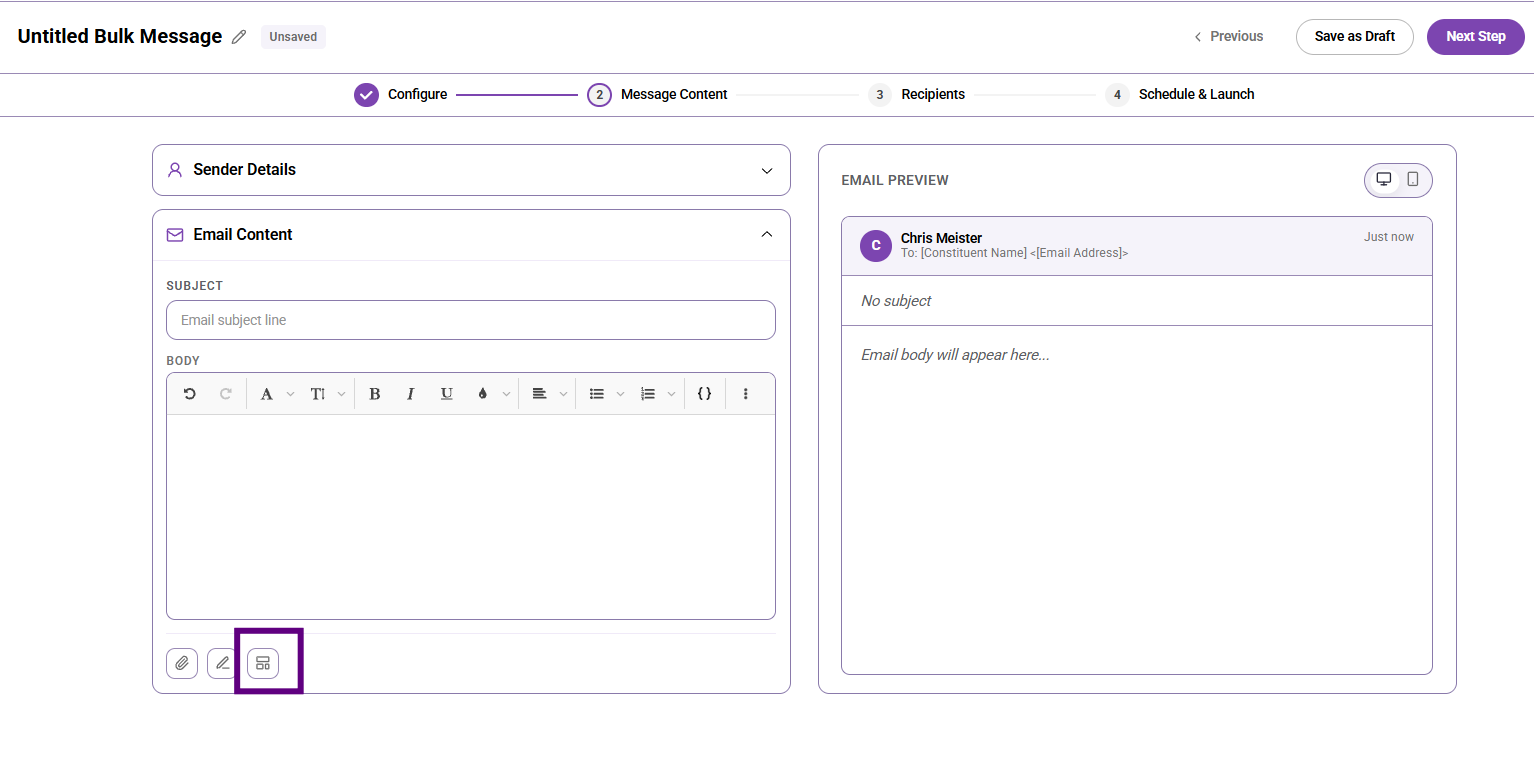
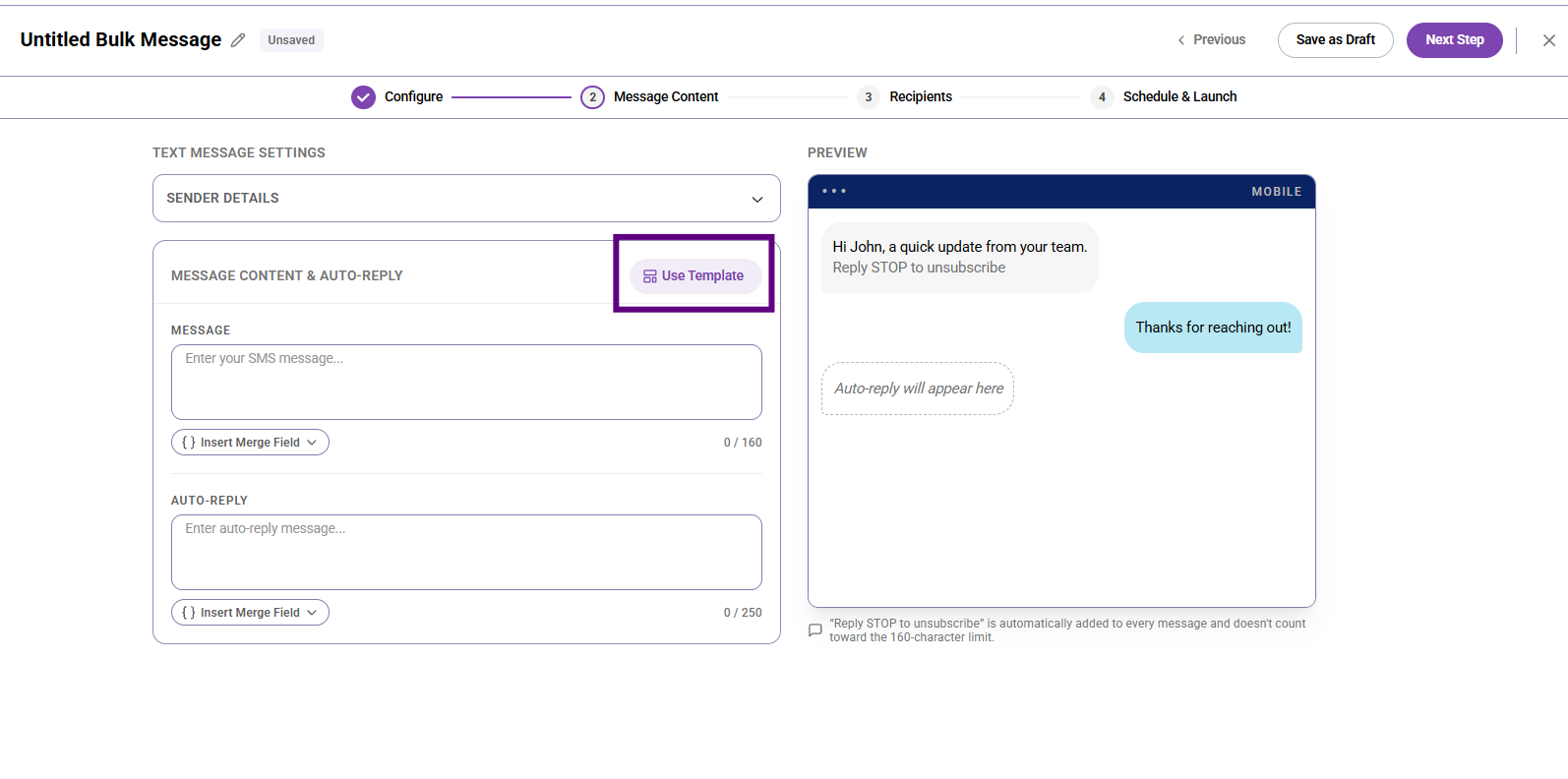
Enter or review the sender email, sender name, reply-to email, subject line, and message body. This is where the main message is built. Open the template library and insert a saved template when you want to reuse approved or commonly used content. After inserting the template, review and edit the message for this specific send.
4. Preview the message
Review the subject line, body content, merge fields, sender details, and formatting before
moving on. If desktop and mobile previews are available, check both.
5. Choose the recipients
Next, select the recipients for the bulk message. Confirm the recipients are
correct before continuing. You can use a list, saved search, or select contacts.
https://www.loom.com/share/684de629280e4d70a958d6df4dd2e47b
6. Review advanced settings
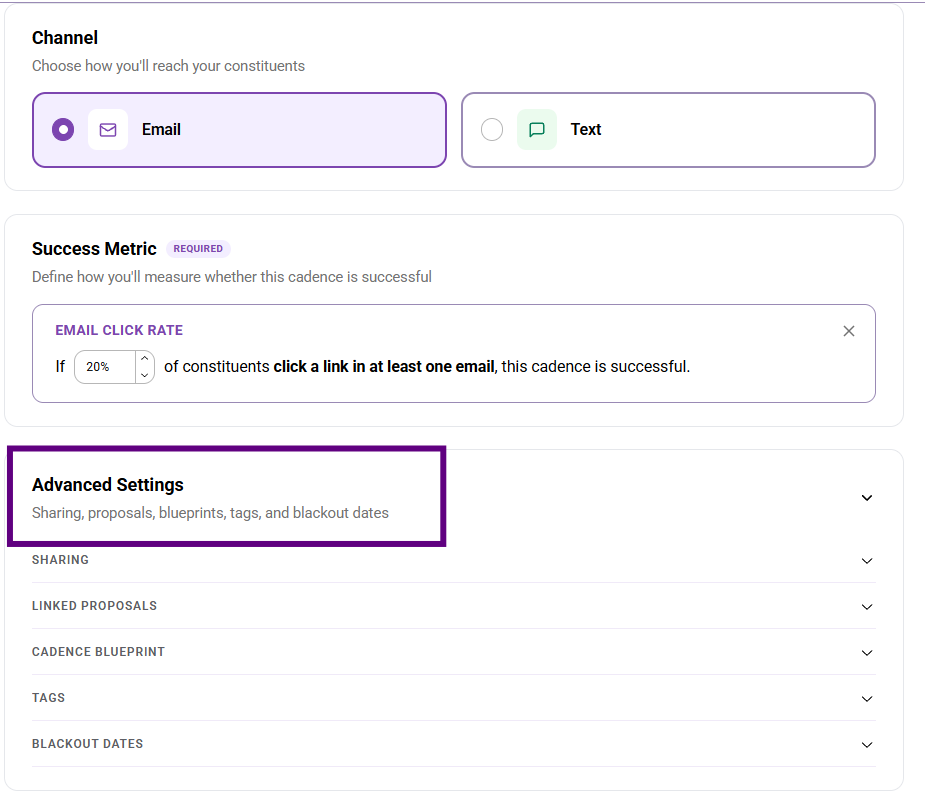
Check options such as sharing, linked proposals, cadence blueprint, tags, and blackout date behavior.
Confirm whether the message should respect blackout dates and pauses. Learn more about advanced
settings in the full video.
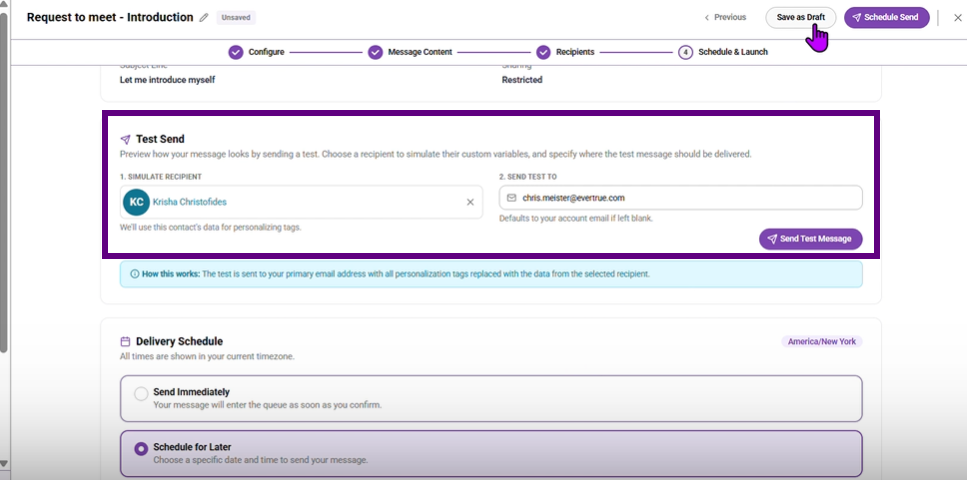
7. Send a test message
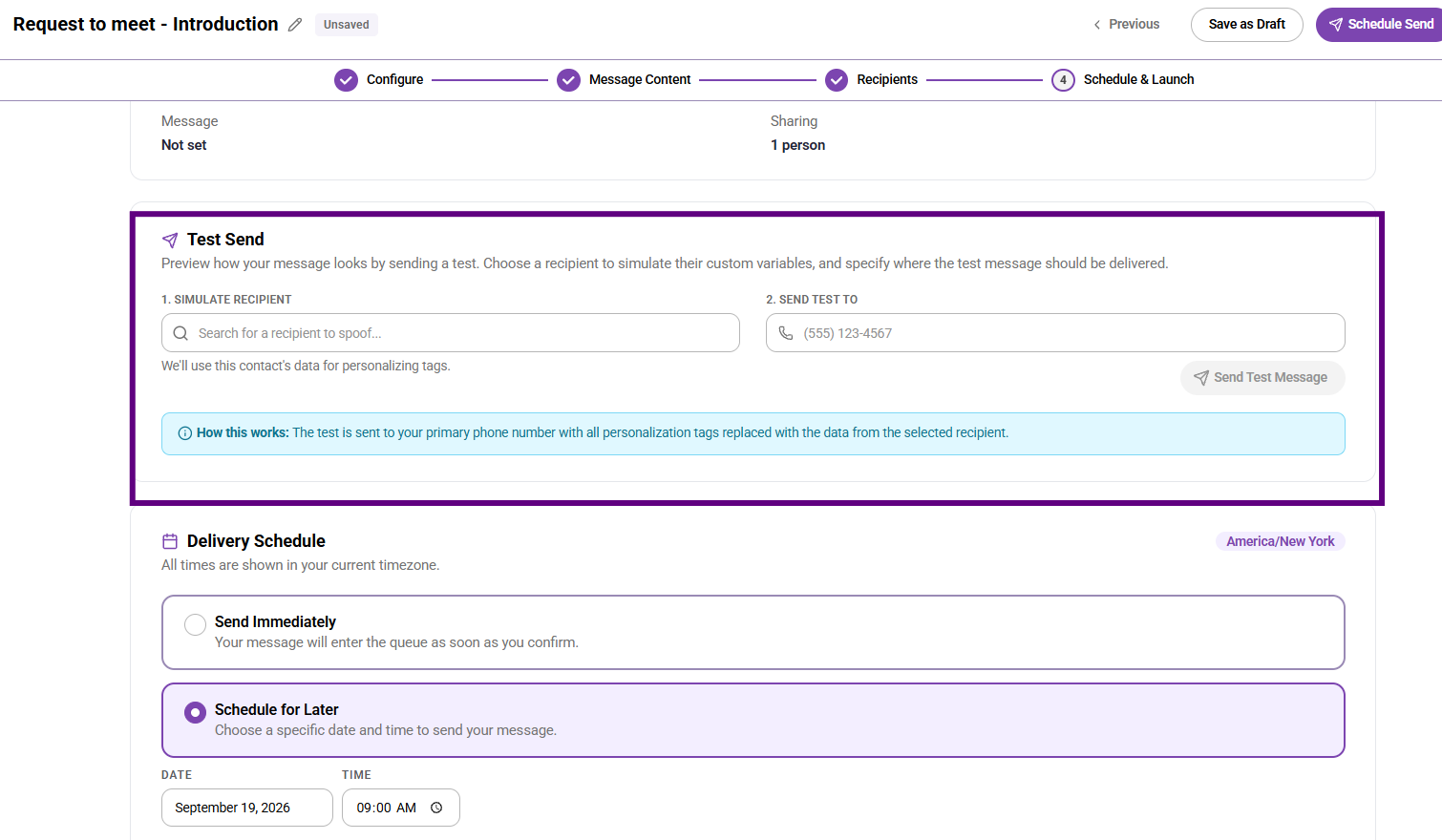
Use Test Send to verify formatting, personalization, sender details, and message content in a real email.
If the workflow supports it, preview the message against a specific contact before sending the test to
yourself.
8. Choose Send Now or Schedule Send
Decide whether to send immediately or schedule the message. If scheduling is available, confirm the date, time, and time zone.
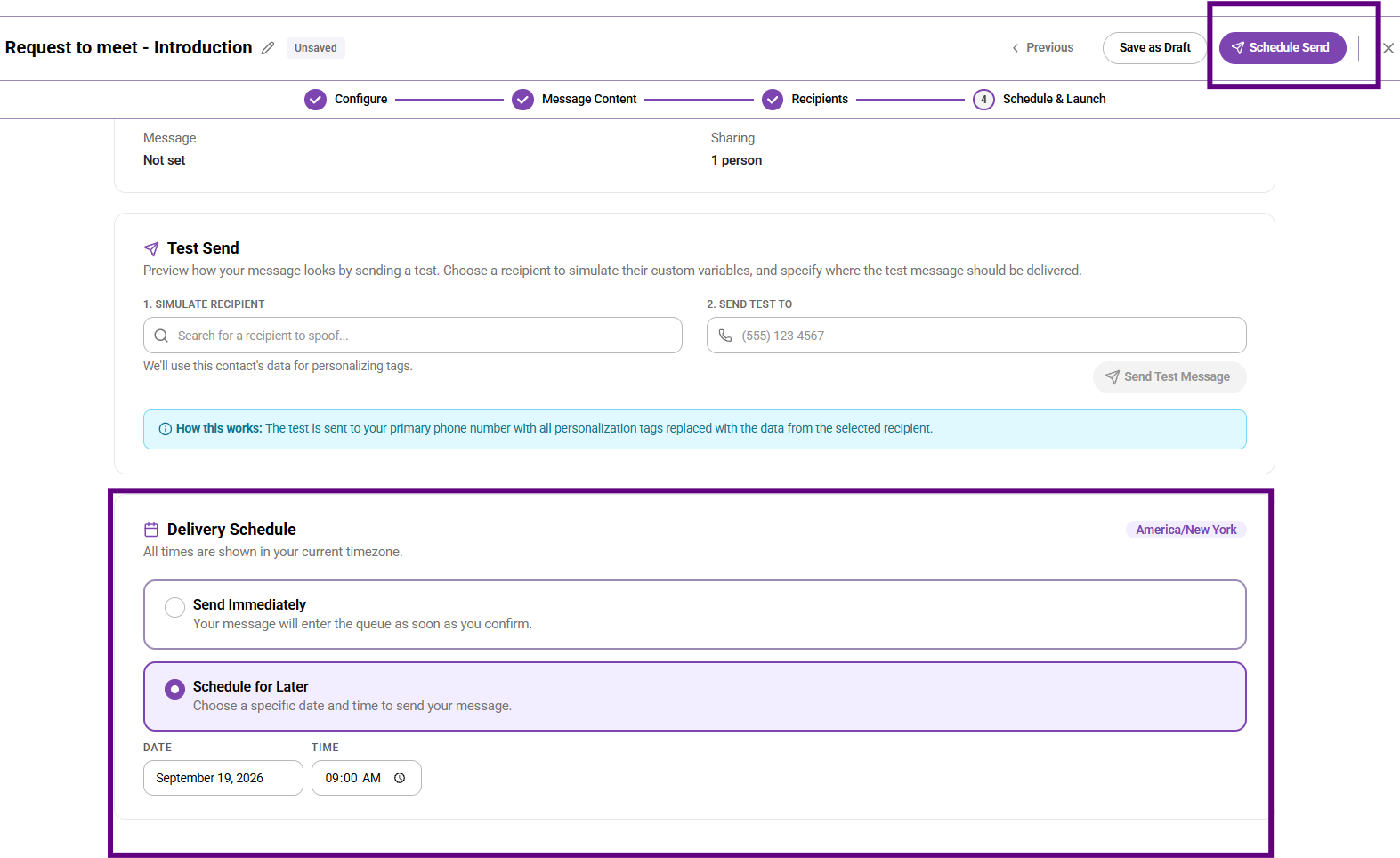
9. Send the bulk message
Once the content, recipients, metric, and settings are correct, send the message. After sending, read the Review Bulk Message Performance and Recipient Status Help Article to monitor the success of your message.
What Users Should Know
- A bulk message is a one-time send, not a sequence.
- A primary success metric is required because the system uses it to judge whether the send met its goal.
- Templates save time, but the final message still needs a human review before launch.
- A test send is the quickest way to catch formatting or personalization problems before the full send.
Best Practices
- Use a bulk message only when the content is mostly the same for everyone.
- Choose the success metric based on the real purpose of the outreach, not just the easiest metric to measure.
- Send a test before broad distribution, especially for high-visibility outreach.
- Double-check the audience before sending. That old habit prevents avoidable mistakes.
Troubleshooting
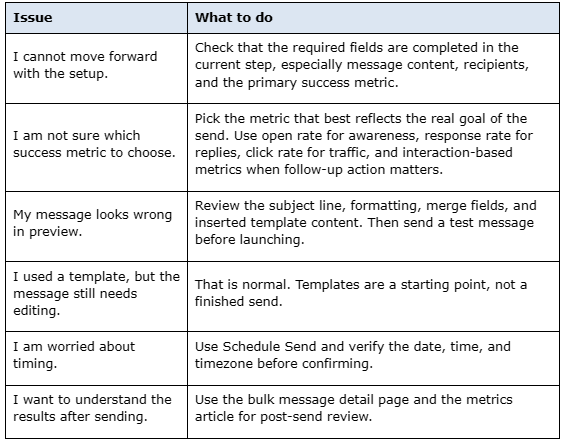
If you would like bulk messages disabled for your organization, contact EverTrue Support at genius@evertrue.com.
Content aside
- 4 mths agoLast active
- 130Views
-
1
Following