
Cadences vs. Cadences 2.0: What’s the Difference?
|
At a glance- Summary of Features (full descriptions below)
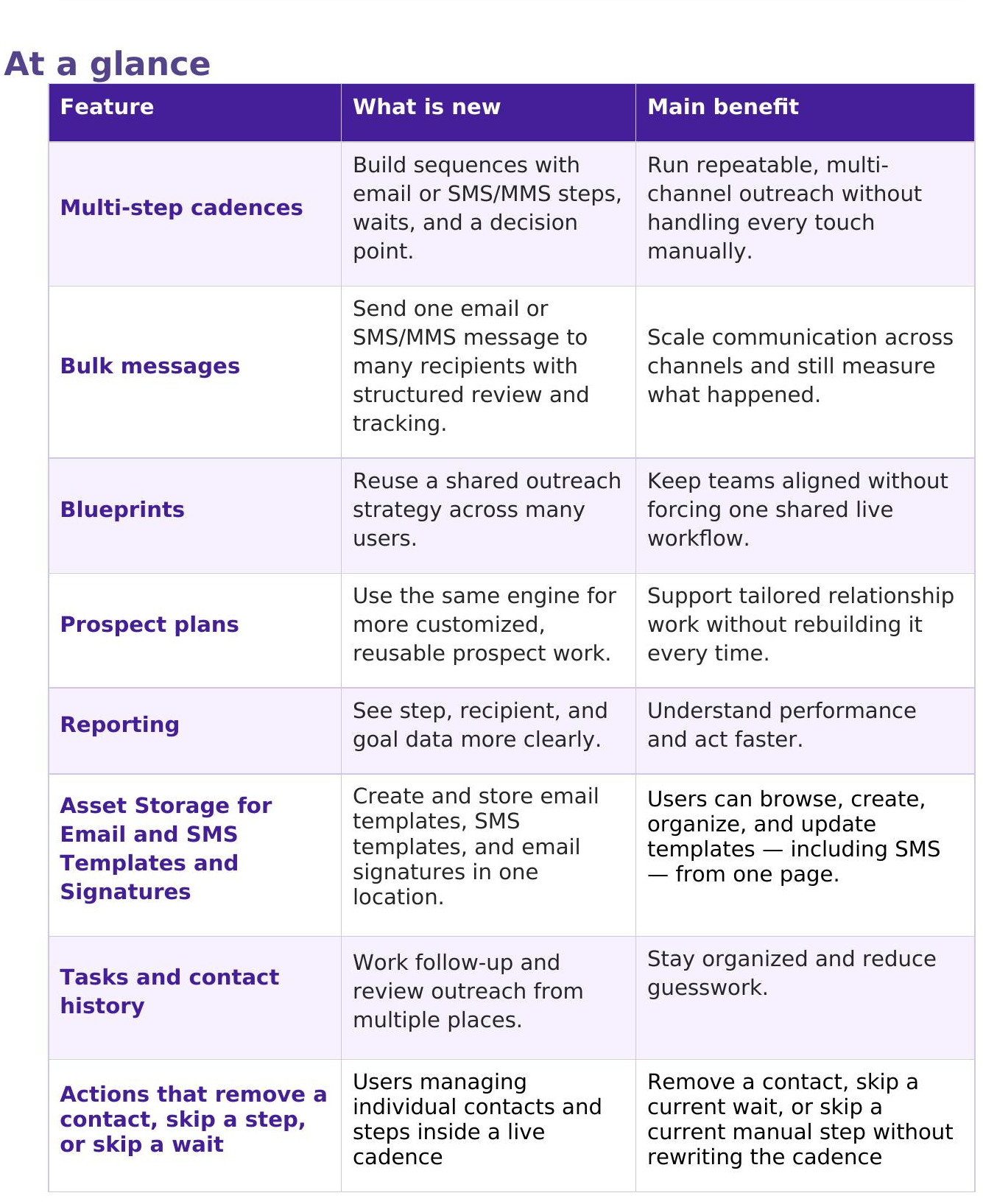
What is new - Cadences 2.0
Multi-step cadences
What this feature is: A cadence is a structured outreach sequence that moves contacts through a planned series of actions over time. In Cadences 2.0, users can build a flow with email steps, wait periods, and one branching decision based on recipient behavior or another rule.
What changed: Instead of treating outreach as a loose set of reminders or one-off sends, users can now define the full sequence in one place and choose which steps are automated and which steps stay manual.
Why it matters: This helps teams run outreach more consistently, saves time on repeat work, and makes it easier to see where a contact is in the journey at any given moment.
How to get started: Create a new cadence, choose one success metric, decide whether to add recipients now or later, then build the sequence step by step before reviewing and publishing it.
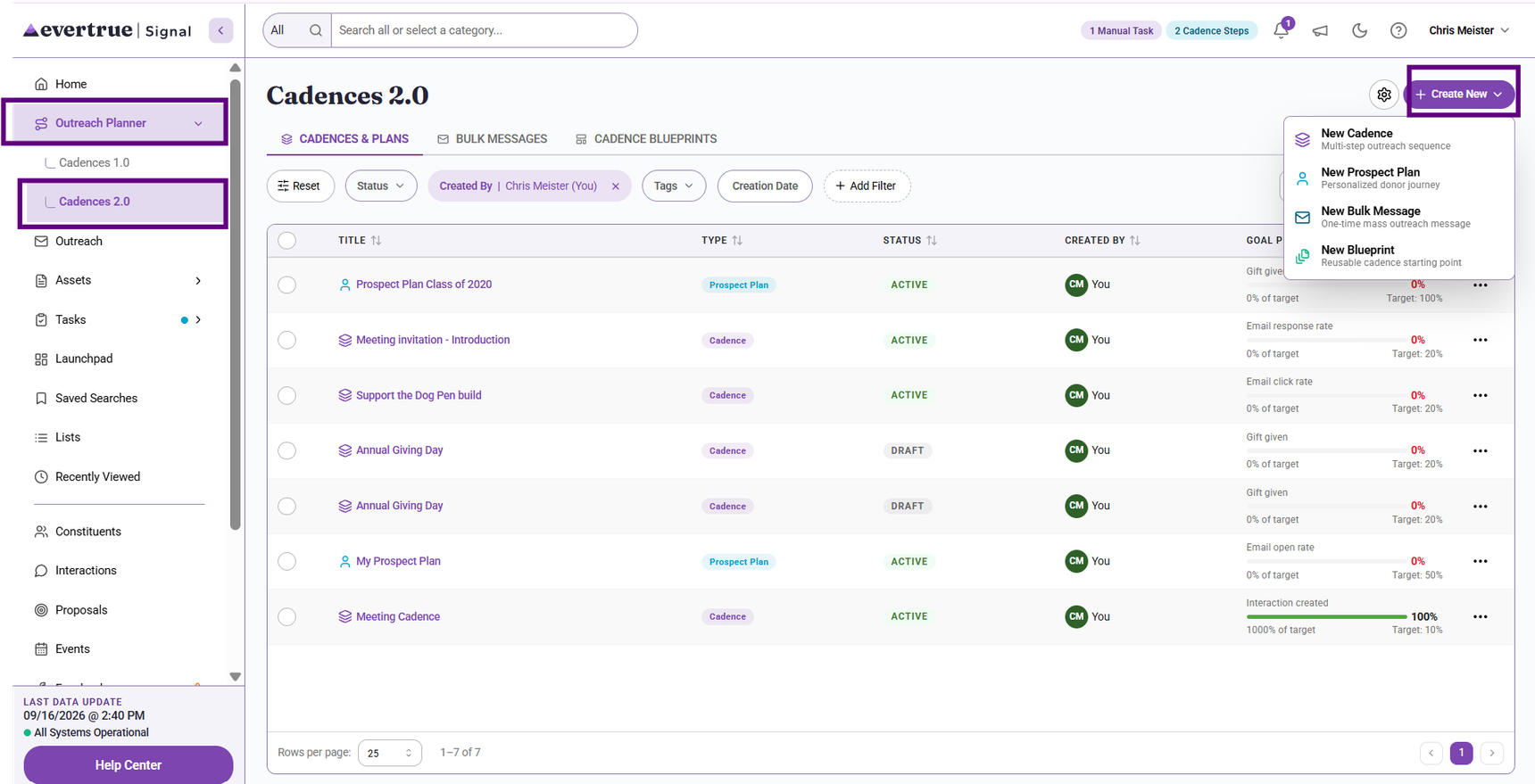
Click here to learn how to create and publish a Cadence 2.0.
Bulk messages
What this feature is: A bulk message (emails and SMS) is the right tool when you want to send one email to many people at one time. It is built for broad outreach, such as newsletters, campaign updates, invitations, or appeals, while still giving you recipient selection, review steps, and reporting after the send.
What changed: We did not offer bulk messaging, and you had to BCC your contacts. The newer experience adds more structure around recipients, success tracking, and post-send visibility. You can also set up goals for your bulk messages.
Why it matters: This gives users a cleaner way to run high-volume communication without giving up clarity on delivery, engagement, or audience quality.
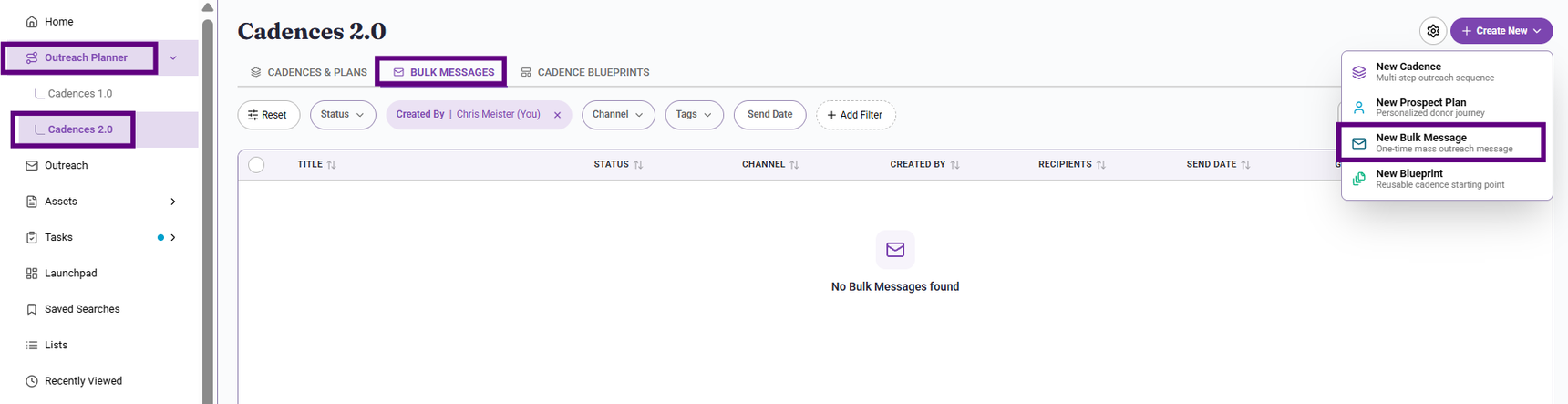
How to get started: Start a new bulk message, build the email, select the audience, choose the success metric, then send a test, schedule it, or send it immediately once the review looks right.
Create Bulk Messages
Bulk Messages Reporting View
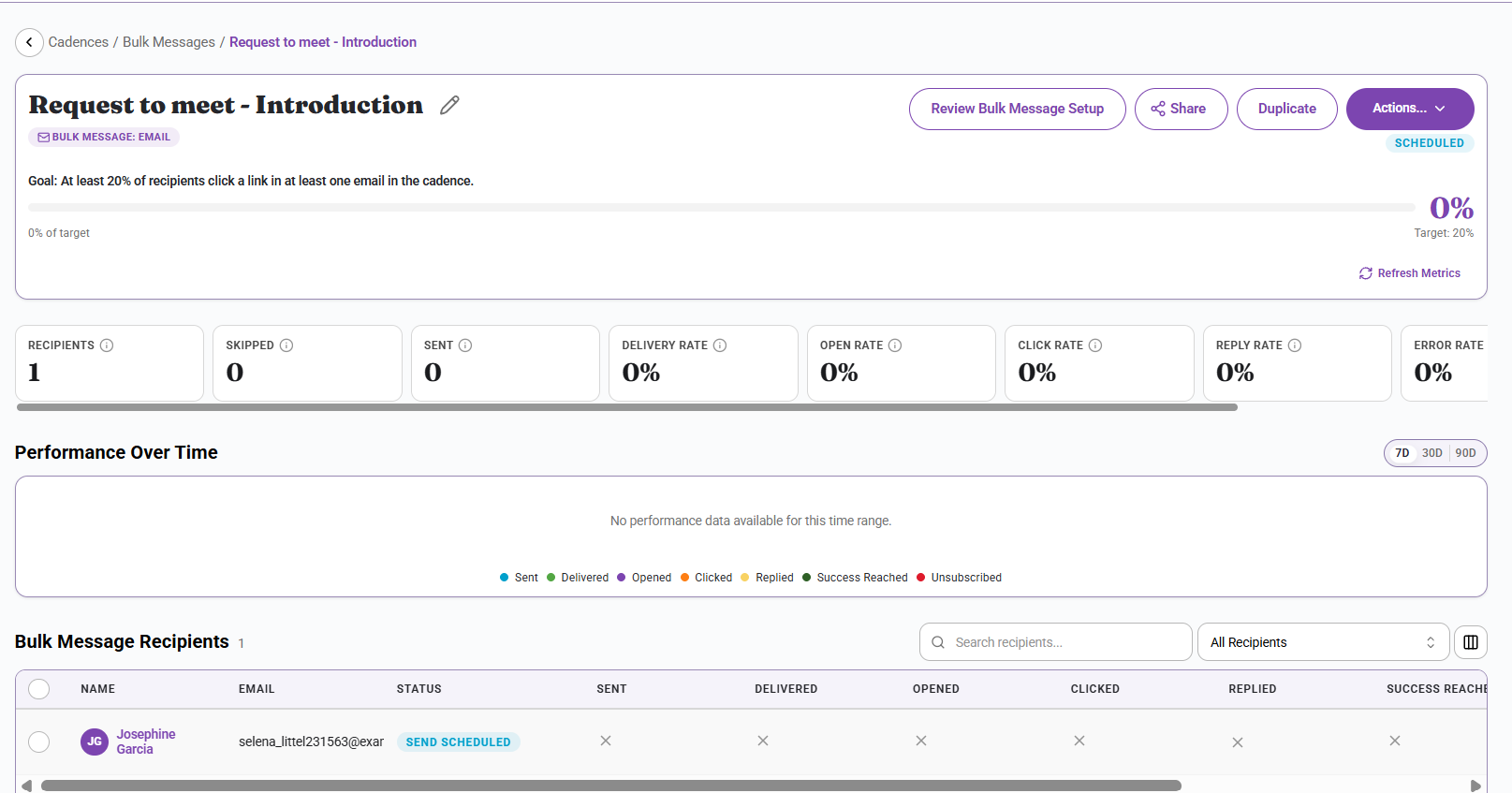
CLICK here to learn how to create Bulk Messages, or click here to learn about Bulk Message performance metrics.
SMS & MMS texting
What this feature is: Cadences 2.0 lets you add SMS and MMS steps directly into a cadence, giving your team a way to reach contacts by text alongside email — available to organizations with the Signal package and Cadences 2.0 enabled.
What changed: Outreach in Cadences was previously email-only. SMS/MMS is a new step type, unlocked once a one-time carrier registration is complete for your organization.
Why it matters: Text reaches people faster and gets read sooner than email for a lot of audiences — useful for event reminders, quick asks, or anything time-sensitive where email might sit unread.
How to get started: Before sending your first SMS step, an EverTrue Admin must complete a one-time SMS registration (see below). Once approved, CLICK here to learn how to add an SMS step to a Signal Cadence.
Before your organization can send SMS or MMS messages in Cadences 2.0, a Signal Admin must complete a one-time SMS registration, required by US carriers. This confirms your organization's identity and how contacts opted in to receive texts. Until registration is approved, users can still build cadences with SMS steps, but any attempt to send will return an error and the message will not go out. Approval typically takes 3–10 business days. Go to this article to find out how.
Cadence blueprints
What this feature is: A blueprint is a reusable parent strategy that other users can turn into their own working cadence. It gives a team one shared structure, while still allowing each user to own the cadence they actually run.
What changed: This is more than a saved note or a static template. A blueprint can carry the overall strategy, step structure, and common approach into many separate cadences.
Why it matters: Blueprints are useful when a team wants consistency across regions, roles, or campaigns while still leaving room for local ownership and light customization.
How to get started: Open the blueprints area, review the shared approach, and create a cadence from the blueprint when you want to use that strategy with your own audience.
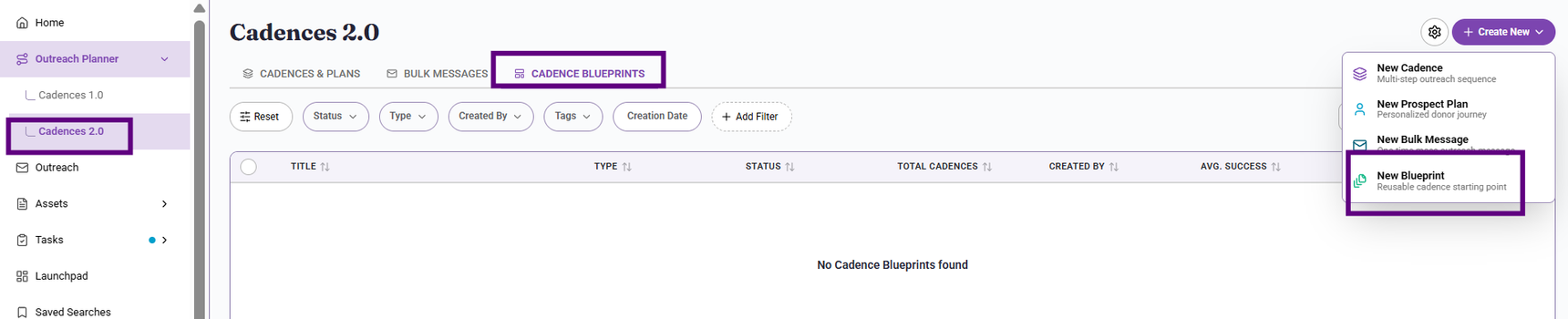
Click here to learn how to create a cadence blueprint.
Prospect plans
What this feature is: Prospect plans use the same underlying system as cadences, but they are better suited to a fundraiser who wants a more customized outreach plan that reflects their role, style, and preferred steps, then duplicates that plan for similar prospects later.
What changed: The change here is not technical so much as practical. Users now have a clearer way to choose between repeatable outreach at scale and a more tailored reusable structure for individual relationship work.
Why it matters: This gives fundraisers a better fit for higher-touch portfolios where the sequence still matters, but the approach needs to feel more personal than a broad cadence.
How to get started: Choose a prospect plan when the outreach is individualized, build the structure you want to use, then duplicate that plan for similar prospects instead of recreating it from scratch.
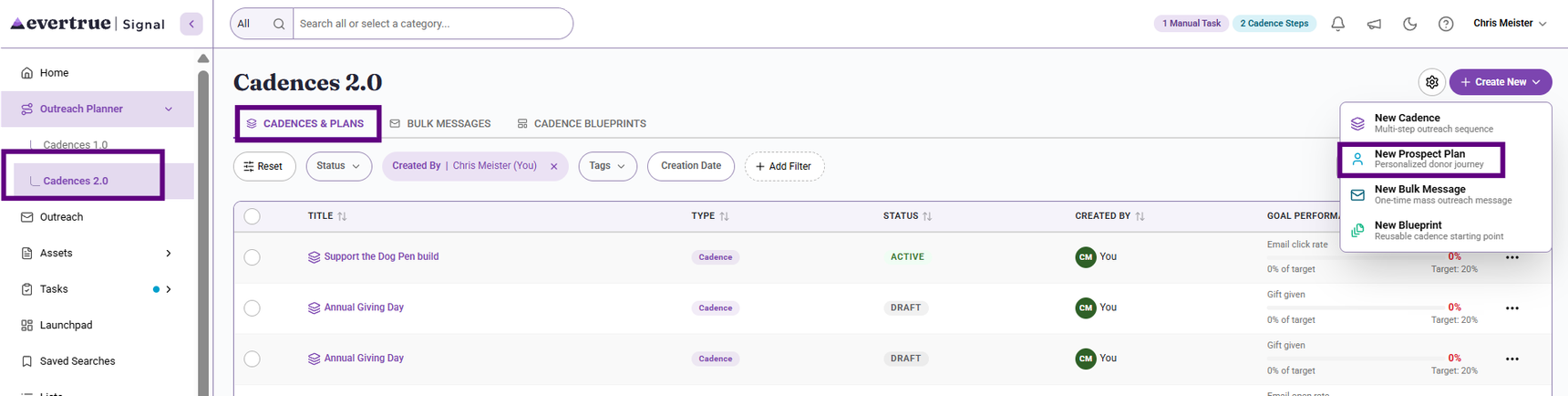
Click here for more information on understanding Prospect Plans
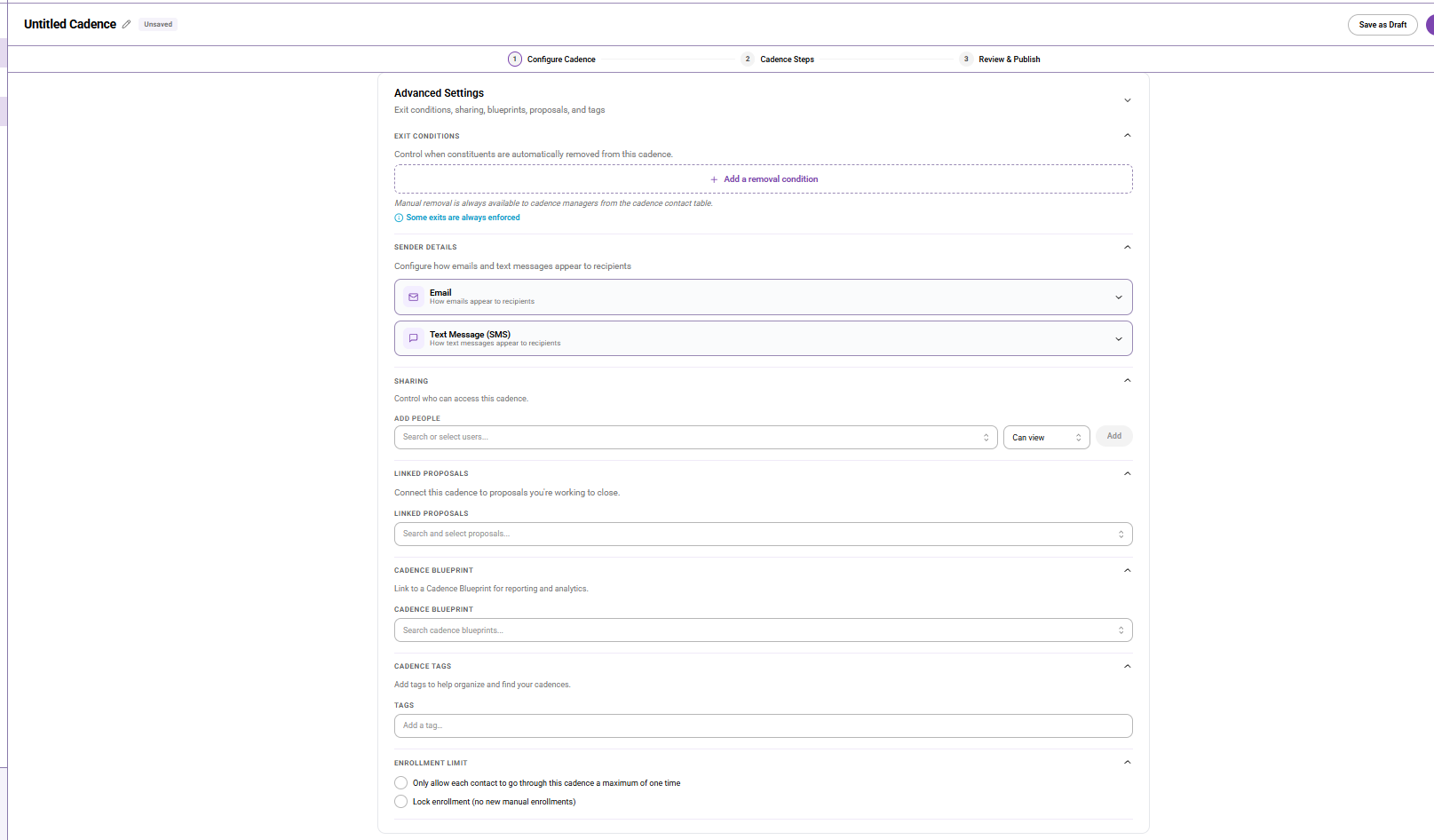
Advanced settings and send controls
What this feature is: Cadences 2.0 includes stronger controls around sender details, exit conditions, sharing, tags, and send timing. Bulk messages also support review choices such as testing and scheduling.
What changed: The setup no longer stops at the basic message and audience. One example is that users can use the Exit condition to automatically move constituents into a stage, like qualification. No more manual moving from stage to stage.
Why it matters: These controls reduce mistakes, improve consistency, and make the workflow easier to trust, especially when multiple users or larger audiences are involved.
How to get started: Before publishing or sending, review the advanced settings area and confirm sender identity, recipient rules, blackout behavior, and any review options, such as send test or schedule later.
Reporting and performance visibility
What this feature is: Cadence and bulk message detail pages give users a clearer way to understand what happened. Depending on the workflow, users can review delivery, engagement, success progress, recipient outcomes, and more.
What changed: Instead of treating outreach as a black box, the new reporting shows progress at the goal, step, and recipient levels.
Why it matters: This makes it easier to improve future outreach, spot issues sooner, answer stakeholder questions, and decide what to do next.
How to get started: Open the detail page for a cadence or bulk message, review the progress area first, then use the tables, filters, and recipient views to drill deeper.
Cadence Performance Data
https://www.loom.com/share/6794bb855e0a4c108d8dbc5184f9ac94
Bulk Message Reporting View
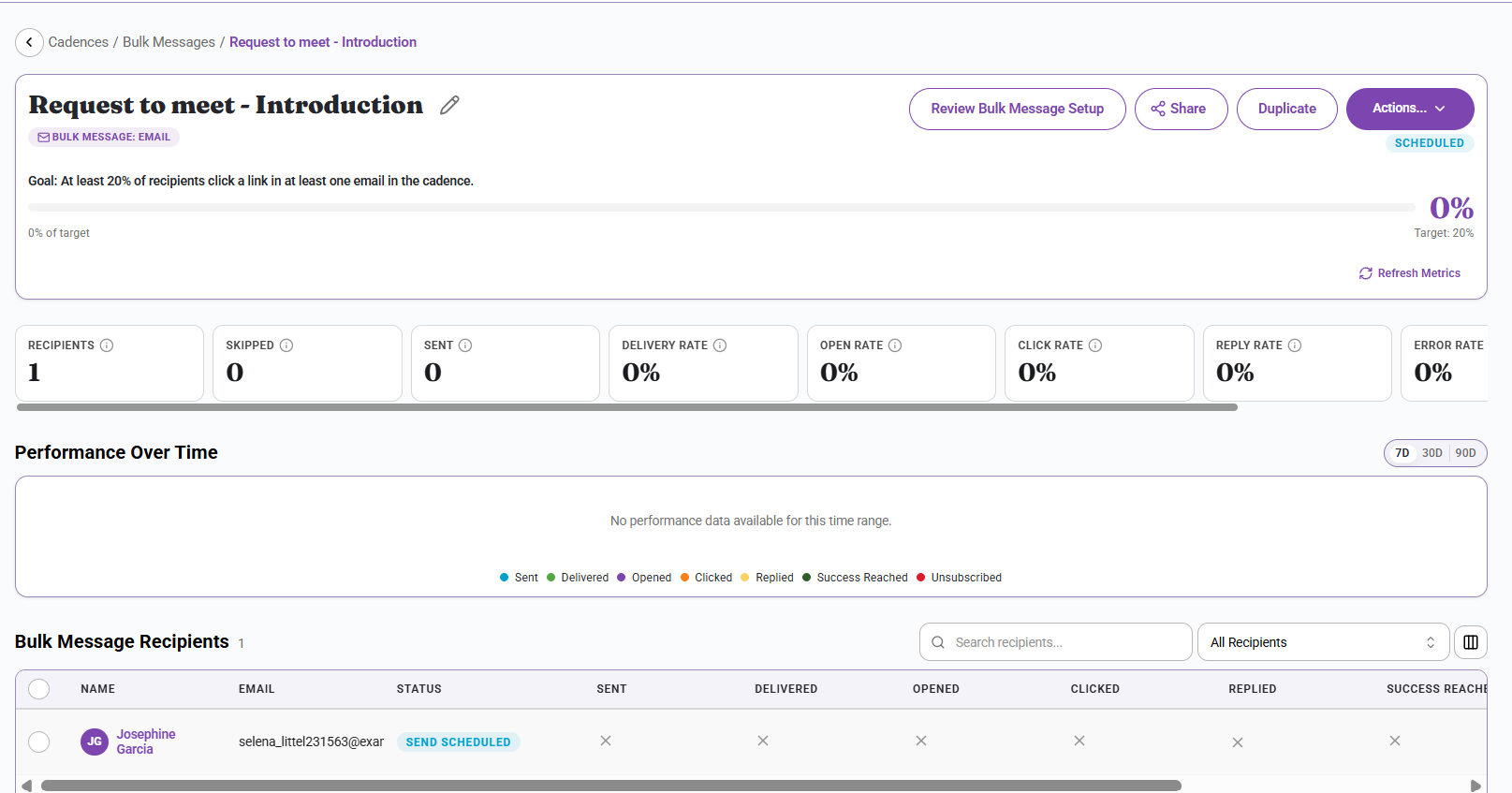
Click here for more information on Bulk Message Performance Metrics.
Assets Storage for Email Templates and Signatures
What this feature is: The Assets area gives users a central place to manage reusable email content. Instead of rebuilding the same message pieces over and over, users can now create and maintain Email Templates and Your Email Signatures in one location. That makes outreach faster, more consistent, and easier to update over time.
What changed: Templates now have a dedicated home in Assets instead of living only behind the email composer. Users can browse, create, organize, and update templates from one page.
Why this matters: A dedicated template library saves time, keeps messaging more consistent, and makes it easier to reuse successful outreach language across multiple campaigns or cadences.
How to get started: Use the contact profile to review history, use task pages for manual follow-up, and use recipient detail views when you need to understand one person's path through a cadence or bulk message.
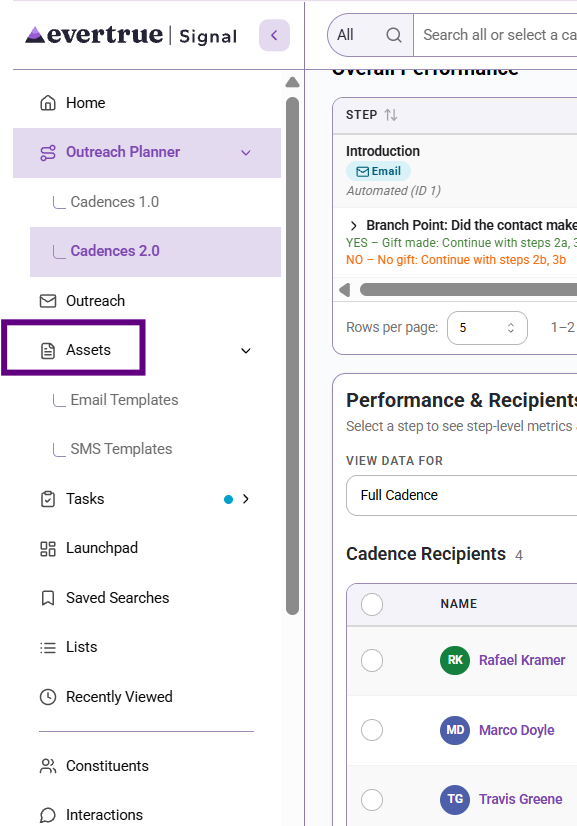
Click here for more information on Asset Templates
Recipient statuses, contact history, and task workflow
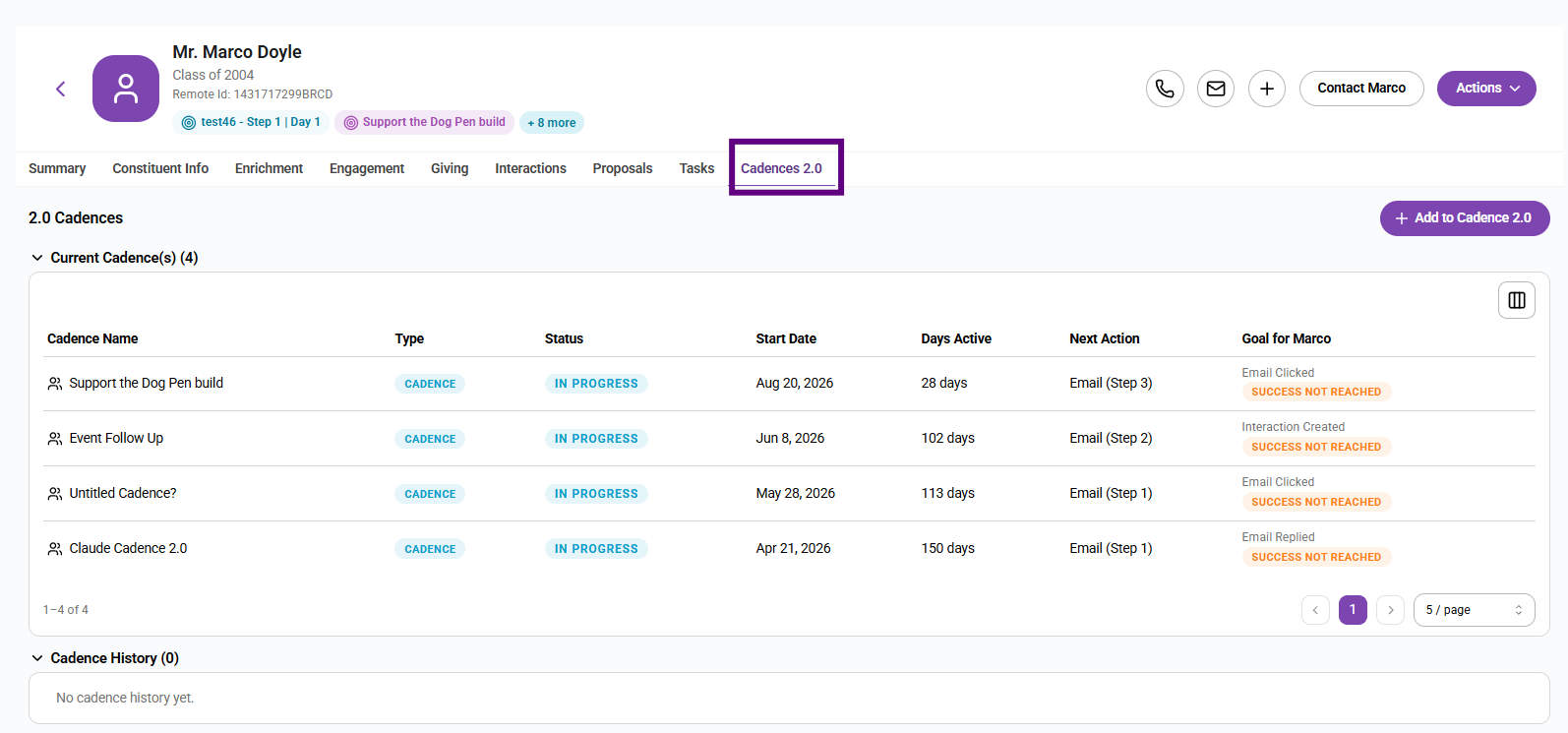
What this feature is: Cadences 2.0 gives users more visibility into what happened to each person. You can review recipient statuses, look at current and past outreach on the contact profile, and work on manual follow-up through improved task views.
What changed: The work is no longer isolated to one page. Users can follow the same outreach from the cadence itself, from a contact record, or from the task workflow, depending on what they need to do.
Why it matters: This helps users stay organized, understand whether a contact is in progress or finished, and avoid duplicate or mistimed follow-up.
How to get started: Use the contact profile to review history, use task pages for manual follow-up, and use recipient detail views when you need to understand one person's path through a cadence or bulk message.
Contact Profile History
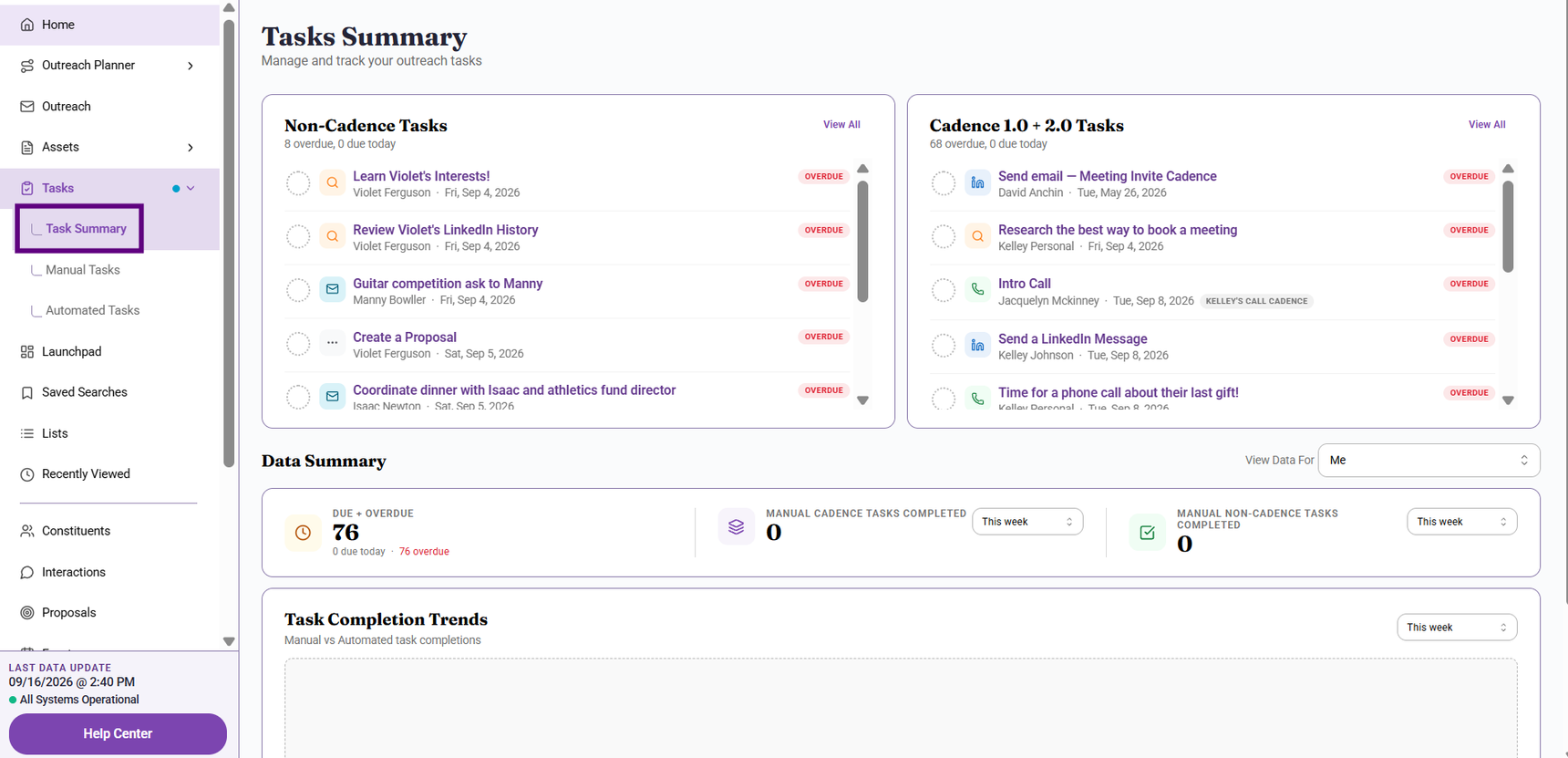
Tasks Summary- Non-Cadence and Cadence Task Screens
Manual Tasks with Many Filter Features
https://www.loom.com/share/0c778343957e407da5db3788058ab318
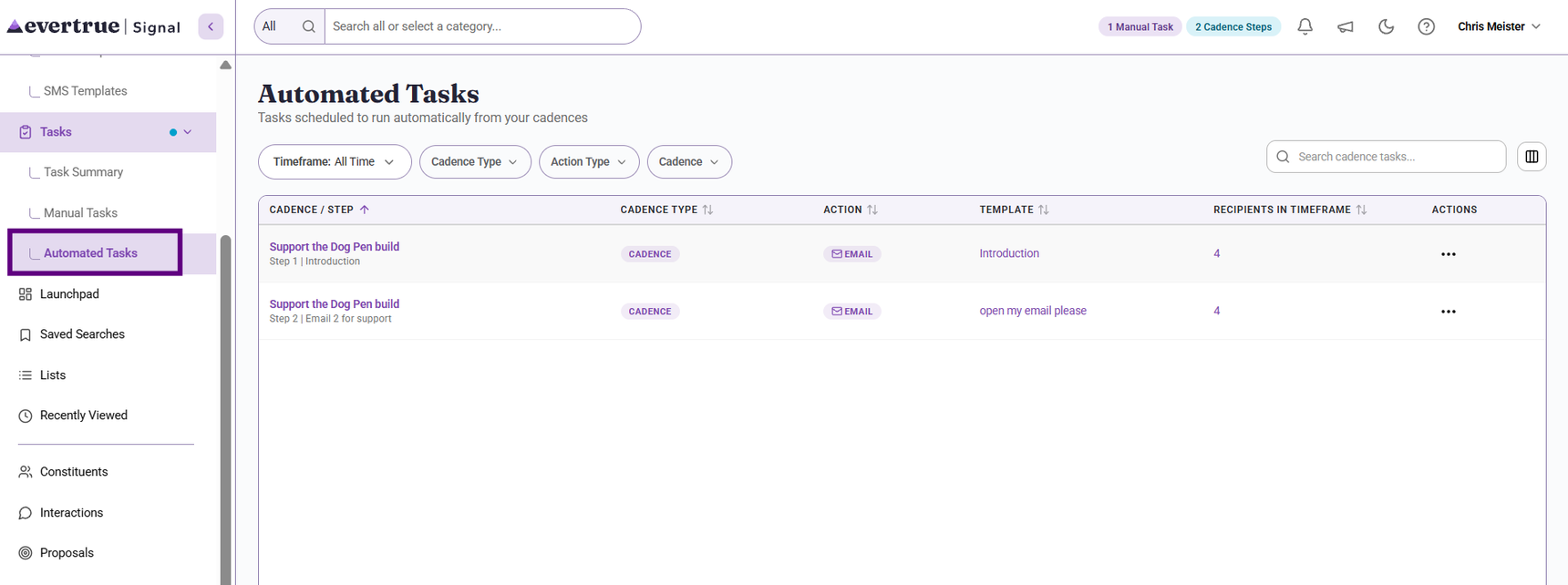
Automated Tasks
|
Content aside
- 4 mths agoLast active
- 287Views
-
1
Following