
Create a Cadence Blueprint
Create a cadence blueprint
Use a cadence blueprint when you want to save a repeatable outreach structure that others can reuse later. A blueprint can include a success metric, automated and manual steps, wait times, email content, SMS content, and conditional logic. Once saved and shared, other users can select Use for New Cadence and start from that prebuilt structure instead of creating a cadence from scratch.
When to use a cadence blueprint
Create a cadence blueprint when your team has a repeatable outreach strategy that should be reused across multiple live cadences. Blueprints are especially useful when you want to standardize best practices, save setup time, and help users start with a proven structure.
https://www.loom.com/share/bb0b54bf51a0462aaddf7f5c6ad668a7
Steps
1. Open Cadence Blueprints and start a new blueprint
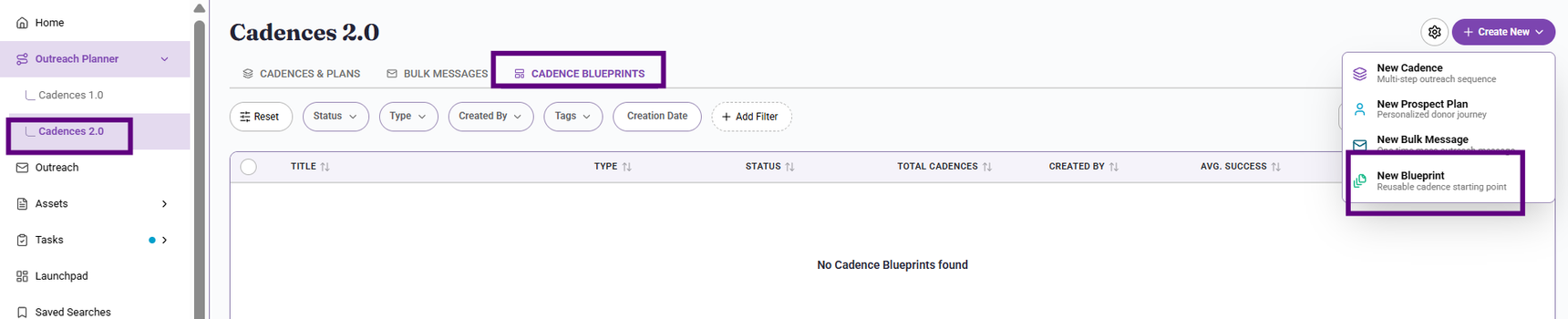
Go to the Outreach Planner> Cadences 2.0, open the Cadence Blueprints tab, click Create New, and select New Blueprint to launch the setup flow.
2. Choose the primary success metric
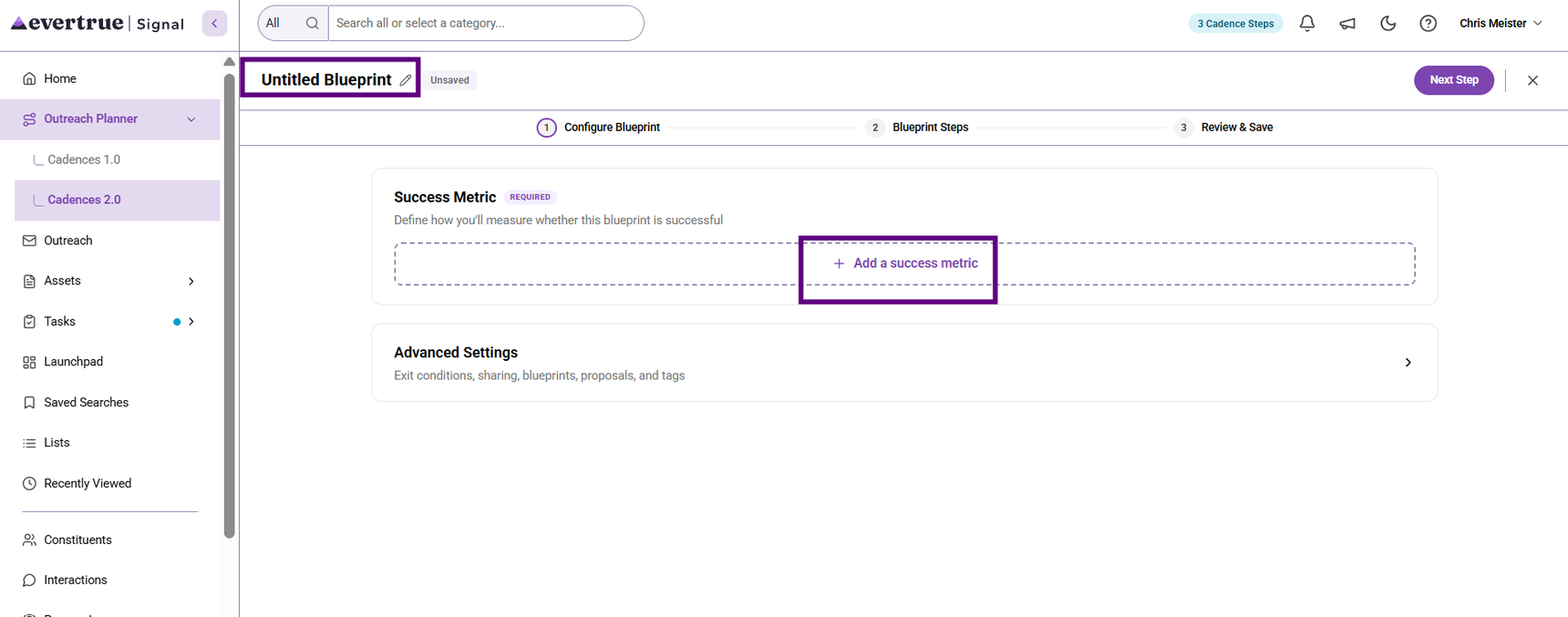
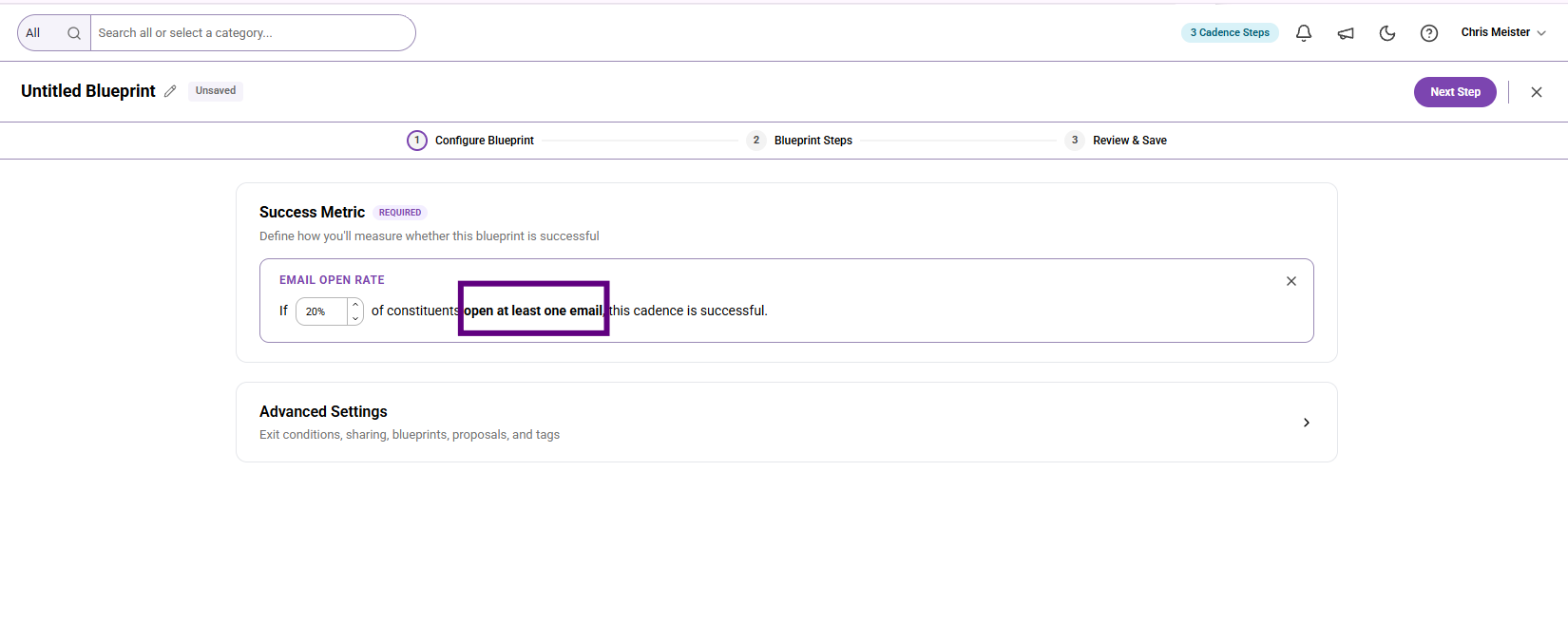
Select the success metric that best matches the goal of the blueprint. For example, if the blueprint is meant to re-engage lapsed donors, use Gift Given as the primary success metric.
Example:
This table explains the metrics and what they measure.
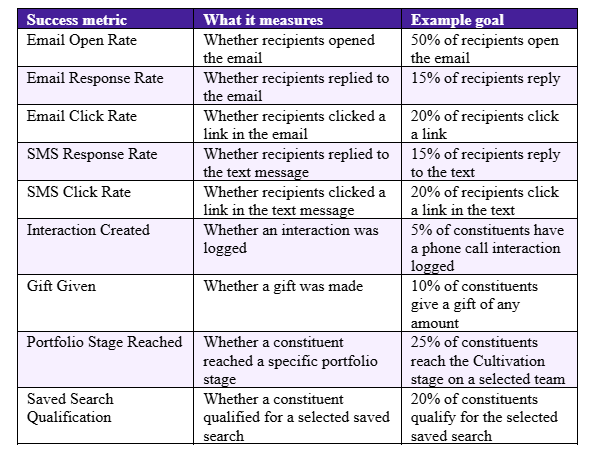
Note: All cadence blueprints should reflect your organization's flow based on the goal. This sequence of steps is for learning purposes to show you what is available.
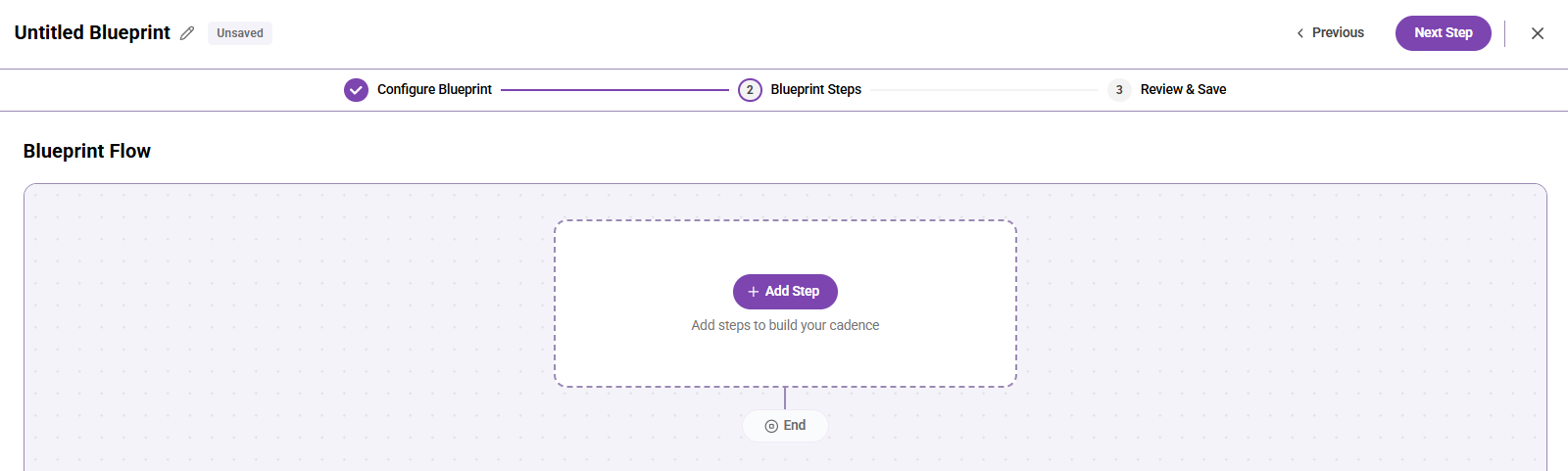
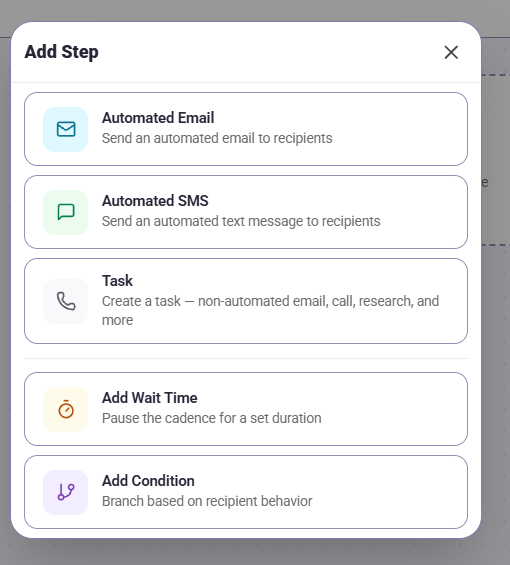
3. Add the first blueprint step
Begin building the blueprint by adding the first step in the flow. For example, the first step could be an automated email used to reintroduce the organization to lapsed donors.
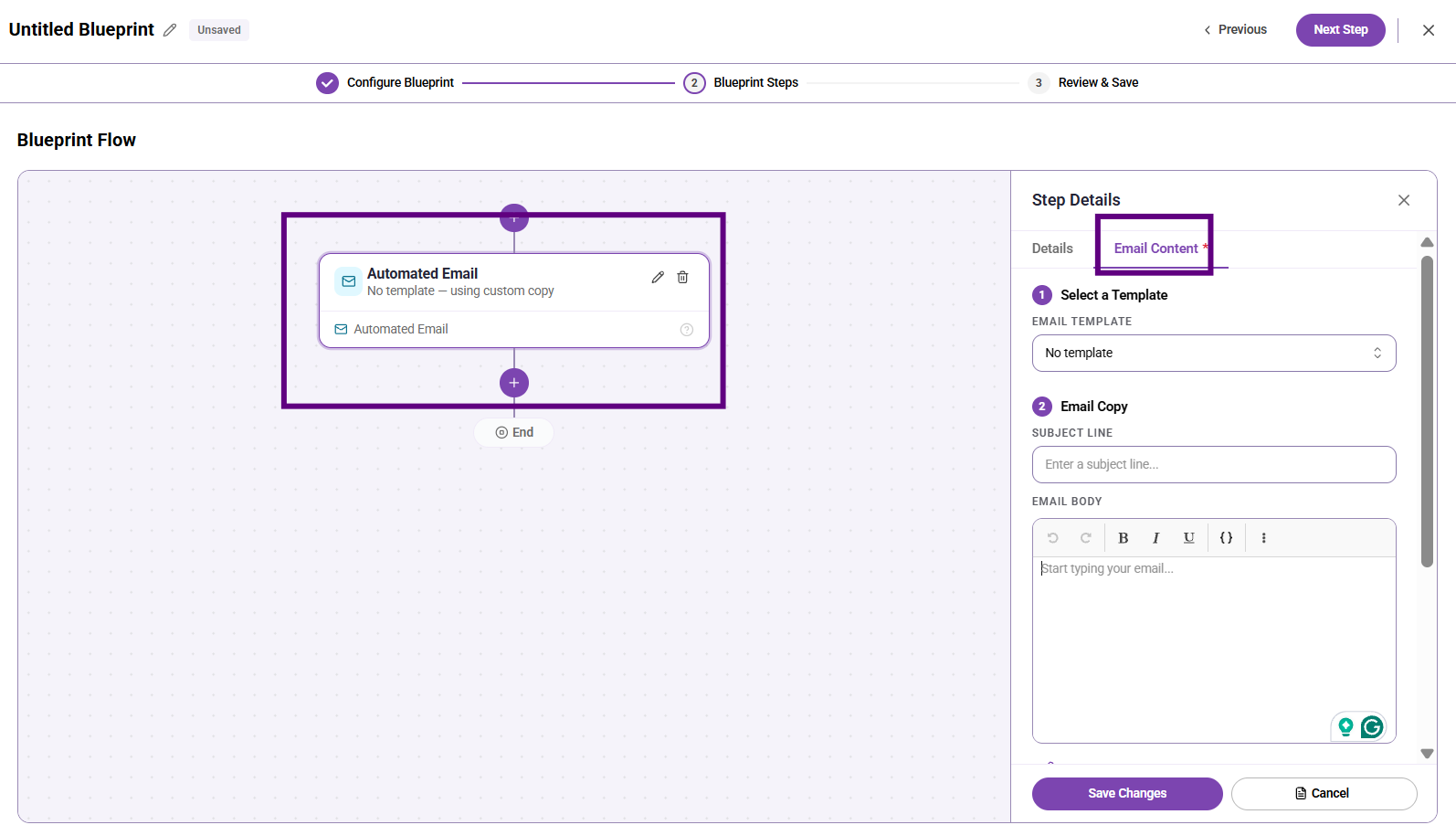
4. Add email content for automated steps
If you add an automated email step, include the email content that users should inherit when they create a cadence from the blueprint. This gives the team a stronger starting point and reduces repetitive setup work.
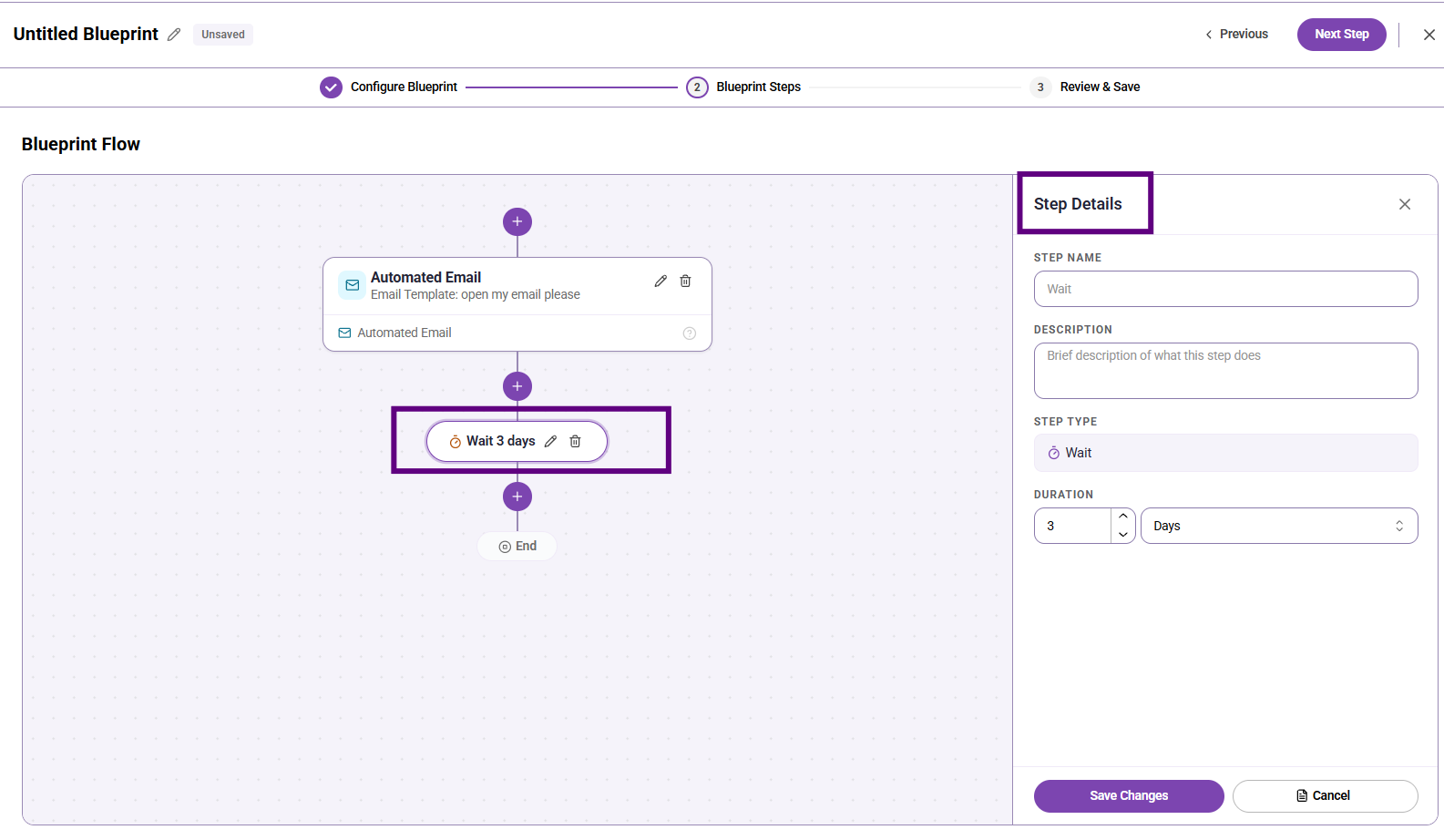
5. Add a wait step
Insert a wait period after the first message if the strategy depends on timing.
6. Add a manual follow-up step
Use a manual email or task when the next touchpoint should be more personal.
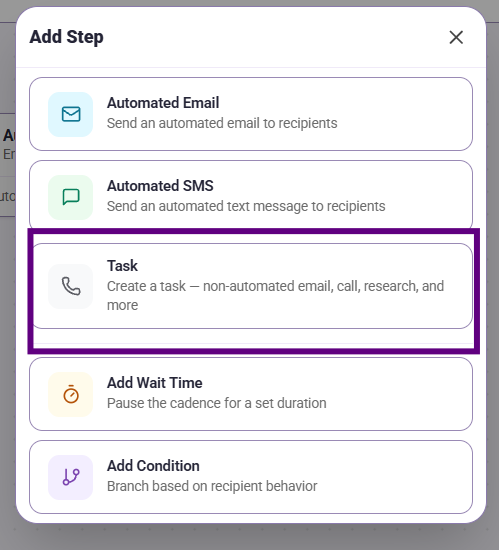
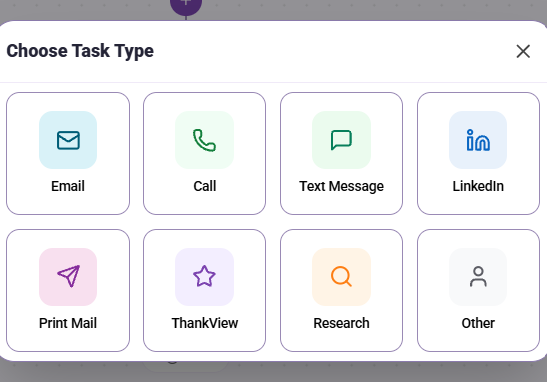
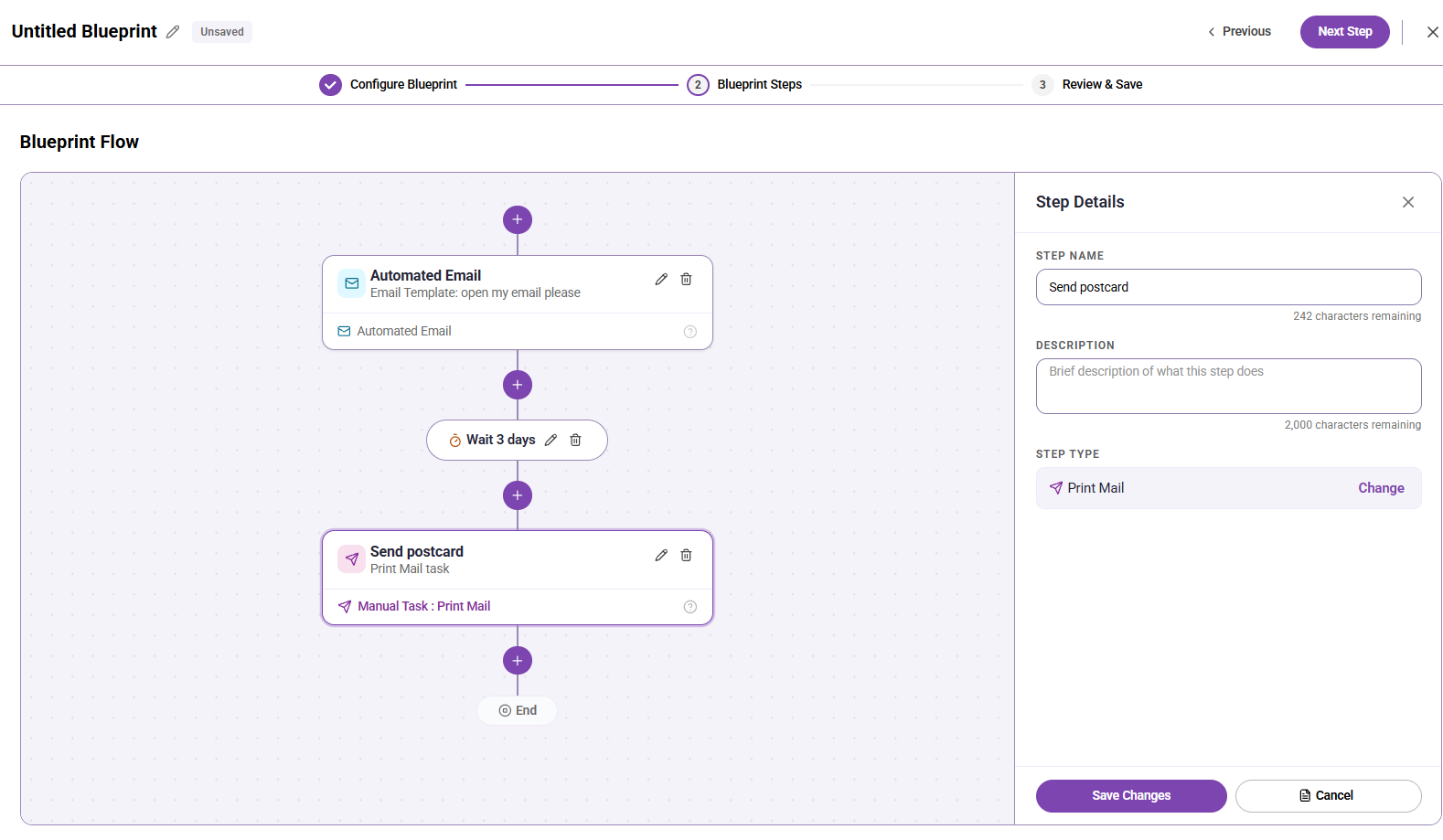
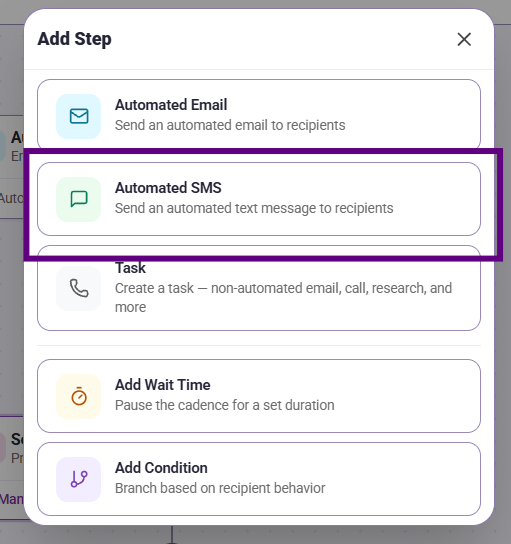
7. Add another automated Email or SMS step
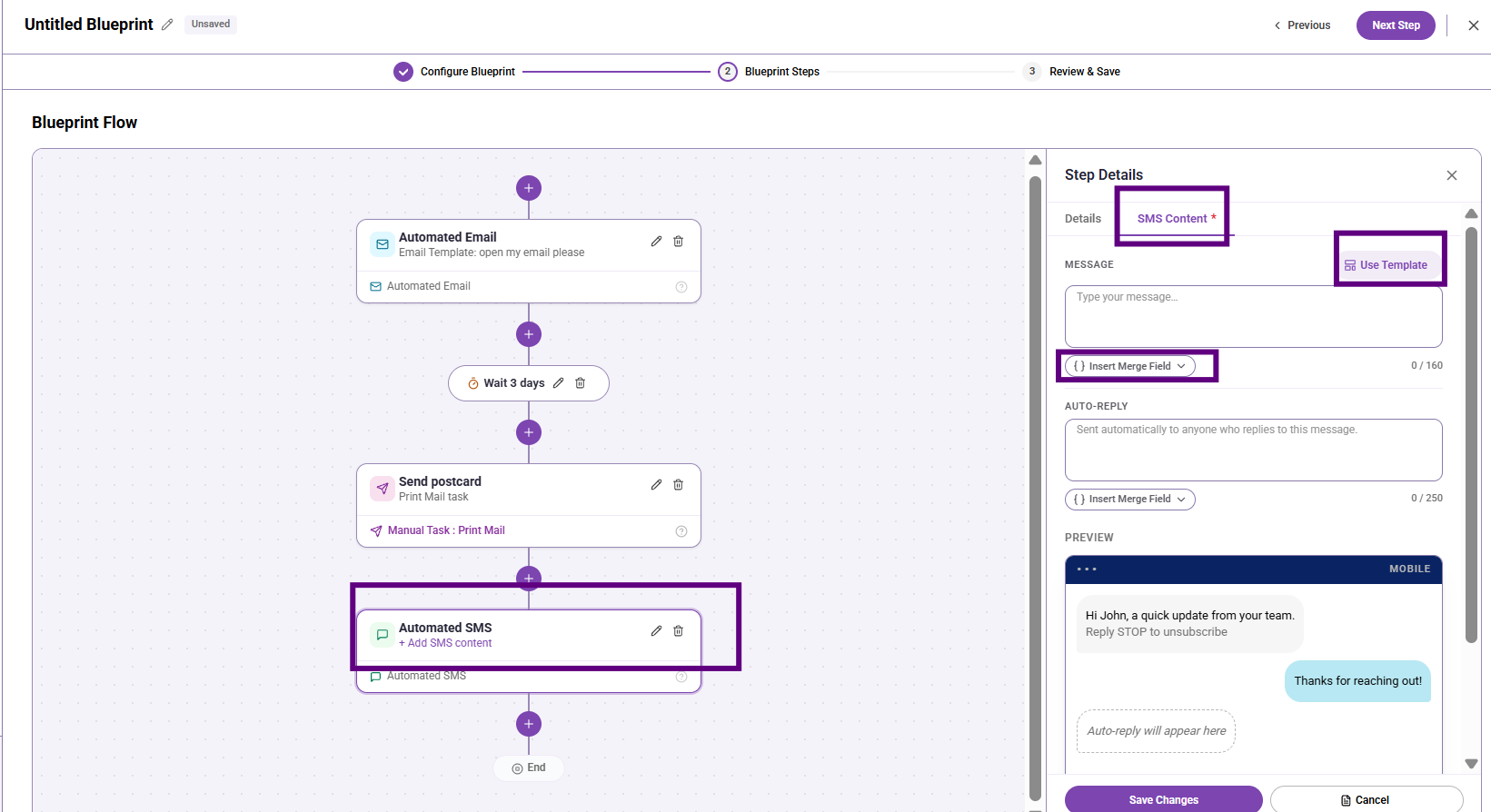
Continue building the outreach flow with another automated email or an Automated SMS step when the strategy calls for one. Users who create a live cadence from this blueprint will inherit the SMS step and can edit the content before publishing.
9. Add conditional logic
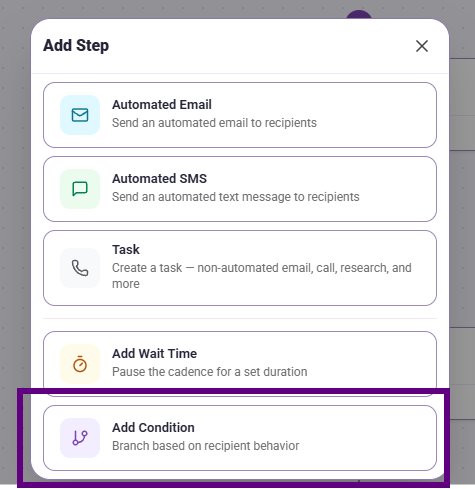
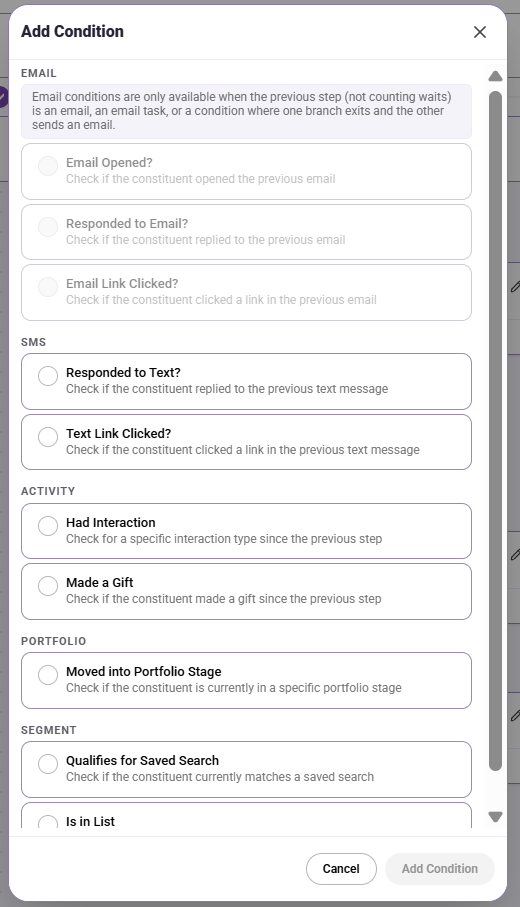
Add a condition so the next step depends on the recipient's behavior. For example, the blueprint checks whether the recipient has opened emails and branches the flow based on the result.
10. Build follow-up steps for each path
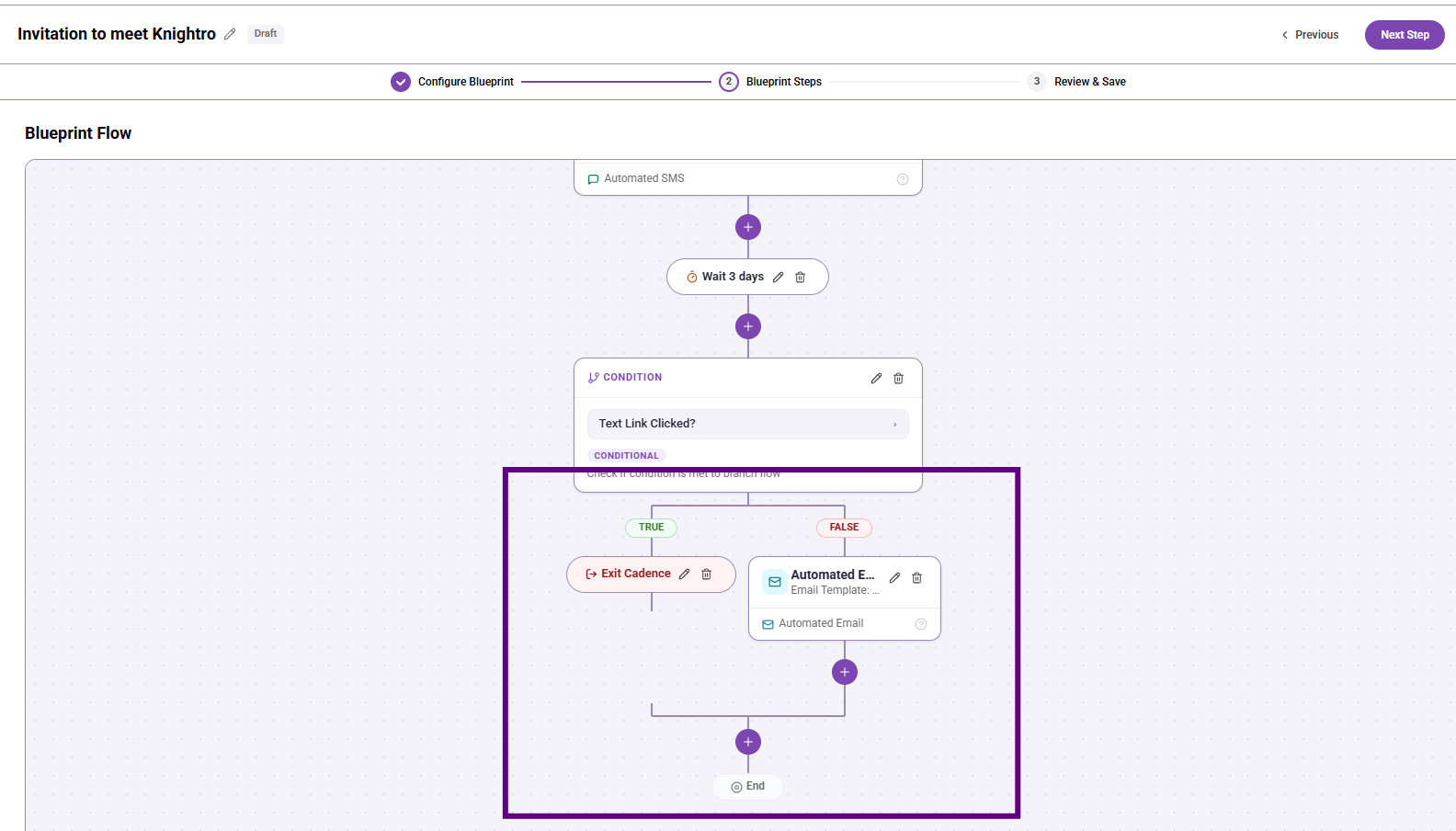
Create the next steps for both sides of the condition. For example, one path uses a more personal manual ask for engaged recipients, while the other path sends another automated email or SMS with a different message.
11. Add the final outreach step
Finish the sequence with a final outreach step that matches the goal of the strategy.
12. Name and save the blueprint
Give the blueprint a clear name that describes its purpose, then save it so it can be reused later.
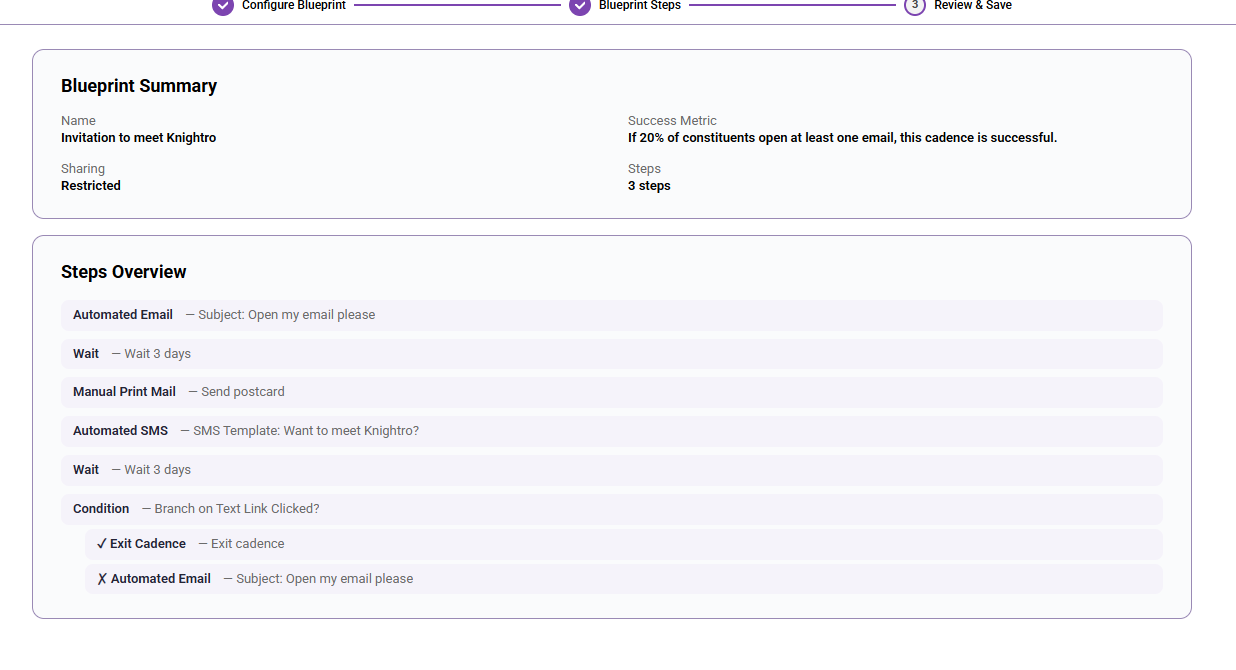
13. Share and reuse the blueprint
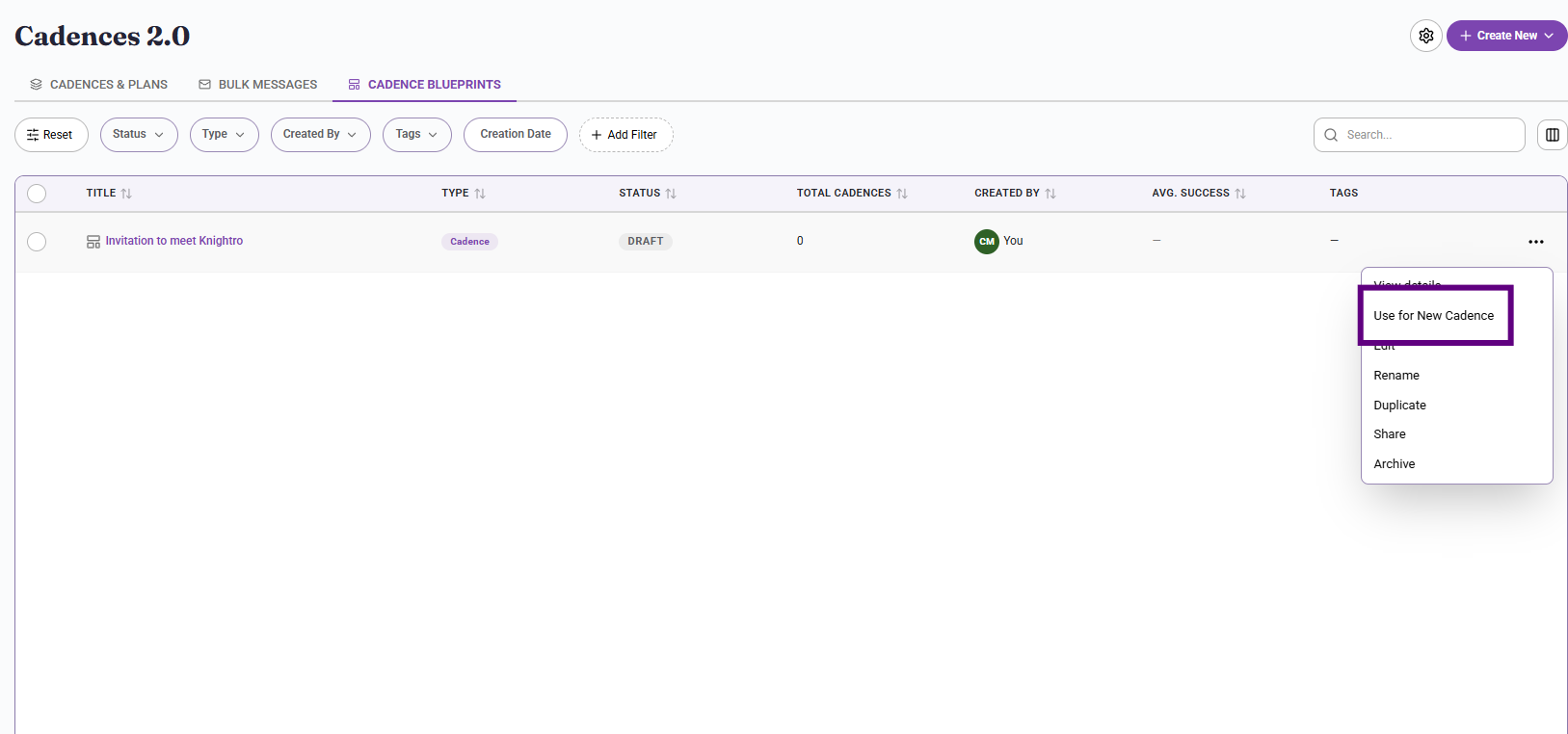
Once the blueprint is shared with the right users, they can open it from the Cadence Blueprints area, review it, and select Use for New Cadence. This carries over much of the setup, including the goal, steps, timing, and content.
What users should know
A cadence blueprint is a reusable template, not a live cadence.
The blueprint can include the goal, step order, wait times, email content, SMS content, and conditional logic.
Other users can create a live cadence from a shared blueprint by selecting Use for New Cadence.
Starting from a blueprint saves time and helps teams reuse consistent outreach practices.
Blueprints can include Automated SMS steps. SMS content can be edited in the live cadence after the blueprint is applied.
Best practices
Use a clear name so the blueprint is easy to recognize later.
Build blueprints around repeatable strategies rather than one-time outreach.
Use automated steps where they save time, but keep highly personal asks manual when that will improve outreach quality.
Share strong blueprint examples with the team so others can reuse proven workflows.
Troubleshooting
Issue |
What to do |
I am not sure which success metric to use. |
Choose the metric that best reflects the real goal of the blueprint. For example, use Gift Given when the blueprint is designed to drive donations. Use SMS Response Rate or SMS Click Rate when the blueprint leads with a text message step. |
I do not know what to include in a blueprint. |
Include the parts of the outreach strategy that should be reused, such as the step order, timing, email or SMS content, and any branching logic. |
Other users cannot use my blueprint. |
Check that the blueprint has been shared with the right users or teams so it appears in their Cadence Blueprints area. |
A user still wants to customize the live cadence. |
That is expected. A blueprint provides the starting framework, but users can still tailor the live cadence after they create it from the blueprint. |
Content aside
- 4 mths agoLast active
- 77Views
-
1
Following