
Setting Up SMS & MMS Texting for Your Organization
Before your team can send text messages through Cadences 2.0, your organization needs to complete a one-time A2P 10DLC registration. This is a federal carrier compliance requirement. All organizations sending business text messages in the United States must register their brand and messaging campaign with The Campaign Registry (TCR). The process takes about 15 minutes and walks you through five steps. Once submitted, approval typically takes 3–10 business days. EverTrue Support will email you as soon as your registration is approved and SMS is ready to use.
Who can complete this setup?
The EverTrue Owner would complete the registration.
Where do I start?
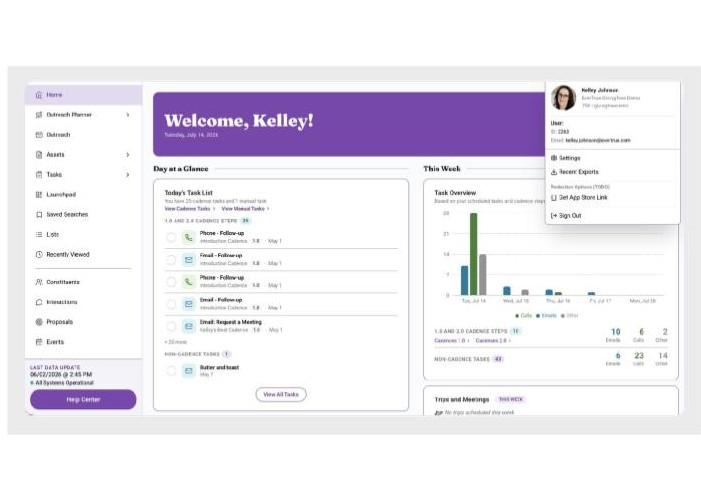
The EverTrue Owner will proceed to the Organization Settings page, which is accessed through the profile dropdown in the top-right corner of the app.
1. Click your name in the top-right corner of the app to open the profile dropdown.
2. Select Settings from the menu.
3. Click the Organization Settings tab.
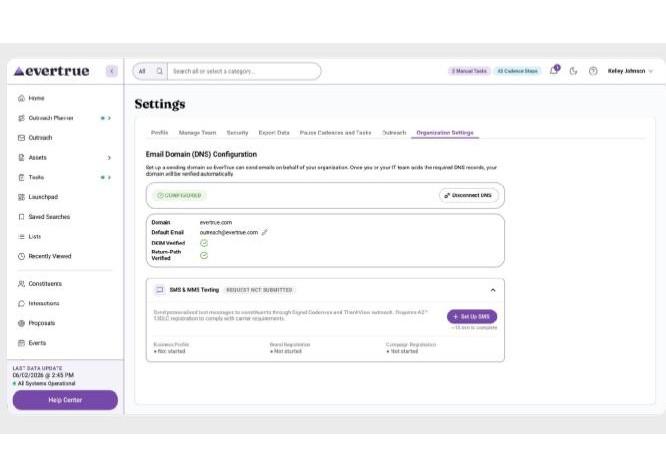
You will see the SMS & MMS Texting section below your Email Domain configuration. When registration has not been started yet, it shows a badge and lists Business Profile, Brand Registration, and Campaign Registration as Not started. Click + Set Up SMS to begin.
Below is a screenshot of the SMS & MMS Texting section before registration has been started.
The registration process
The wizard walks you through five steps. You can go back and edit any step before submitting.
Step 1 — Business registration
Select your registration ID type and enter your ID number. For US organizations, choose USA: Employer Identification Number (EIN) from the dropdown and enter your EIN.
Below, enter your EIN to look up your business and pre-fill Step 2.
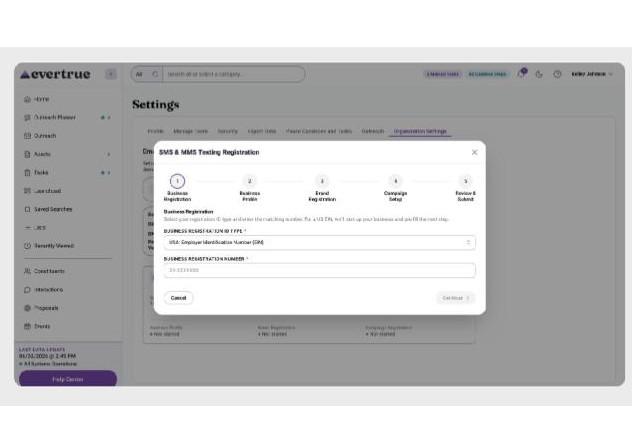
Note: Non-US organizations: select the appropriate registration ID type for your country. Non-US ID types will not trigger the automatic business lookup, so you will fill in Step 2 manually.
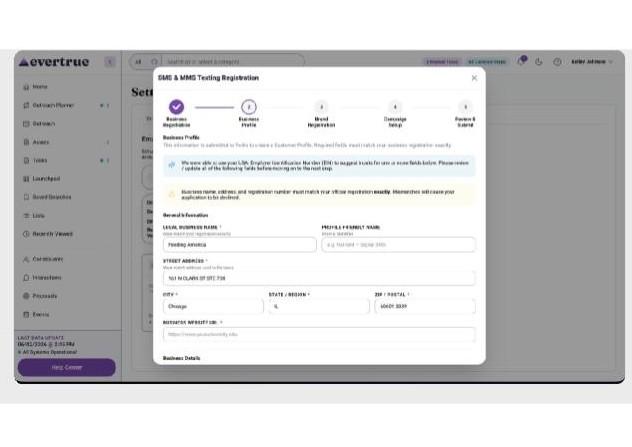
Step 2 — Business profile
This creates your Twilio Customer Profile — the official record of your organization submitted to wireless carriers. Every field must match your official business registration exactly. Fill in your legal business name, address, contact details, and authorized representative information. Profile Friendly Name is an internal label for your company’s reference.
At least one authorized representative is required for legal compliance. You can add additional representatives using the + Add Representative button with their First and Last Name, Email, Phone number, Business Title, and Job Position. Fill in your legal business name, address, and contact details exactly as they appear in your official registration.
Step 3 — Brand registration
This registers your organization as an A2P 10DLC brand with wireless carriers. Your saved Business Profile information is used automatically for this step. Select your Business Type and Company Type.
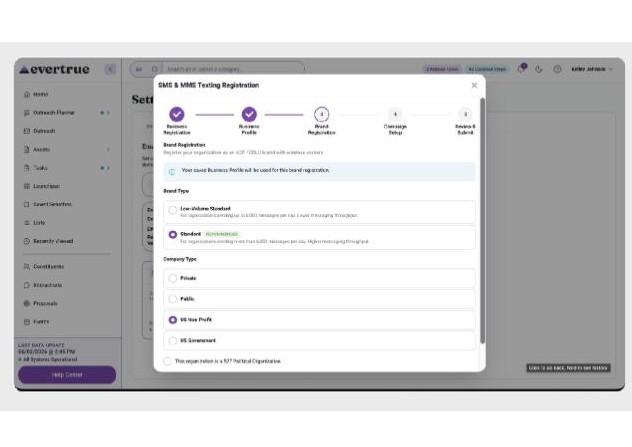
Note: Not sure which to choose? Most EverTrue customers select Standard. You can always start with Low-Volume Standard if your send volume is limited.
Select Company Type. Select the option that best describes your organization.
Private
Public
US Non-Profit
US Government
This organization is a 527 Political Organization
Step 4 — Campaign setup
A campaign defines how your organization will use SMS — your intended use case and how recipients opted in to receive messages. This information is submitted to The Campaign Registry (TCR) for approval. Choose your campaign type and provide opt-in and compliance details.
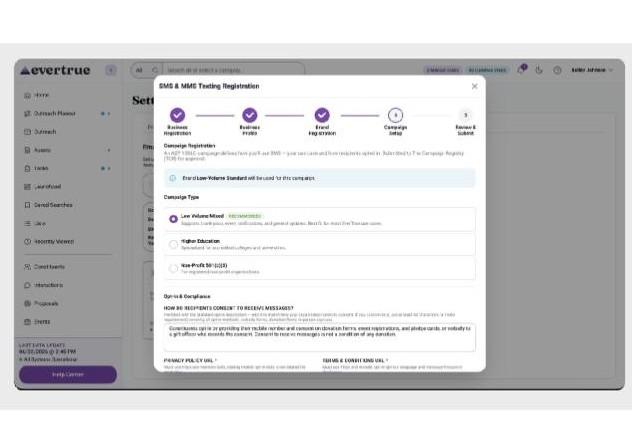
Select your Campaign Type.
Low Volume Mixed (recommended) - supports thank-yous, event notifications, general updates; best fit for most Signal use cases
Higher Education - specialized for accredited colleges and universities
Non-Profit 501 c(3) - for registered non-profit organizations
Opt-in and compliance
This section establishes how your constituents consented to receive messages — a required part of carrier compliance. EverTrue pre-fills this field with standard language covering donation forms, event registrations, pledge cards, and verbal consent from gift officers. You can edit it to match your organization's specific practices, but it must:
Be at least 40 characters (a Twilio requirement)
Cover all of the opt-in methods your organization uses
Privacy policy URL
Must use HTTPS and explicitly mention SMS, stating that mobile opt-in data is not shared for marketing purposes.
Terms & conditions URL
Must use HTTPS and include opt-in/opt-out language and message-frequency disclosure.
NOTE: Preconfigured by EverTrue: Opt-in keywords (Start, Yes, Subscribe) and Opt-out keywords (Stop, Stopall, Unsubscribe, Cancel, End, Quit) are managed automatically.
Step 5 — Review and submit
Review a summary of all the information you have entered. Each section has an Edit link if you need to make corrections before submitting. Check the confirmation box to certify that the information is accurate and that you are authorized to submit on behalf of your organization, then click Submit Registration.
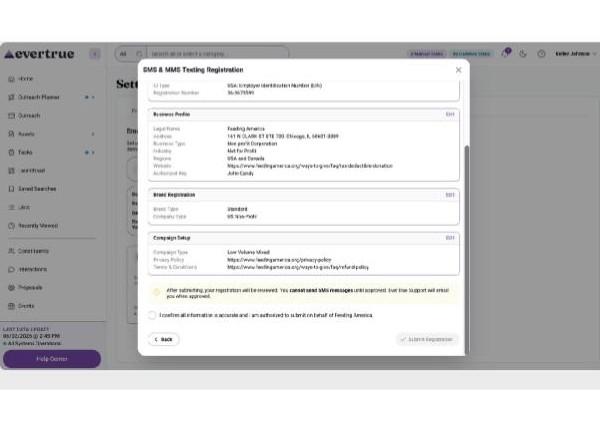
After you submit - Approval Waiting Period
Approval typically takes 3–10 business days. You can check the status at any time by returning to the Organization Settings tab.
You're Approved!
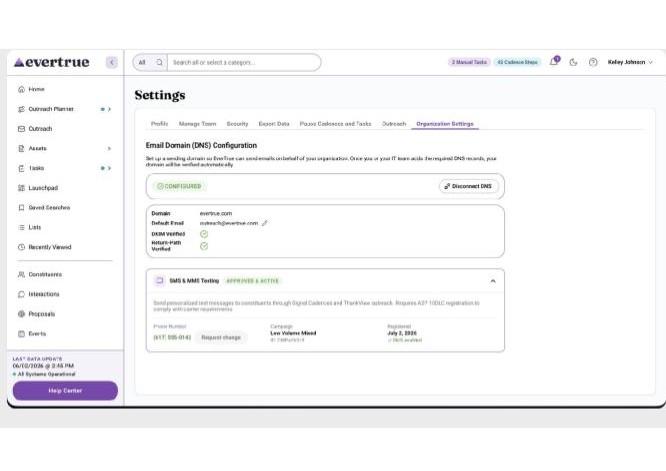
Once approved, the SMS & MMS Texting section will display your assigned phone number, campaign type, campaign ID, and the date SMS was enabled. Your team can now include SMS steps in Signal Cadences 2.0 and Bulk Messages.
Rejected
Something in your registration was rejected by Twilio or The Campaign Registry. EverTrue will display the rejection reason and, where possible, a suggested fix. Click Edit & Resubmit to correct the issue and resubmit, or click Contact EverTrue Support if you need help interpreting the rejection.
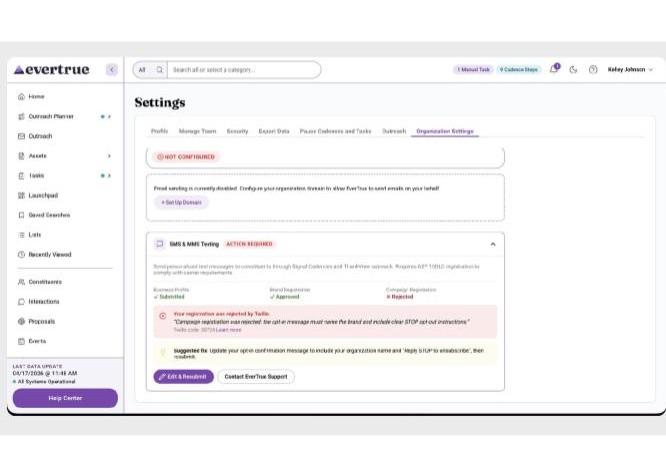
Common rejection reasons:
The opt-in confirmation message does not include your organization's name or the phrase "Reply STOP to unsubscribe"
Your Privacy Policy or Terms & Conditions URL does not include the required SMS-related language
Your legal business name or address does not exactly match your official EIN registration records
The opt-in description is too short (under 40 characters) or does not cover all of your consent collection methods
Frequently asked questions
What is A2P 10DLC and why is it required? A2P (Application-to-Person) 10DLC is the US carrier standard for business text messaging over 10-digit long-code phone numbers. All major US carriers require organizations to register before they can send SMS at scale. Registration helps protect recipients from spam and ensures your messages are delivered reliably.
Can I send SMS while my registration is pending? No. SMS sending is disabled until your registration is fully approved. Once approved, EverTrue Support will notify the EverTrue Owner who completed the process by email, and your phone number will be activated automatically.
I am an EverTrue customer, but I do not see the SMS section. Why? SMS is available to EverTrue customers who have purchased the Signal package and have Cadences 2.0 enabled on their account. If you have the Signal package but do not see the SMS & MMS Texting section, reach out to your Customer Success Representative to confirm Cadences 2.0 is enabled.
Can I change my phone number after registration? Once approved, your assigned phone number is shown on the Organization Settings page with a Request change link. Reach out to EverTrue Support to request a number change.
My organization has been sending SMS through EverTrue - ThankView. Do we still need to register?
Yes. All organizations must complete A2P 10DLC registration individually to send SMS through Signal Cadences 2.0. Each organization needs its own registration to be compliant with current US carrier requirements.
Content aside
- 2 mths agoLast active
- 161Views
-
1
Following