
Sending SMS in Cadences 2.0
Sending SMS in Cadences 2.0
Summary: Learn how to send an SMS bulk message, add an Automated SMS step to a cadence, and create and use SMS templates. SMS is available to organizations that have completed A2P 10DLC registration in Organization Settings.
What this article covers
Sending an SMS bulk message
Adding an Automated SMS step to a cadence
Creating and using SMS templates
Merge fields in SMS
Before you begin
Your organization must complete A2P 10DLC registration before SMS is available. An admin completes this one-time setup in Organization Settings. If you do not see the SMS channel option in Cadences 2.0, contact your EverTrue administrator to follow the Setting Up SMS & MMS Texting article.
Send an SMS bulk message
Use an SMS bulk message to send a one-time text to many recipients at once. The setup flow is the same as an email bulk message, with SMS-specific differences in the channel selection, message content, and success metric steps.
1. Open Bulk Messages and create a new bulk message
Go to Cadences 2.0 and click Bulk Messages. Click Create New to launch the setup flow.
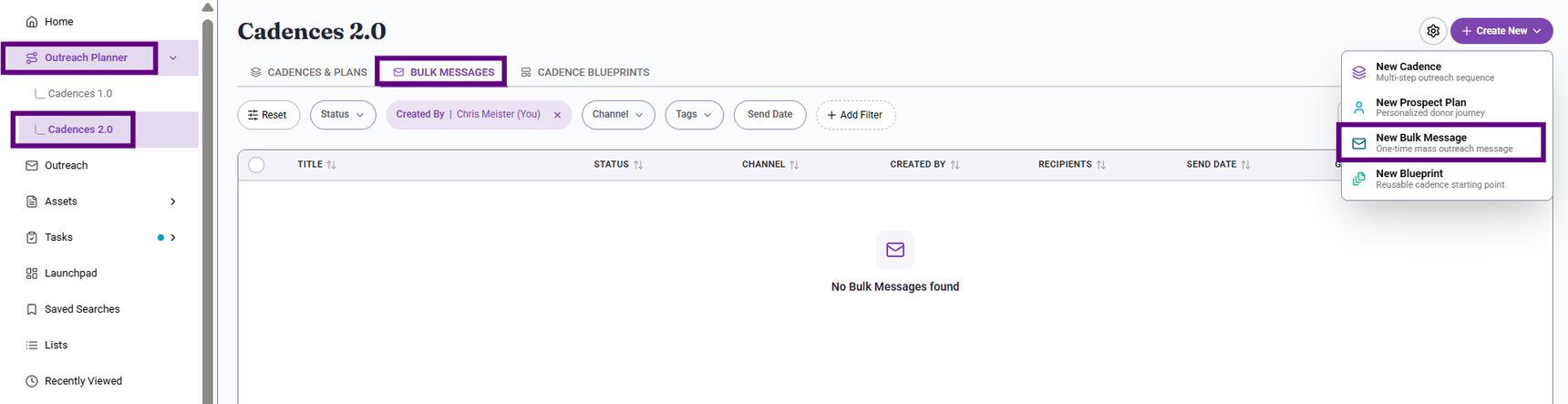
2. Select Text as the channel
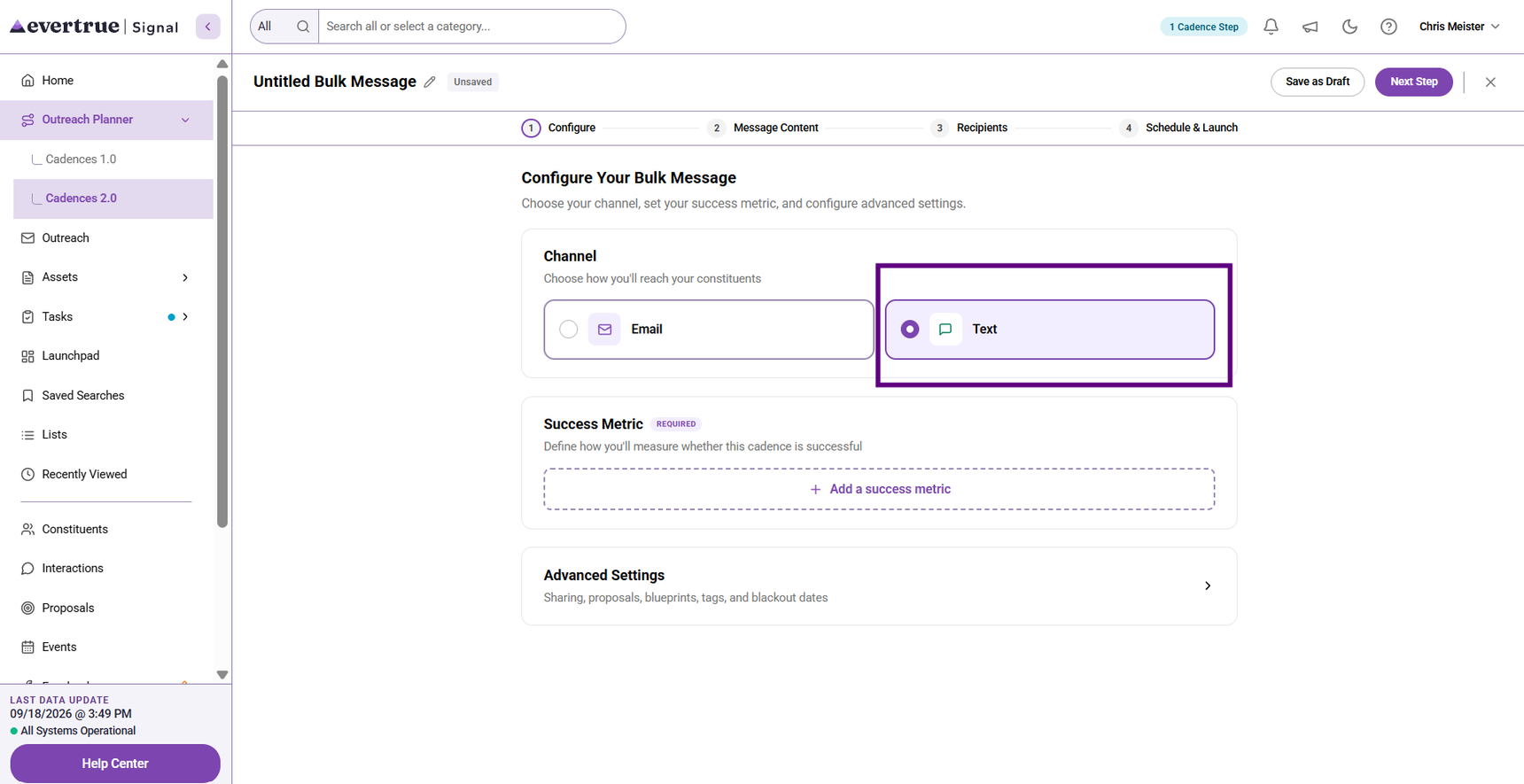
On the Configure step, choose Text under Channel. The success metric options will update to show SMS-specific metrics.
3. Choose the primary success metric
Select one required success metric.
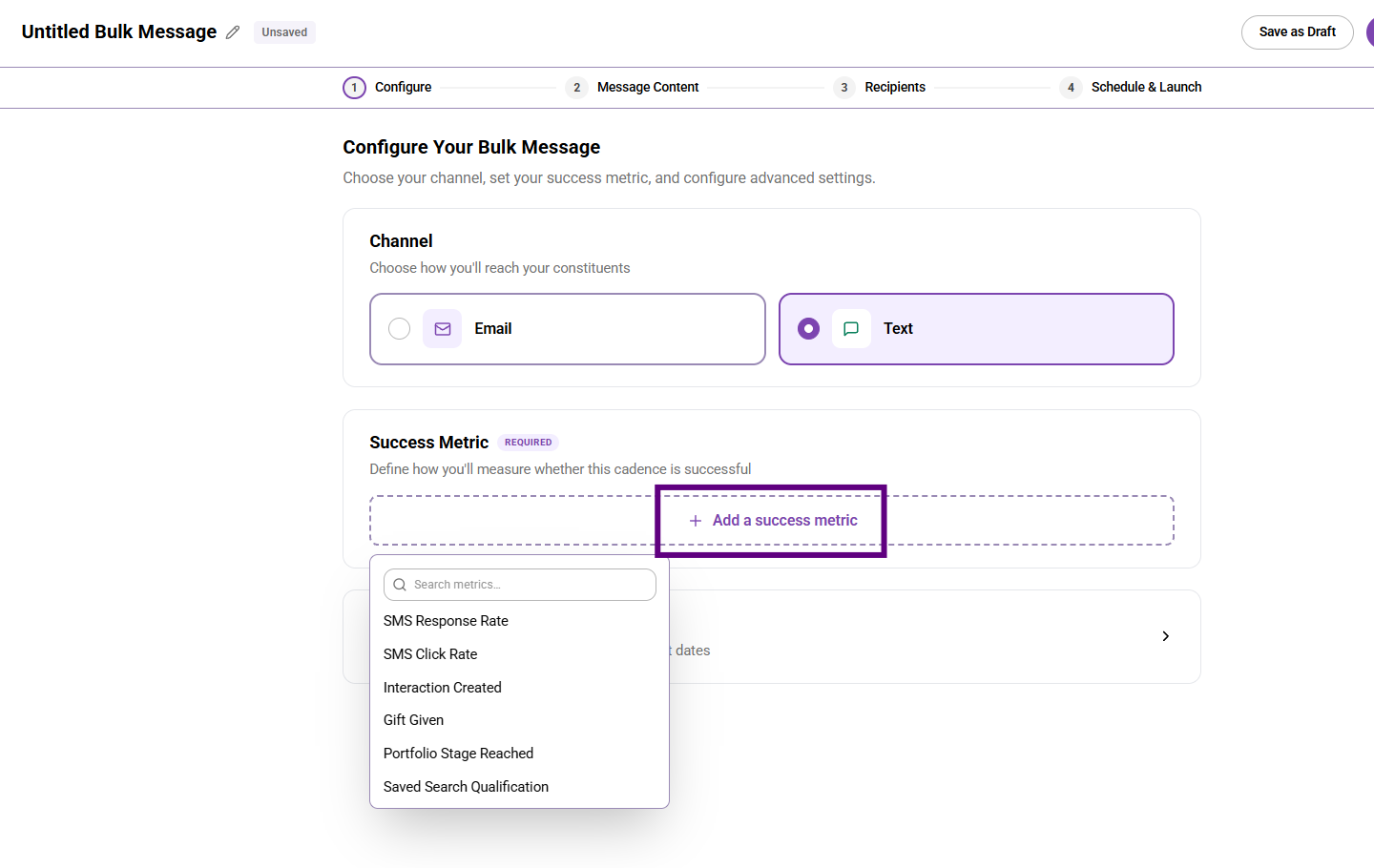
When Text is selected as the channel, the available options are:
Success metric |
What it measures |
Example goal |
SMS Response Rate |
Whether a recipient replied to the text message |
15% of recipients reply |
SMS Click Rate |
Whether a recipient clicked a link in the text message |
20% of recipients click a link |
Interaction Created |
Whether an interaction was logged during or within 30 days of the send |
5% of recipients have a call logged |
Gift Given |
Whether a recipient gave a gift during or within 30 days of the send |
10% of recipients give a gift |
Portfolio Stage Reached |
Whether a recipient reached a target portfolio stage |
25% of recipients reach Cultivation |
Saved Search Qualification |
Whether a recipient qualified for a selected saved search |
20% of recipients qualify |
4. Build the message
On the Message Content step, write your SMS message in the Message field.
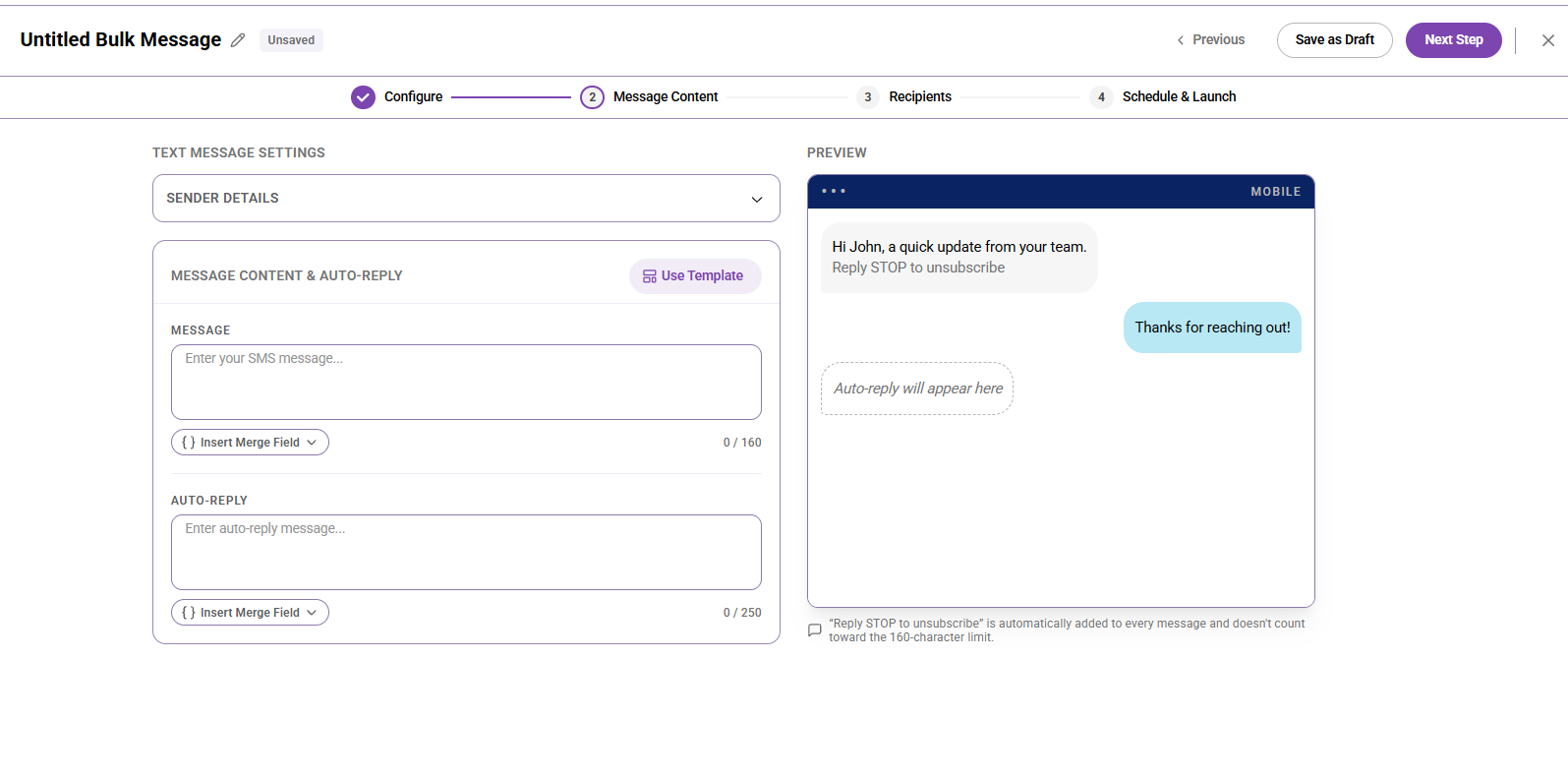
Messages are limited to 160 characters per segment. The character counter shows your current segment count and remaining characters.
"Reply STOP to unsubscribe" is automatically added to every message. This text does not count toward the 160-character limit.
5. Add merge fields
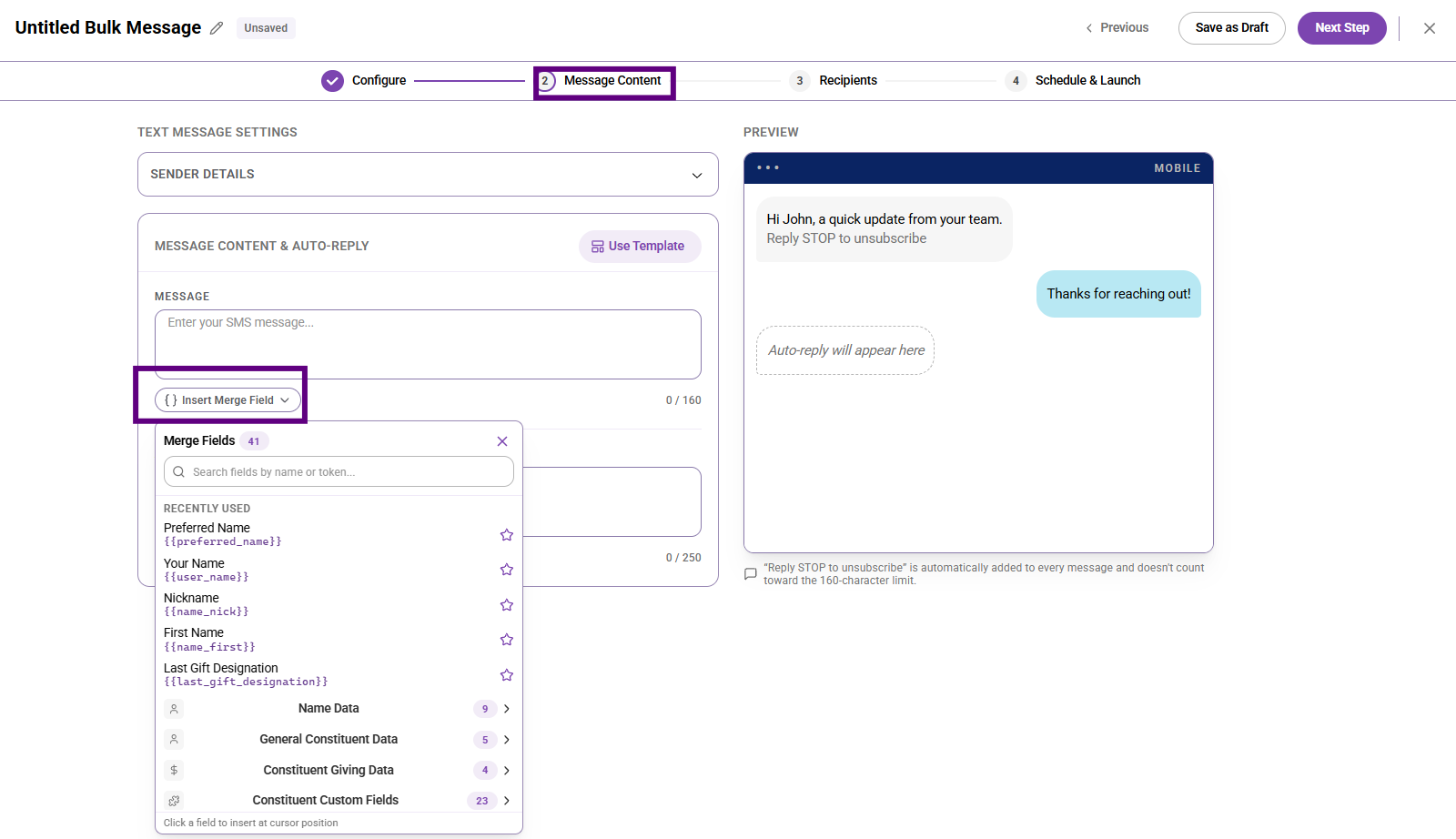
Click Insert Merge Field to personalize the message with contact-specific information. See the Merge fields in SMS section of this article for the full list of available fields.
6. Write the auto-reply message
In the Auto-Reply field, enter the message a constituent will receive if they reply to your text. The auto-reply is limited to 250 characters.
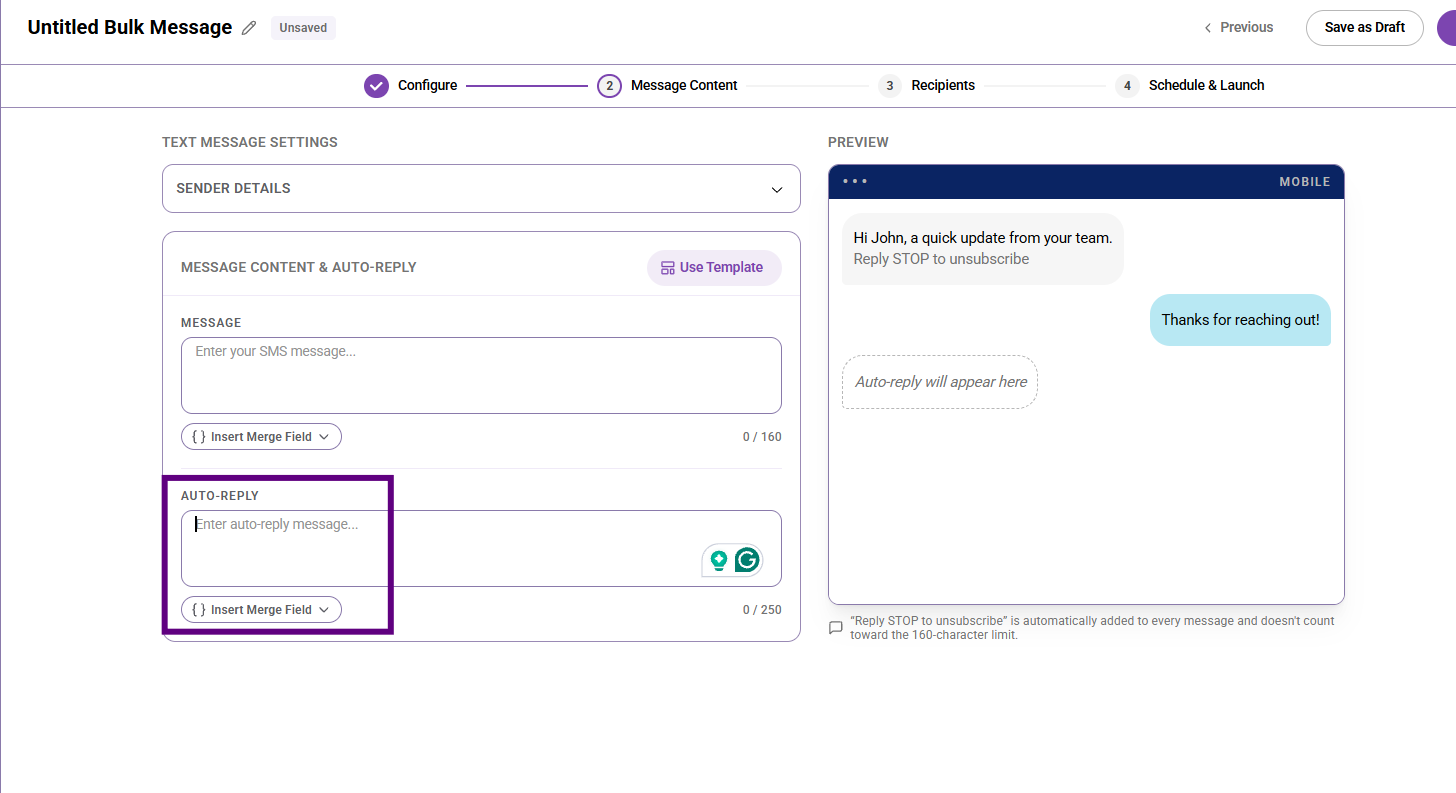
Because EverTrue does not support two-way texting, replies from constituents are forwarded by email to the reply email address configured in Sender Details. Multiple email addresses can be added here; just separate with commas. The auto-reply is always active — constituents will always receive this message when they reply.
7. Use an SMS template (optional)
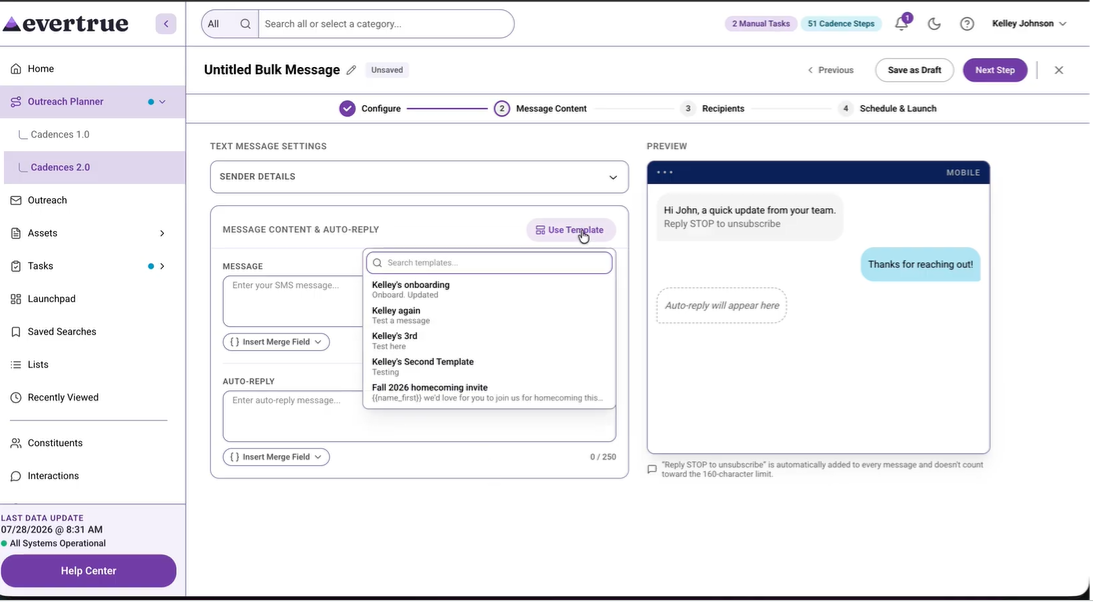
Click Use Template to insert a saved SMS template. Templates pull from the SMS Templates library in Assets. After inserting a template, review and edit the message for this specific send before continuing.
8. Select recipients
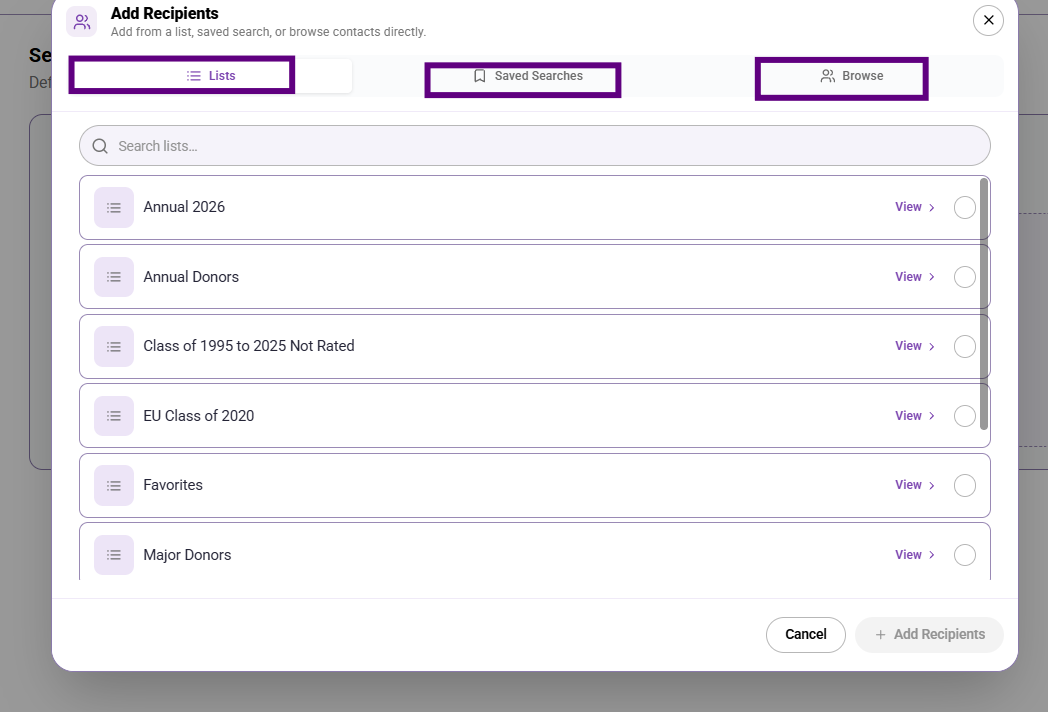
Move to the Recipients step and select who will receive the message. You can choose from a list, a saved search, or individual contacts.
9. Review and launch
Move to Schedule & Launch. Review the Bulk Message Summary, which shows the channel, success metric, message preview, and sharing settings. Choose Send Immediately or Schedule for Later, then confirm.
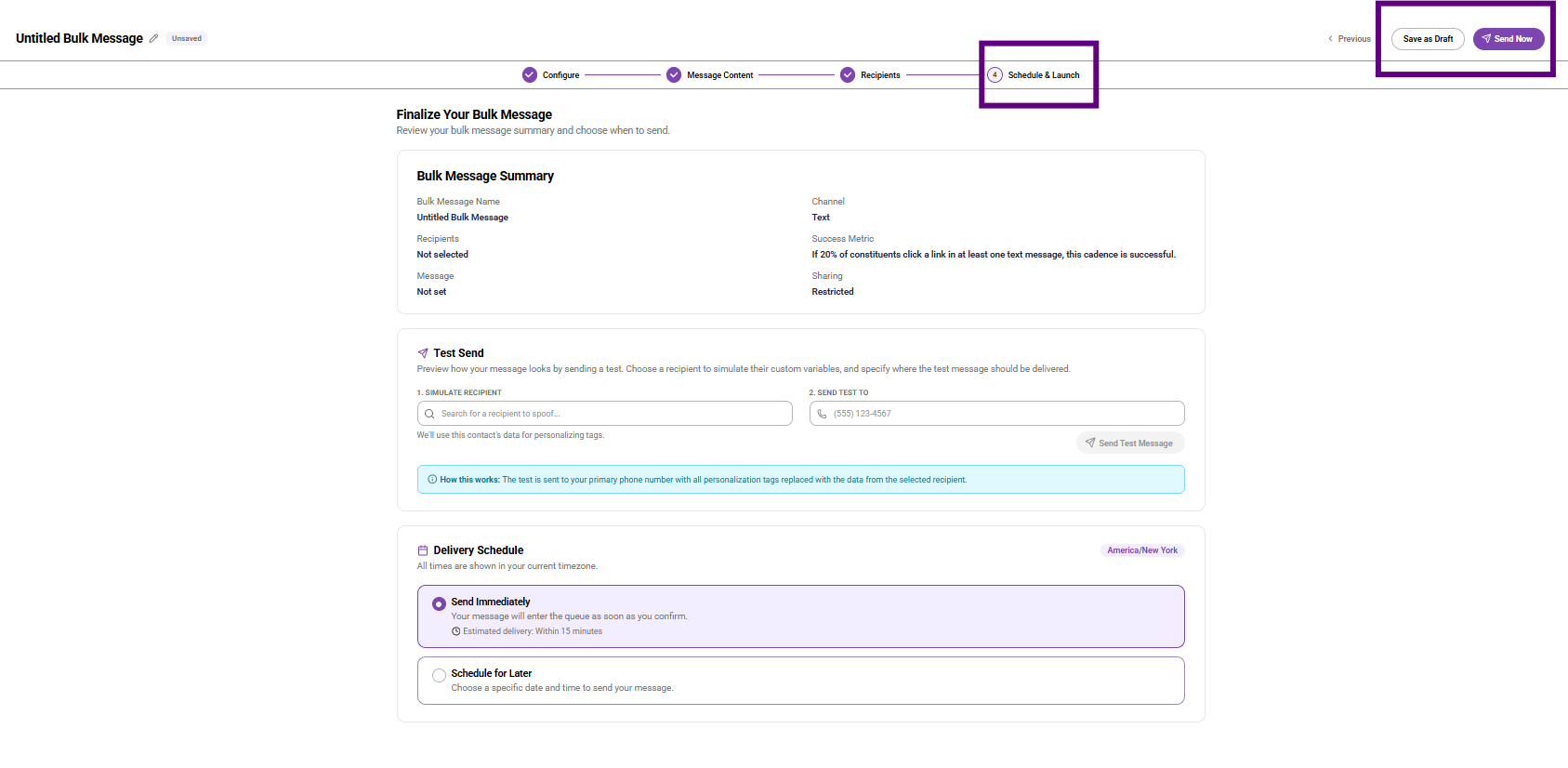
Note: Success metrics continue tracking for up to 30 days after the send, which allows time for recipients to reply, click, or take action after the message is delivered.
What to know about SMS bulk messages
SMS is a separate channel from email. Choosing Text at setup changes the success metric options and the message content step.
Recipients without a primary phone number on file will be skipped. They will not cause an error — the send simply does not attempt delivery to that contact.
There is no open tracking for SMS. Reporting shows sent, delivered, clicked, and replied — not opened.
The auto-reply is always on. You cannot disable it.
Add an Automated SMS step to a cadence
Use an Automated SMS step to send a text message automatically as part of a multi-step cadence. You can combine it with automated email steps, wait steps, and conditions in the same cadence flow.
1. Open or create a cadence
Go to Cadences 2.0 and open an existing draft cadence or click Create New to start a new one.
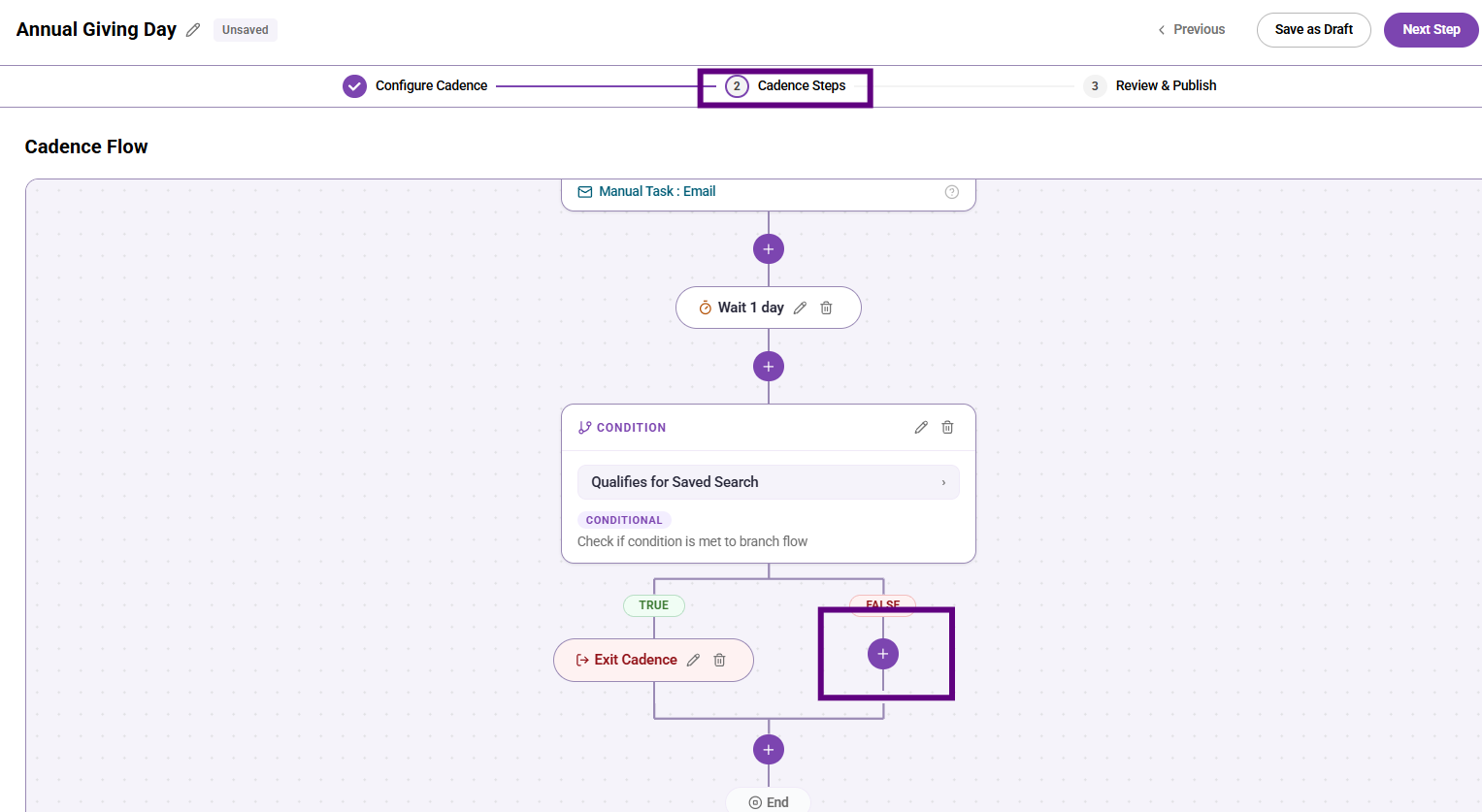
2. Add a step to the cadence flow
On the Cadence Steps stage, click the + button in the cadence flow where you want to add the SMS step. The Add Step panel will open.
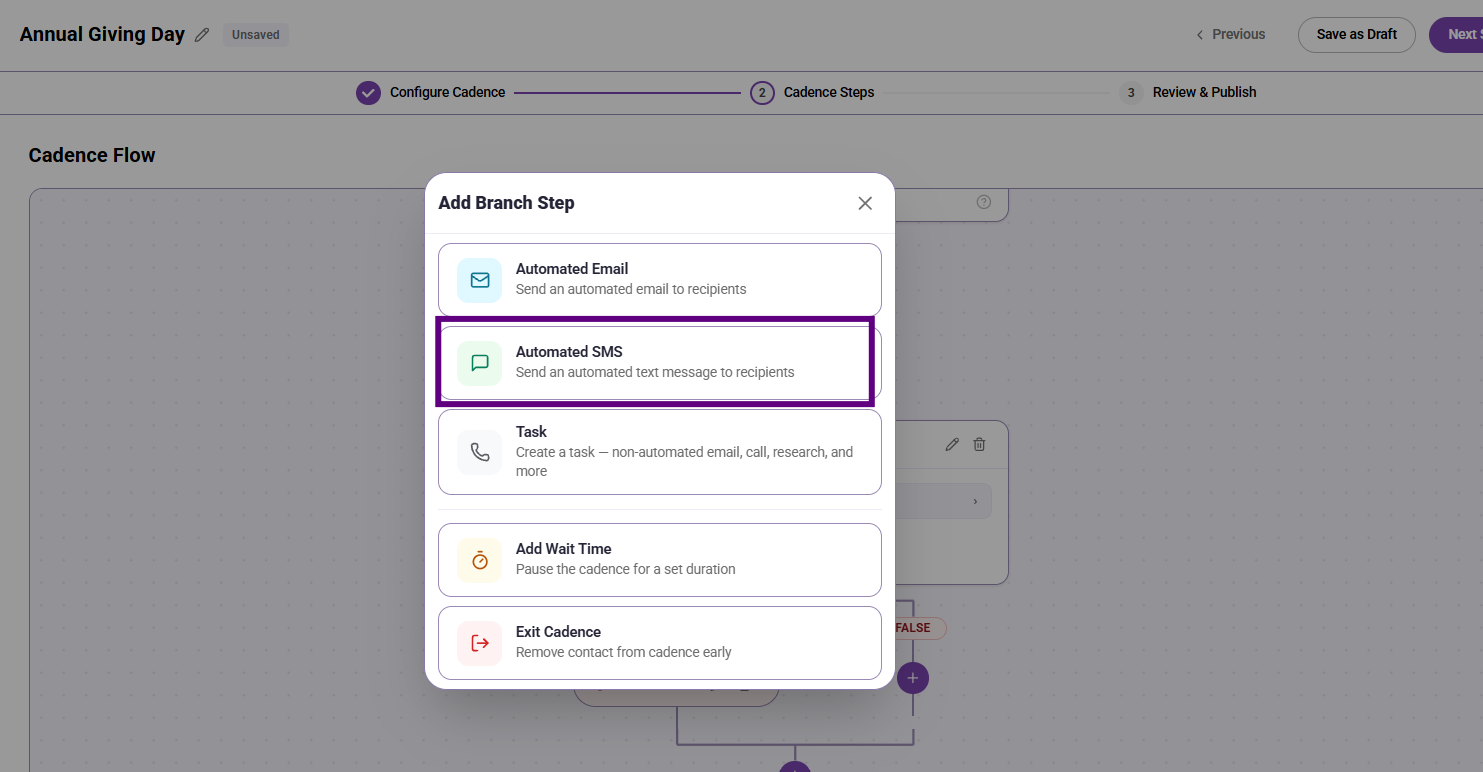
3. Select Automated SMS
Click Automated SMS. The step will be added to the cadence flow, and the Step Details panel will open on the right.
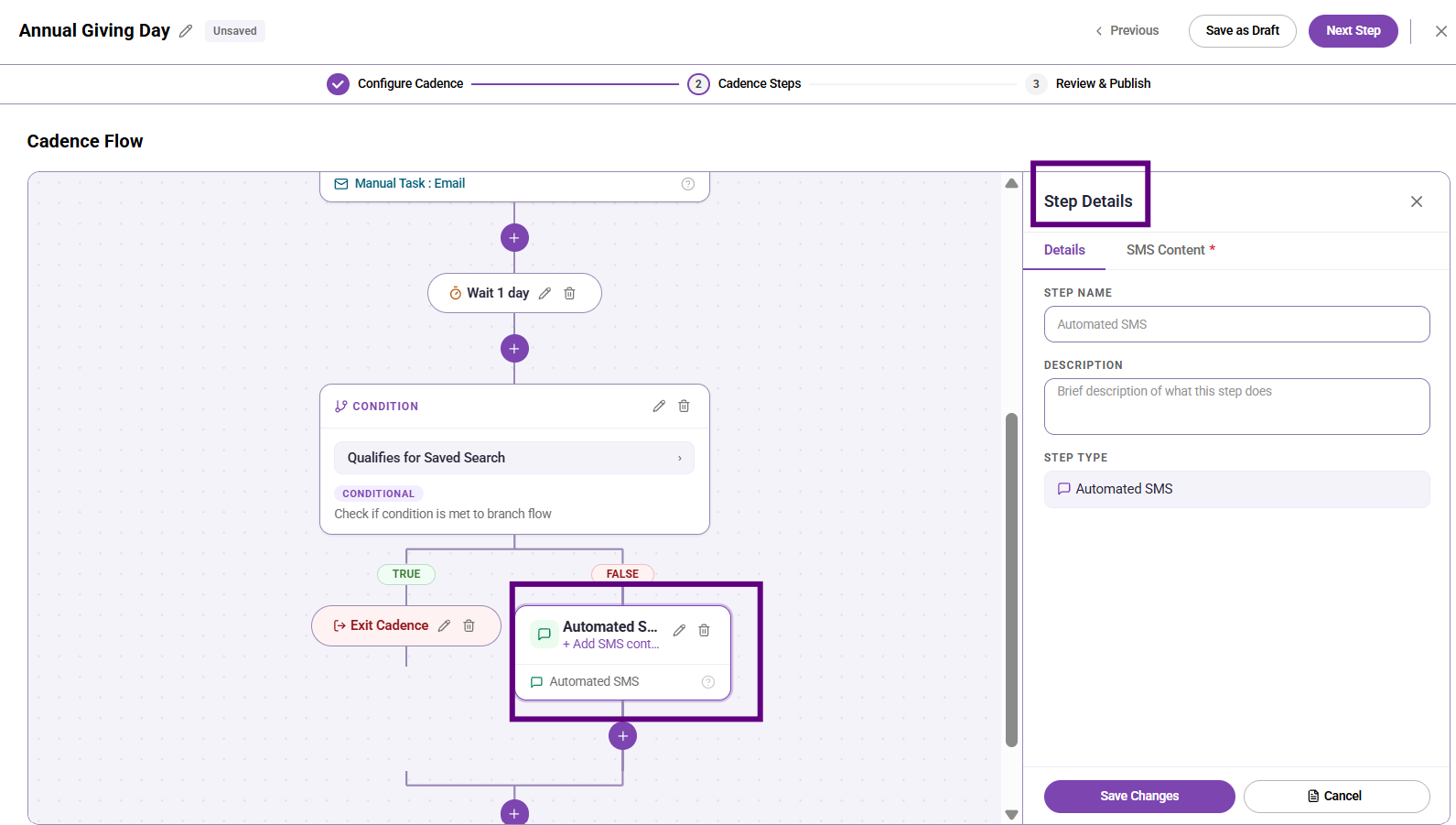
4. Name the step and add a description (optional)
On the Details tab, enter a Step Name and an optional Description to identify this step in the cadence flow.
5. Write the SMS message
Click the SMS Content tab. Write your message in the message field, use merge fields for more personalization or click Use Template to insert a saved SMS template.
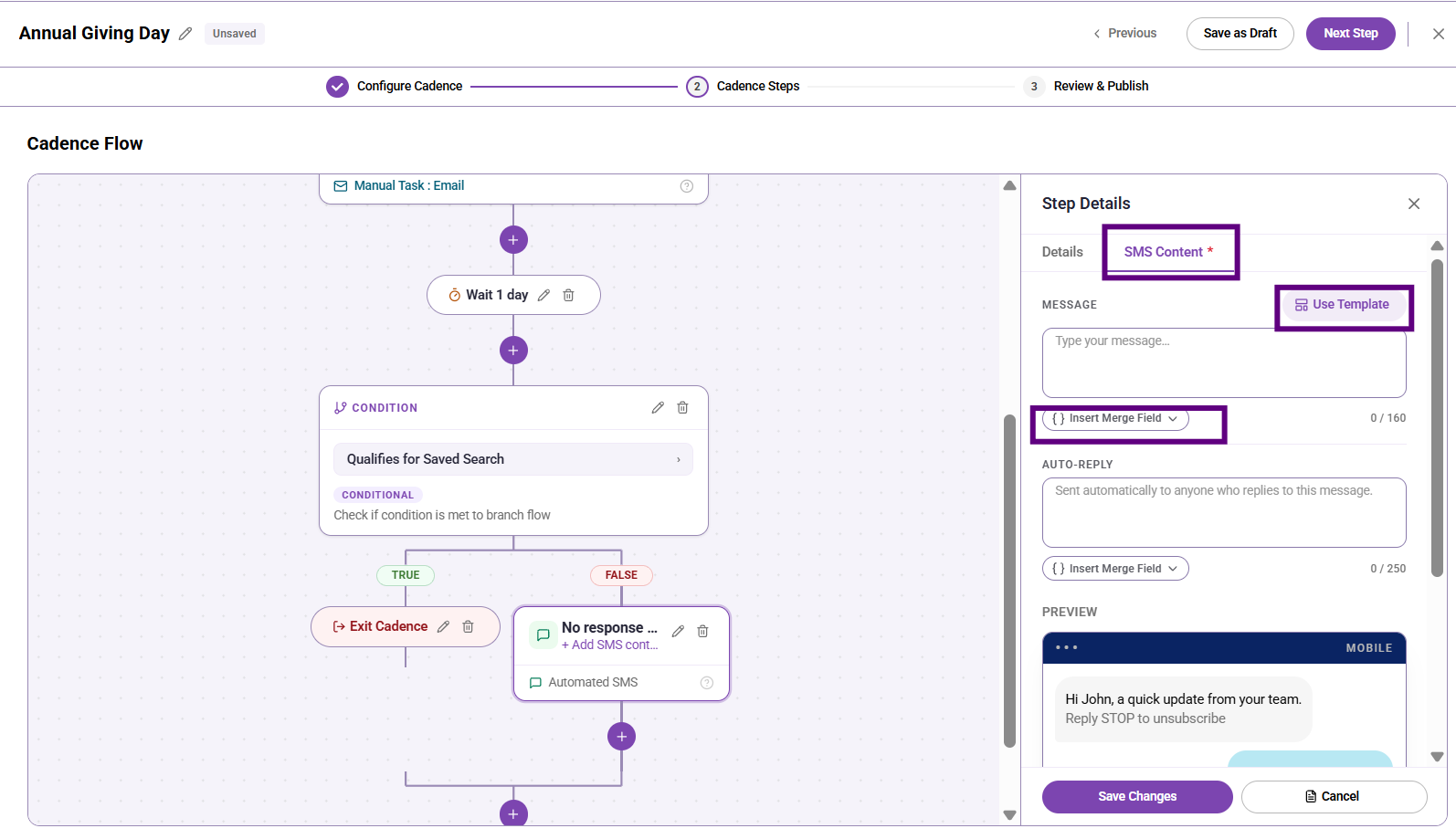
Messages are limited to 160 characters per segment.
"Reply STOP to unsubscribe" is automatically appended and does not count toward the character limit.
The Preview panel on the right updates as you type and shows a mobile view of the message.
6. Write the auto-reply message
In the Auto-Reply field, enter the message a constituent will receive if they reply. The auto-reply is limited to 250 characters. Replies from constituents are forwarded by email to the configured reply email address. Multiple email addresses can be added here; just separate with commas. The auto-reply is always active.
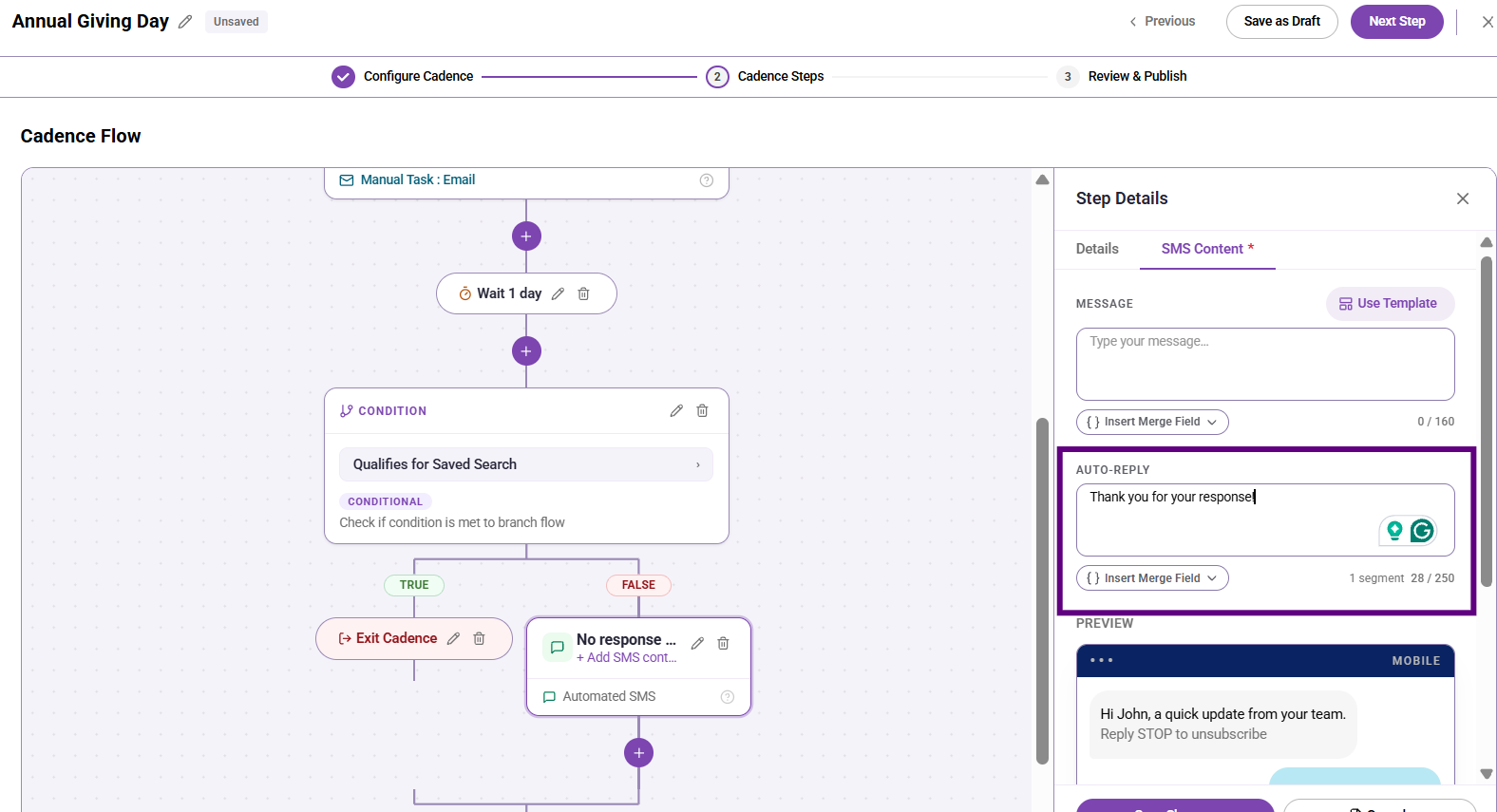
8. Save the step
Click Save Changes. The step will appear in the cadence flow.
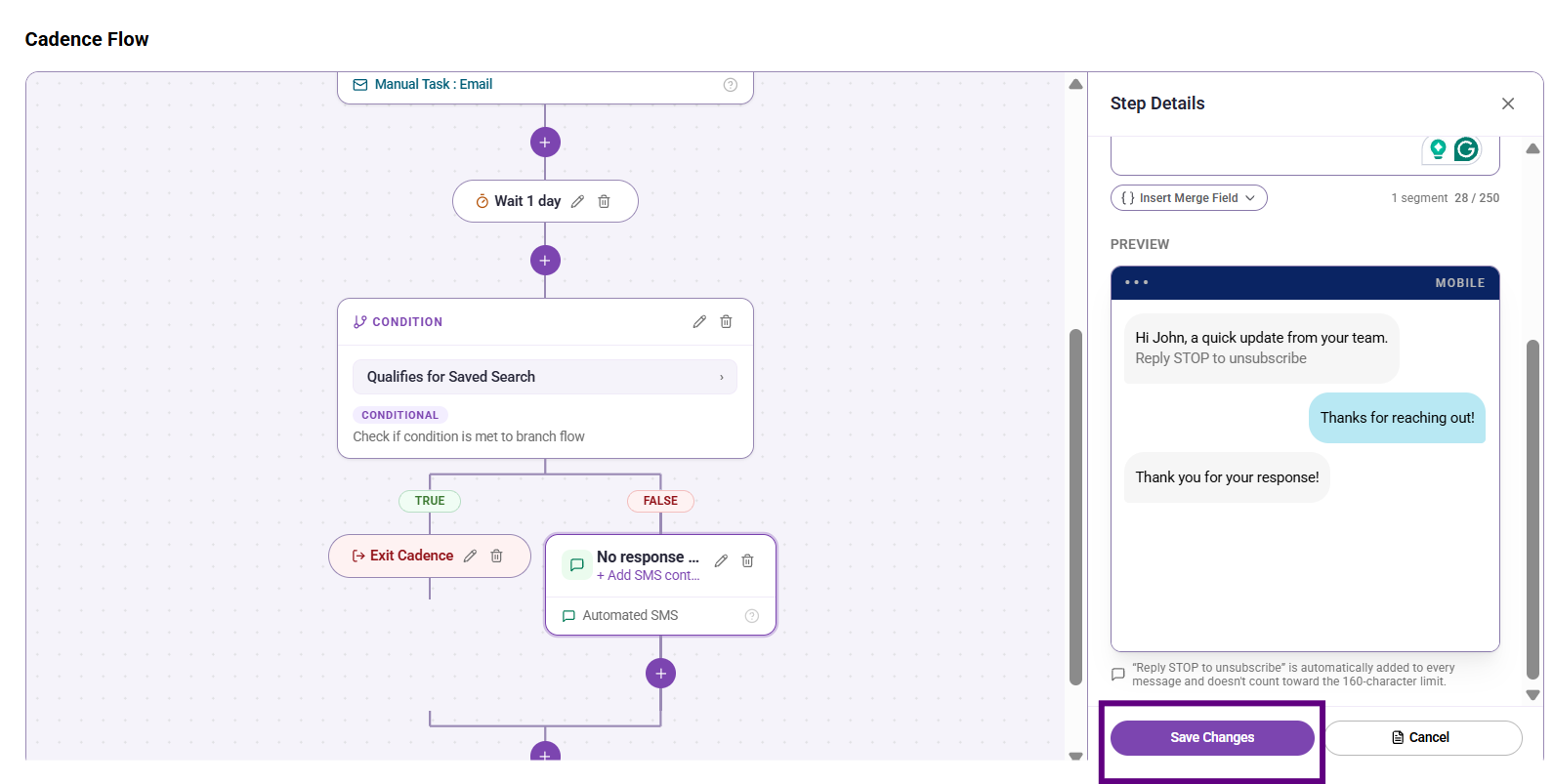
9. Continue building the cadence
Add additional steps — email, wait, or condition — as needed. When the cadence flow is complete, click Next Step to move to Review & Publish.
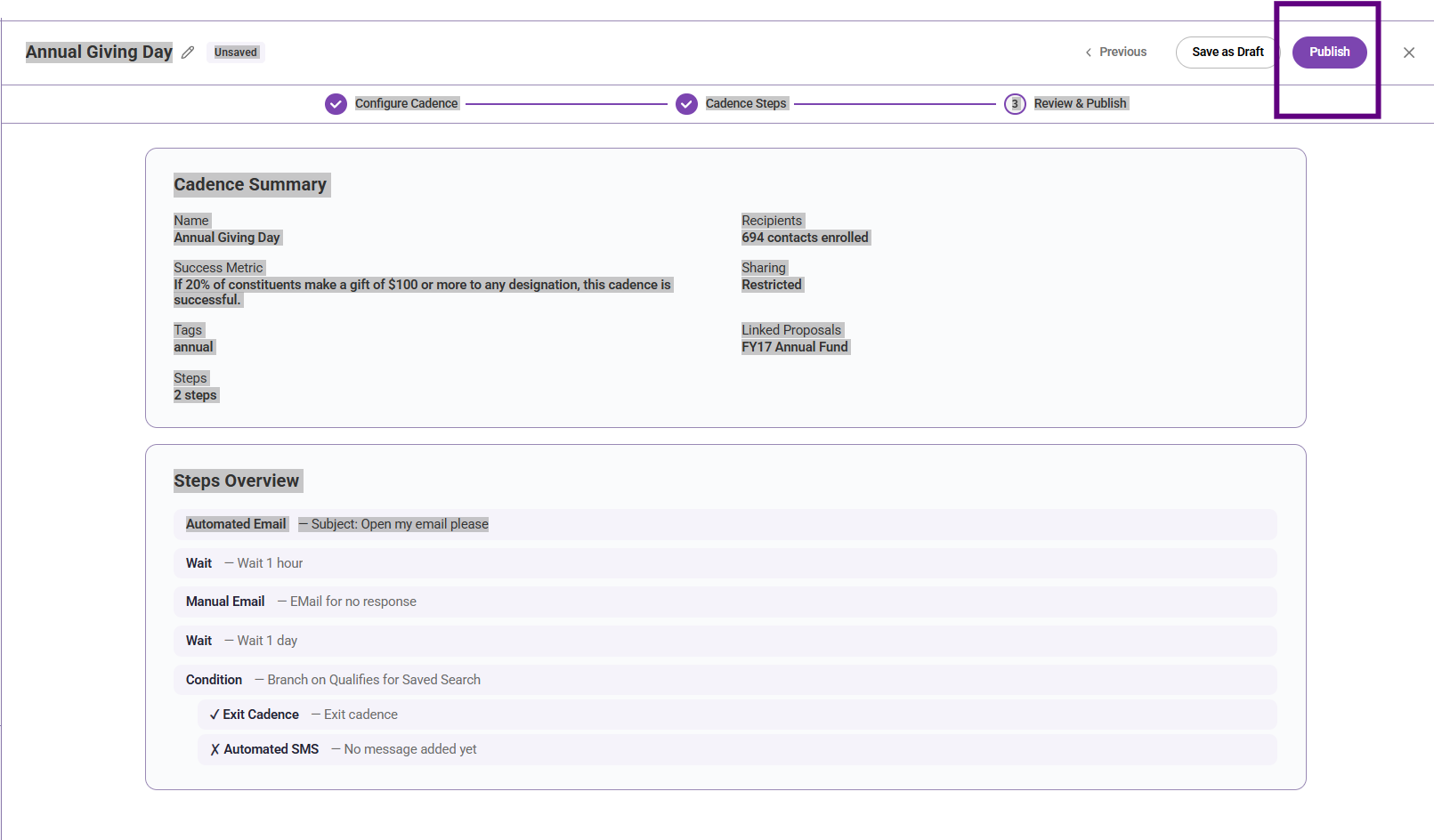
What to know about Automated SMS steps
An Automated SMS step sends as soon as the contact reaches that point in the cadence sequence, subject to any preceding wait steps.
Contacts without a primary phone number on file will be skipped at the SMS step. They will not be removed from the cadence.
You can add more than one SMS step to a cadence.
The cadence-level success metric is set in the Configure Cadence stage, not at the step level. Choose SMS Response Rate or SMS Click Rate if SMS is the primary channel.
Create and manage SMS templates
SMS templates let you save message content you use often and reuse it across bulk messages and cadence steps. Templates are managed in Assets.
1. Open SMS Templates
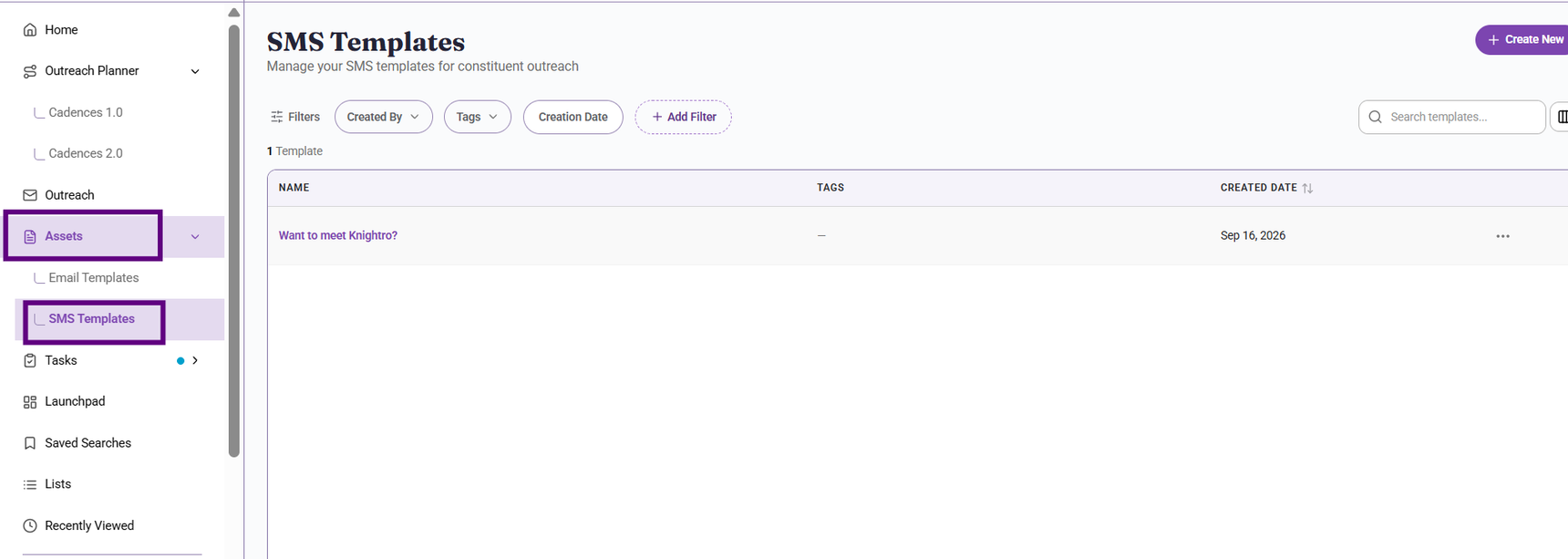
In the left navigation, click Assets, then click SMS Templates.
2. Create a new template
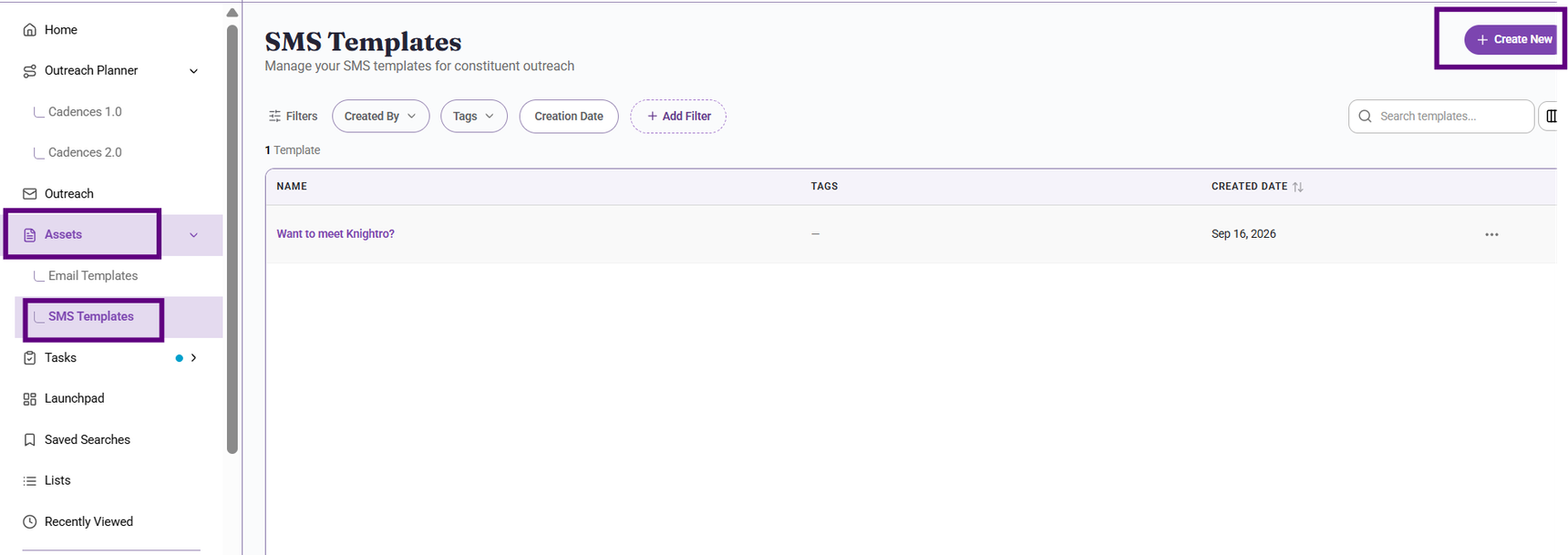
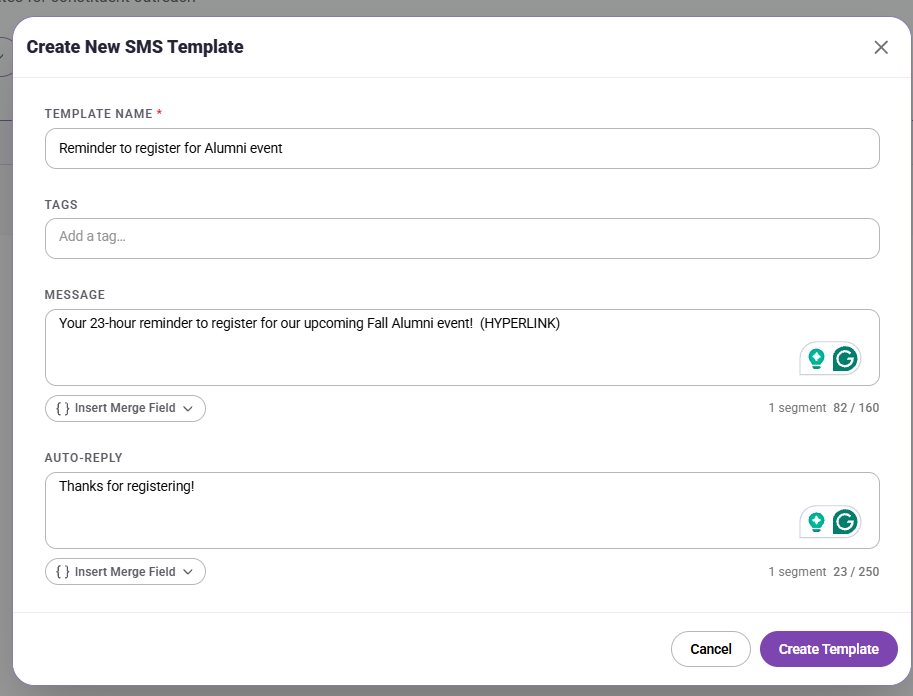
Click Create New. Enter a template name, write the message body, and add tags if needed.
The character counter shows your current segment count and remaining characters.
"Reply STOP to unsubscribe" is automatically appended and does not count toward the limit.
Click Insert Merge Field to add personalization.
3. Create the template
Click Create Template. The template will appear in the SMS Templates list and will be available to select when composing a bulk SMS or an Automated SMS cadence step.
4. Use a template in a bulk message or cadence step
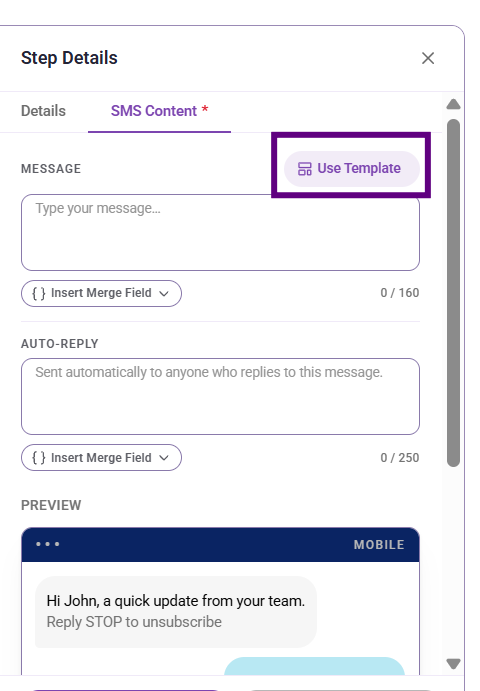
When composing an SMS message, click Use Template. A search panel will open showing your saved SMS templates. Select a template to insert it. Review and edit the content before sending or saving.
5. Edit or delete a template
In the SMS Templates list, click the ... menu on any template to edit or delete it. Deleting a template does not affect cadence steps or bulk messages that have already been sent using that template.
Merge fields in SMS: Verify these
Merge fields let you personalize SMS messages with contact-specific information. Click Insert Merge Field in any SMS composer to see the available options. The panel groups fields by category and shows a sample value for each field.
Category |
Fields |
Token examples |
Name data (9) |
Your Name, Prefix, Contact First Name, Contact Nickname, Contact Middle Name, Contact Last Name, Suffix, Maiden Name |
{{sender_name}}, {{prefix}}, {{first_name}}, {{nickname}}, {{middle_name}} |
General constituent data (4) |
Constituency, Graduation year, Phone (primary), Email (primary) |
{{constituency}}, {{class_year}}, {{phone}}, {{email}} |
Contact giving data (4) |
Lifetime giving amount, Last gift amount, Last gift date, Last gift designation |
{{lifetime_giving}}, {{last_gift_amount}}, {{last_gift_date}}, {{last_gift_designation}} |
Constituent custom fields (dynamic) |
All custom fields your organization has enabled with Profile Display turned on appear here. The list is org-specific. |
{{custom.field_name}} |
What to know about merge fields
If a required merge field is empty for a contact, the message will be skipped for that contact.
Giving data fields reflect the most recent gift on the contact's record.
Custom fields vary by organization. A custom field must have Profile Display turned on to appear as a merge field option. Contact EverTrue Support if a field you expect is not listed.
You can search the merge field panel by field name, token, or example value.
Content aside
- yesterdayLast active
- 10Views
-
1
Following