
Mobile: Using EverTrue Pinned Comments on Your Signal iOS App
What are EverTrue Pinned Comments? The Pinned Comment feature lets you keep track of important constituent information while on the road. Pinned comments are visible to all team members with EverTrue access.
Ways to add a Pinned Comment
New shortcut: tap + Add Pinned Comment for a direct path to pinning a comment.
In a constituent profile's Summary tab, scroll down to Pinned Comments (below Donor Potential Score)
Select +Add Pinned Comment
https://www.loom.com/share/cb46eacf5626473c912bfad2a51eb39d
You can also pin a comment the original way:
Tap Add Interaction and select EverTrue Comment from the Interaction Type dropdown.
Write your comment and select Yes beneath the Pinned section.
Tap Save.
To pin an existing comment:
Open the comment's detailed view.
Tap the pencil to edit.
Select Yes under the Pinned section.
Viewing Pinned Comments
In a constituent profile's Summary tab, scroll down to Pinned Comments (below Donor Potential Score)
In the profile's Interactions tab (highlighted in green, labeled Pinned EverTrue Comment).
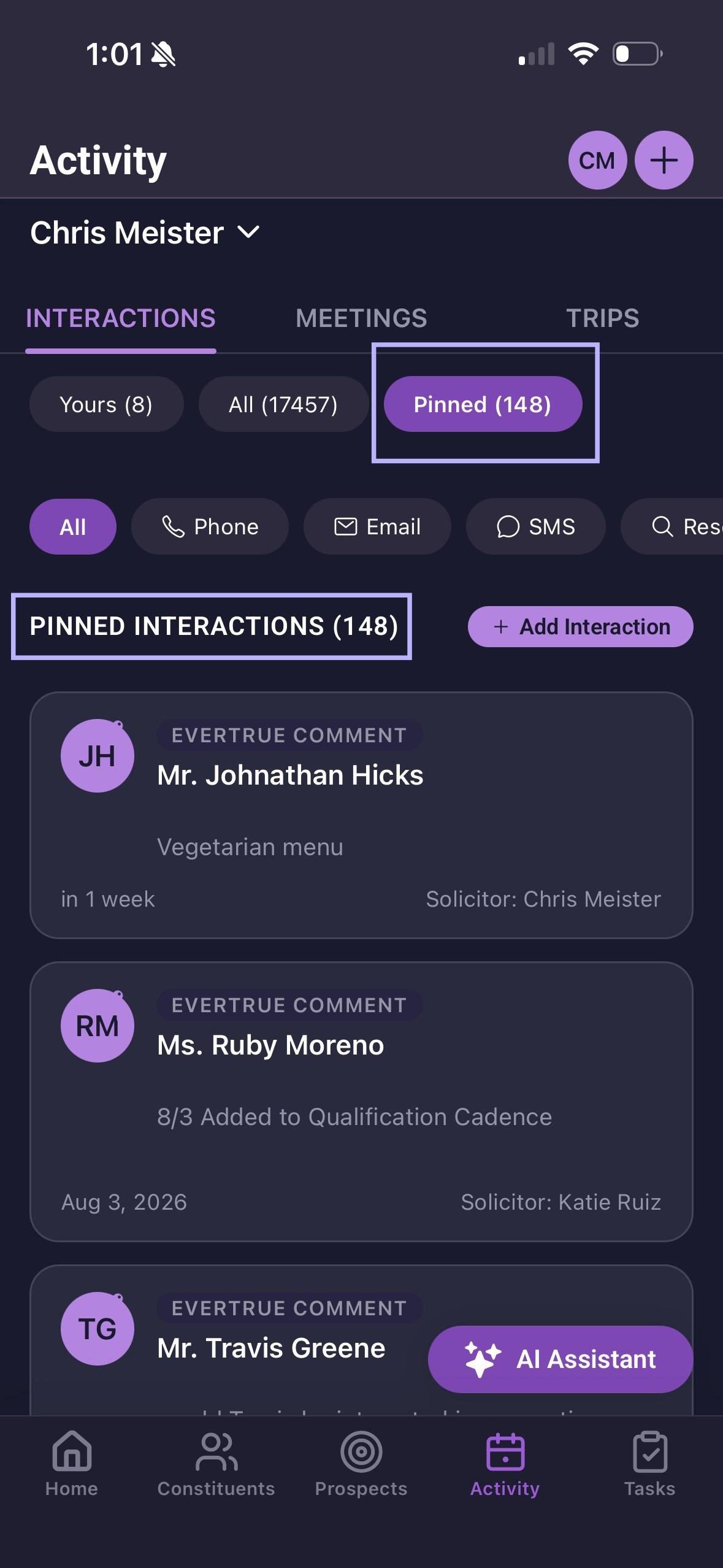
In your Activity tab's Interactions section (use the Pinned button to filter).
Unpinning Comments
Open the comment's detailed view.
Tap Edit.
Select No beneath the Pinned section.
Tap Save.
Check out this article to learn more.
Mobile: Navigating a Constituent Profile on your Signal iOS App
If you have questions, don't hesitate to contact EverTrue Support at genius@evertrue.com.
Content aside
- 1 mth agoLast active
- 18Views
-
1
Following