
Mobile: Using the Home Page on Your Signal iOS App
What is the Home page? The Home tab is your Signal app login landing page.
Search Bar — Updated
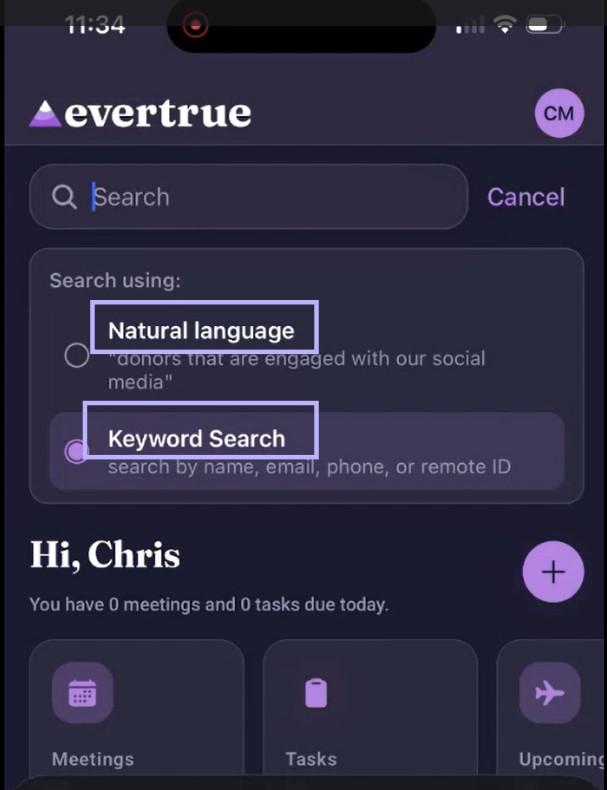
At the top of the Home tab is a search bar. Tap it to choose how you want to search:
Keyword Search: Search by name, email, phone, or remote ID.
Natural Language: Available if your organization has EverTrue's AI features enabled. Search using conversational language — for example, "donors that are engaged with our social media." See "Natural Language Search on Your iOS App" for details.
Quick Actions — Updated
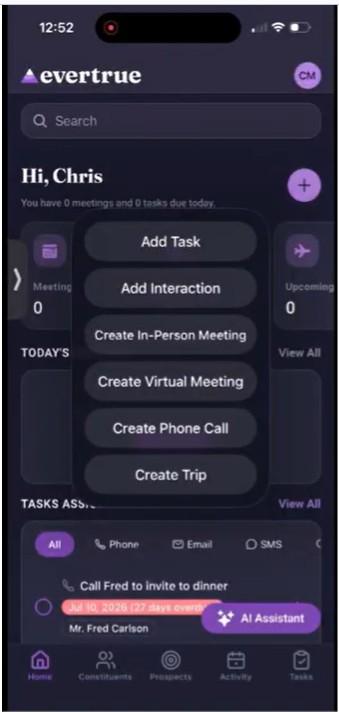
Tap the + button in the upper-right corner of the Home tab to open a menu with six options:
Add Task
Add Interaction
Create In-Person Meeting
Create Virtual Meeting
Create Phone Call
Create Trip
Today's Meetings
Shows meetings scheduled for today, or an empty state with an Add Meeting button if none are scheduled. Tap View All to see the full list.
Tasks Assigned To You — Updated
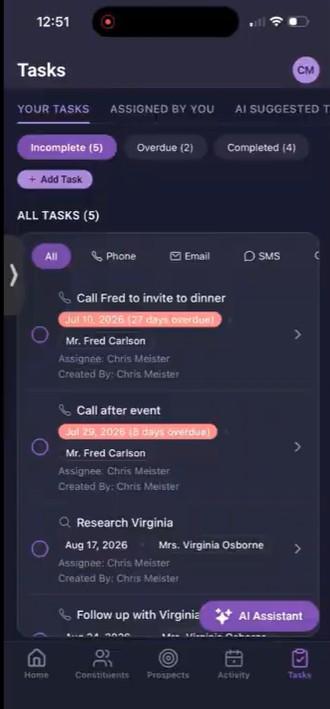
Shows tasks assigned to you, filterable by All, Phone, Email, SMS, Research, ThankView, and Other
Tap View All to access the full Tasks page.
A horizontal, day-by-day view of your schedule for the next five days.
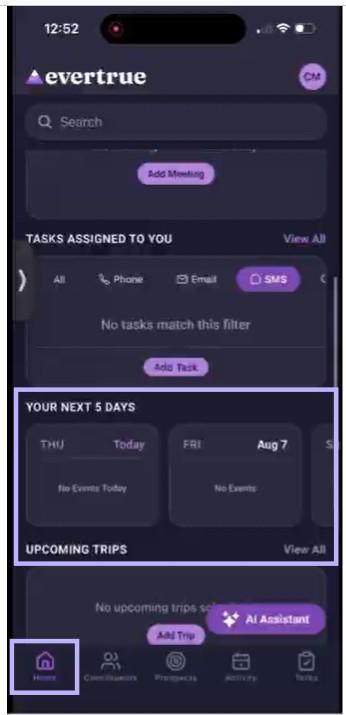
Upcoming Trips
Shows your upcoming trips, or an empty state with an Add Trip button if none are scheduled. Tap View All to see the full list.
AI Assistant
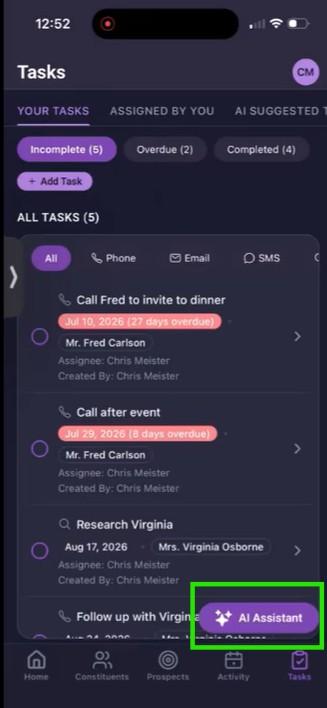
A floating AI Assistant button is available in the bottom-right corner of the Home tab. See "All About EverTrue's AI Assistant" for details.
Suggested Tasks — Moved
Suggested Tasks is no longer part of the Home tab. AI-recommended follow-up tasks now live in their own tab — AI Suggested Tasks — inside the Tasks page, alongside Your Tasks and Assigned By You. See "Using AI-Suggested Tasks on Your iOS App" for details.
If you have questions, contact EverTrue Support at genius@evertrue.com.
Check out this article: Mobile: Searching on Your iOS App
Content aside
- 1 mth agoLast active
- 13Views
-
1
Following