
Mobile: Using Your Signal App for Trips
Using your mobile Signal app's trips feature offers a great way to keep track of your travels and make adjustments while you are on the road. This article shows the iOS screen, but the functionality is the same for Android.
Viewing Trips
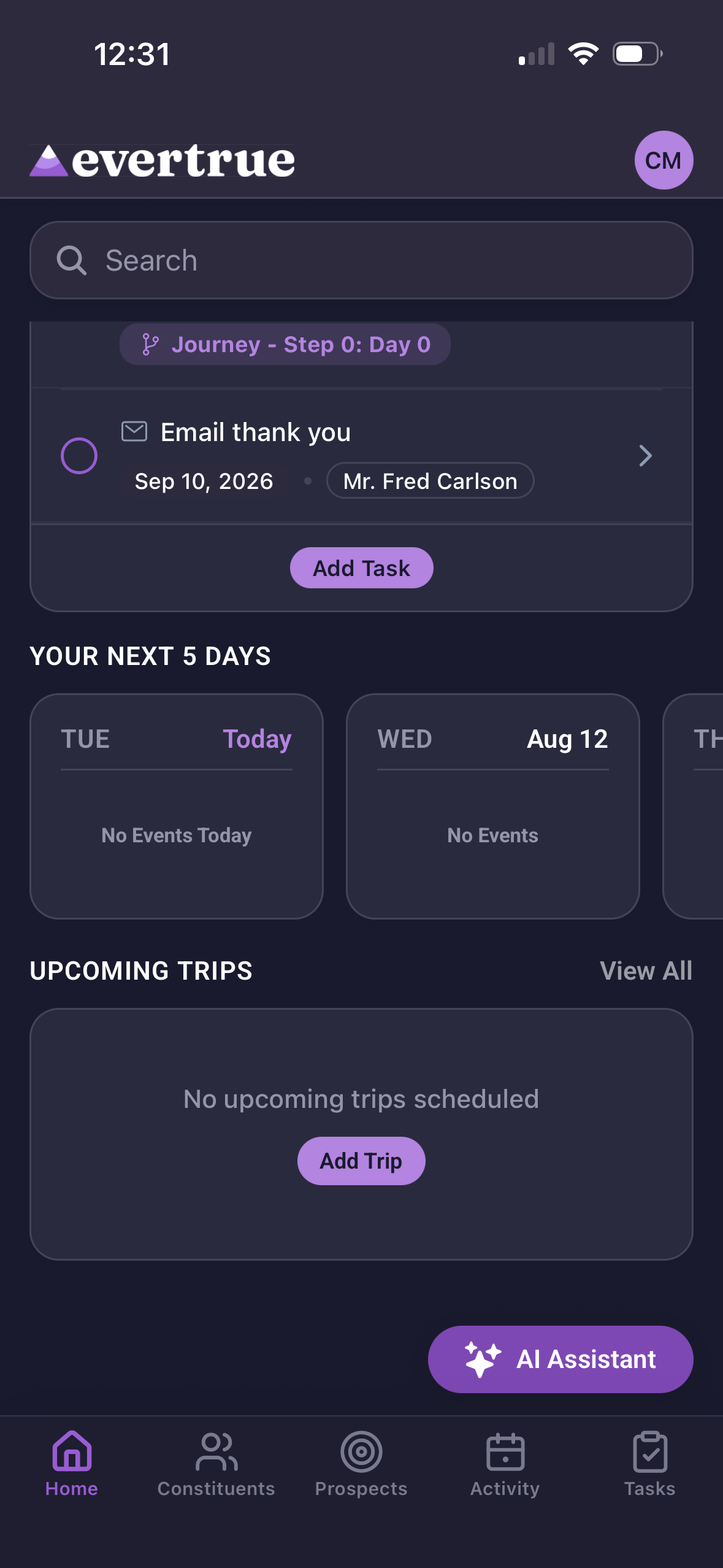
Trips surface on your Home tab, under Upcoming Trips: a card shows the trip name and date range with an airplane icon; tap it to open the trip, or tap View All to see the full list.
Creating New Trips
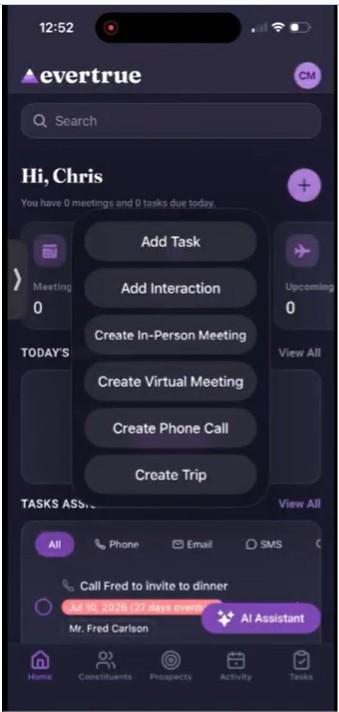
New trips and meetings are created from the Home tab's + button — see "Using the Home Page on Your iOS App" for the full six-item menu (Add Task, Add Interaction, Create In-Person Meeting, Create Virtual Meeting, Create Phone Call, Create Trip).
Viewing a Trip
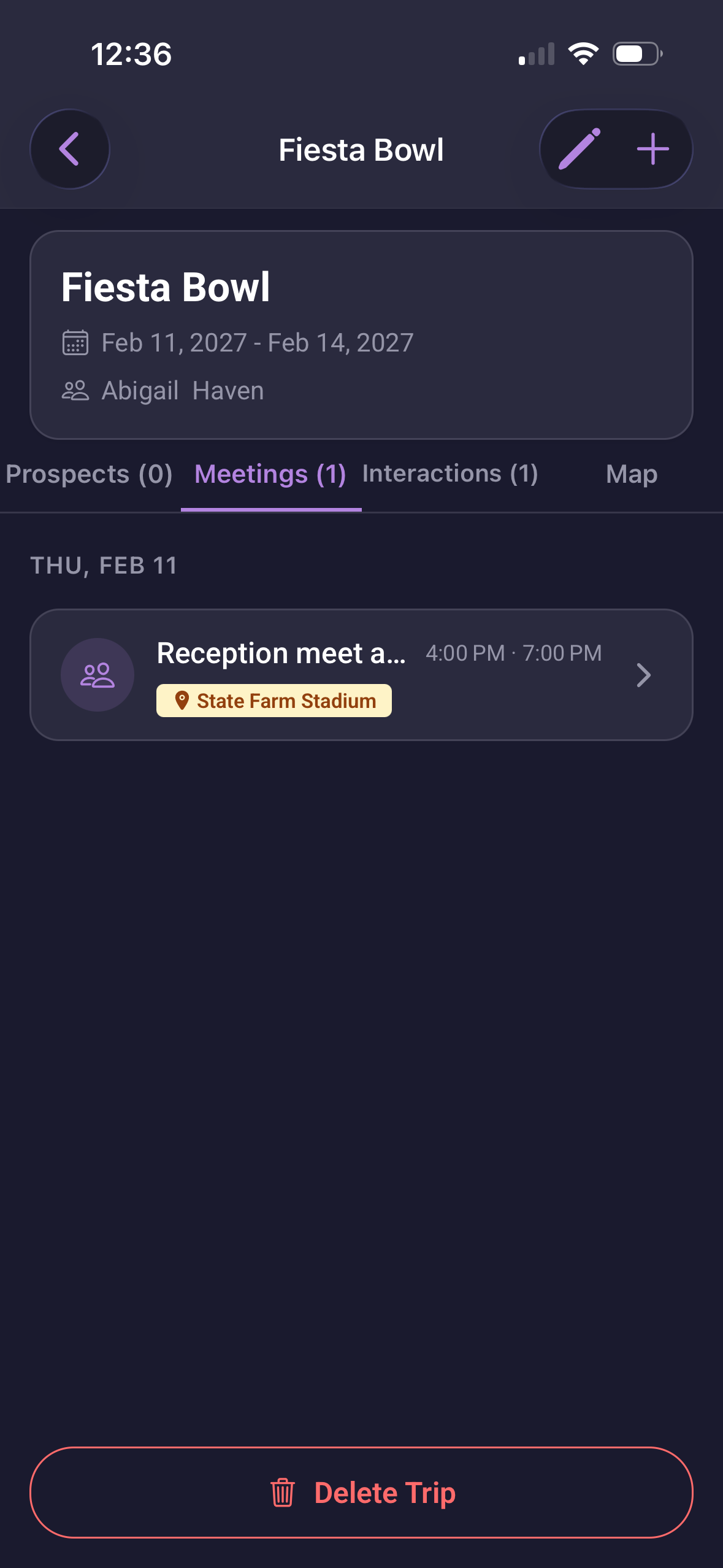
Opening a trip shows a header card (trip name, date range, and collaborators) and four tabs: Prospects (X), Meetings (X), Interactions (X), and Map.
Edit the trip: Tap the pencil icon in the header to open Edit Trip: Trip Name, Start Date, End Date, and Collaborators (add or remove people by name).
Add an event: Tap the + button in the header for three options: Add Meeting, Add Time Block, or Log Interaction.
Delete the trip: A dedicated Delete Trip button appears at the bottom of the trip screen.
Map Tab
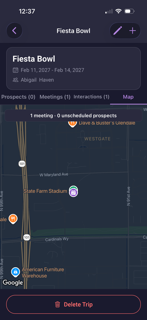
Map is now one of the trip's four tabs, showing all of that trip's meeting locations directly. This replaces the old small map preview that opened into a separate full map view — Map is now a first-class tab, not a preview-then-expand element.
Viewing a Meeting linked to a Trip
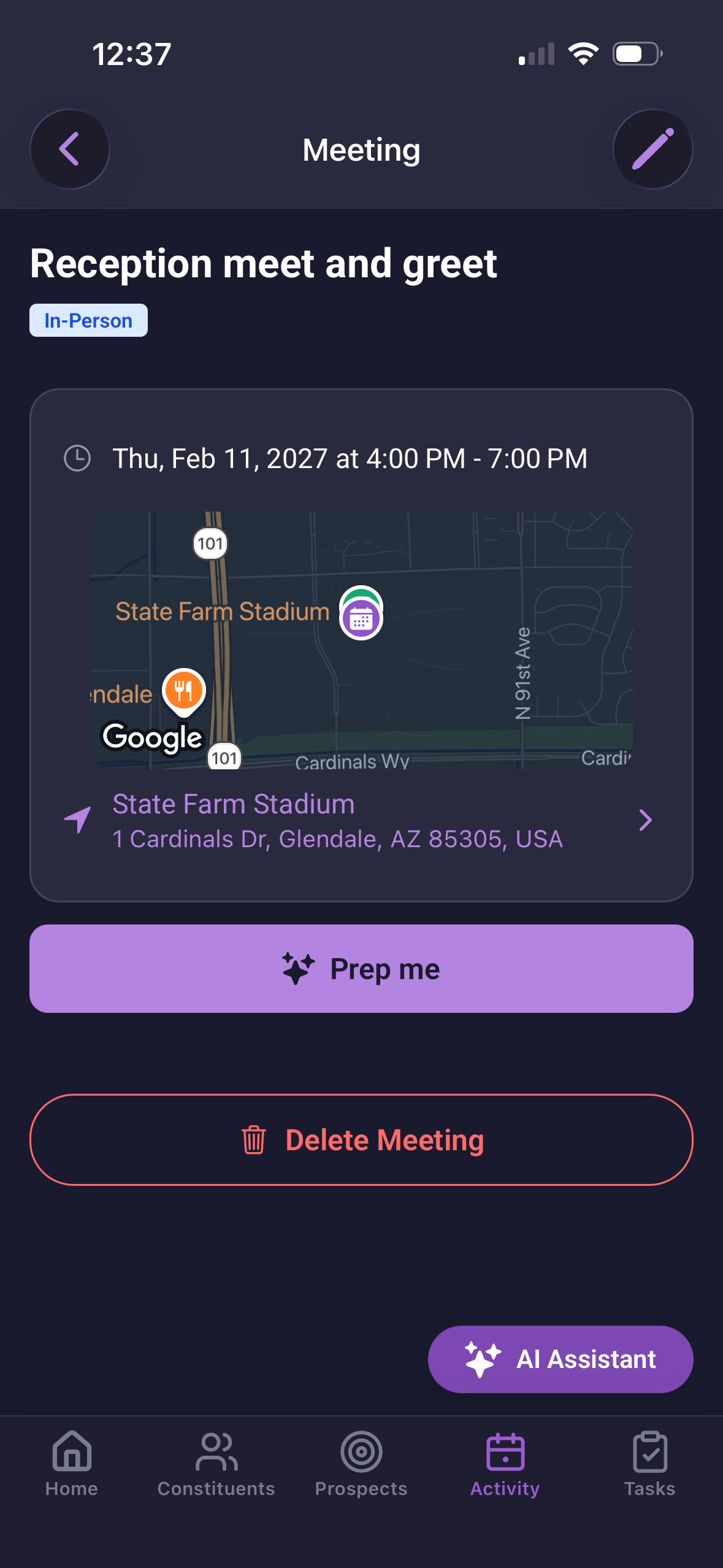
Meetings listed in the Meetings tab of your trips show an icon, a truncated title, a time range, and a location pill. Tapping one opens the full meeting detail view, which shows the meeting title, a type tag (for example, "In-Person"), the date and time range, an embedded map of the venue and nearby points of interest, the address (tap to get directions — see below), a Prep Me button (part of our AI assistant feature), and a Delete Meeting button. An edit (pencil) icon sits in the header.
Getting Trip Event Directions
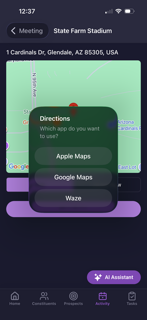
Tap the address on a meeting's detail view to open a Directions prompt: "Which app do you want to use?" with three options — Apple Maps, Google Maps, and Waze.
Have more questions? Contact EverTrue Support at genius@evertrue.com.
Content aside
- 1 mth agoLast active
- 8Views
-
1
Following