
Mobile: Navigating a Constituent Profile on Your Android App
What is a constituent profile? Every constituent in EverTrue has a profile — the central record combining contact information, giving history, interactions, tasks, and AI-assisted insights for that person. You can open a constituent's profile from search, from a list, from the map, or from a task or interaction linked to them.
Profile Header
At the top of every constituent profile:
Back button: Returns to the previous screen.
+ button (top-right): Opens a menu with five options: Add Task, Add To Trip, Add To List, Add Interaction, Add Proposal.
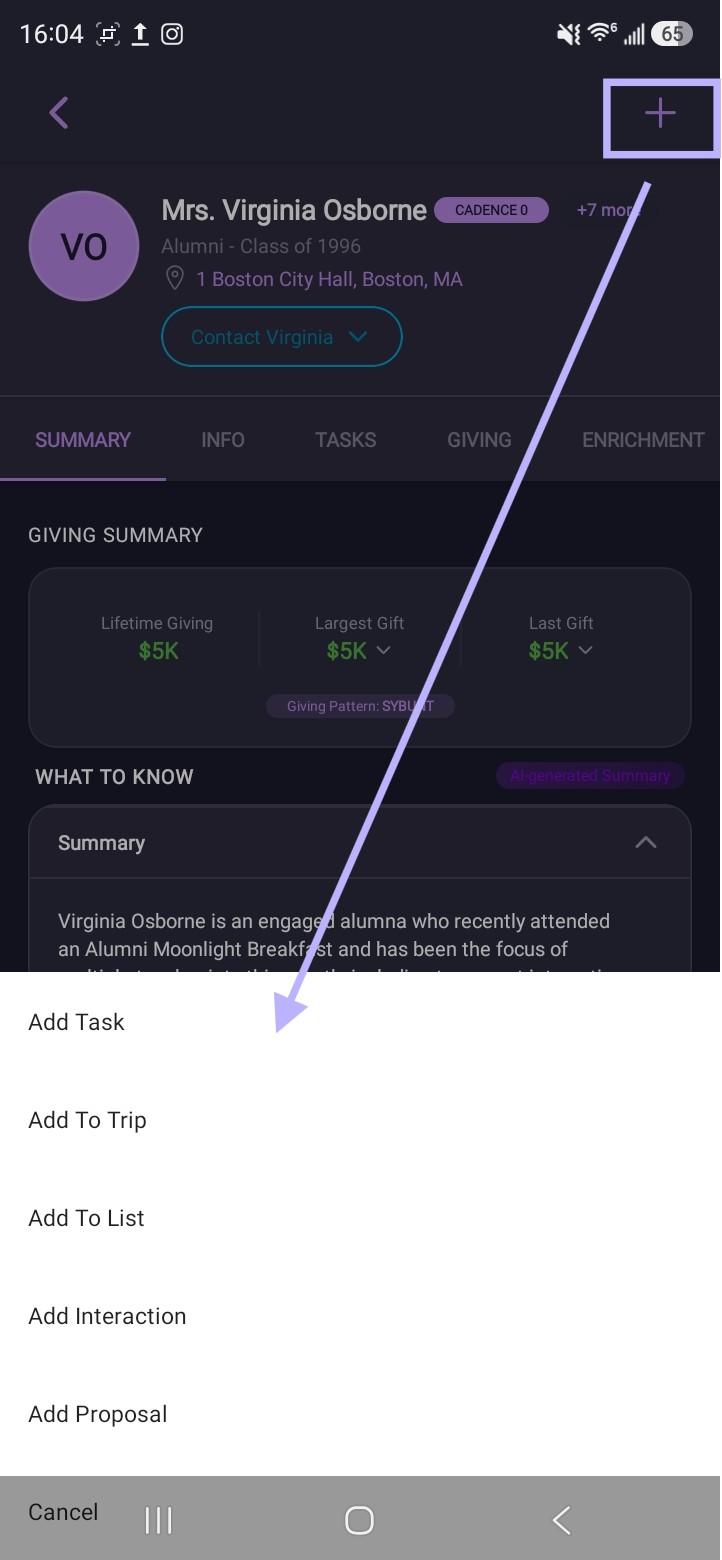
Avatar, name, and affiliation: Shown with class year or constituency type where applicable (for example, "Alum, Parent - Class of 1981"). A badge row under the name shows cadence step enrollment count — for example, "Cadence 0 · +7 more" indicates this constituent is currently enrolled in 8 cadence steps.
Address: Tappable; opens map/directions options.
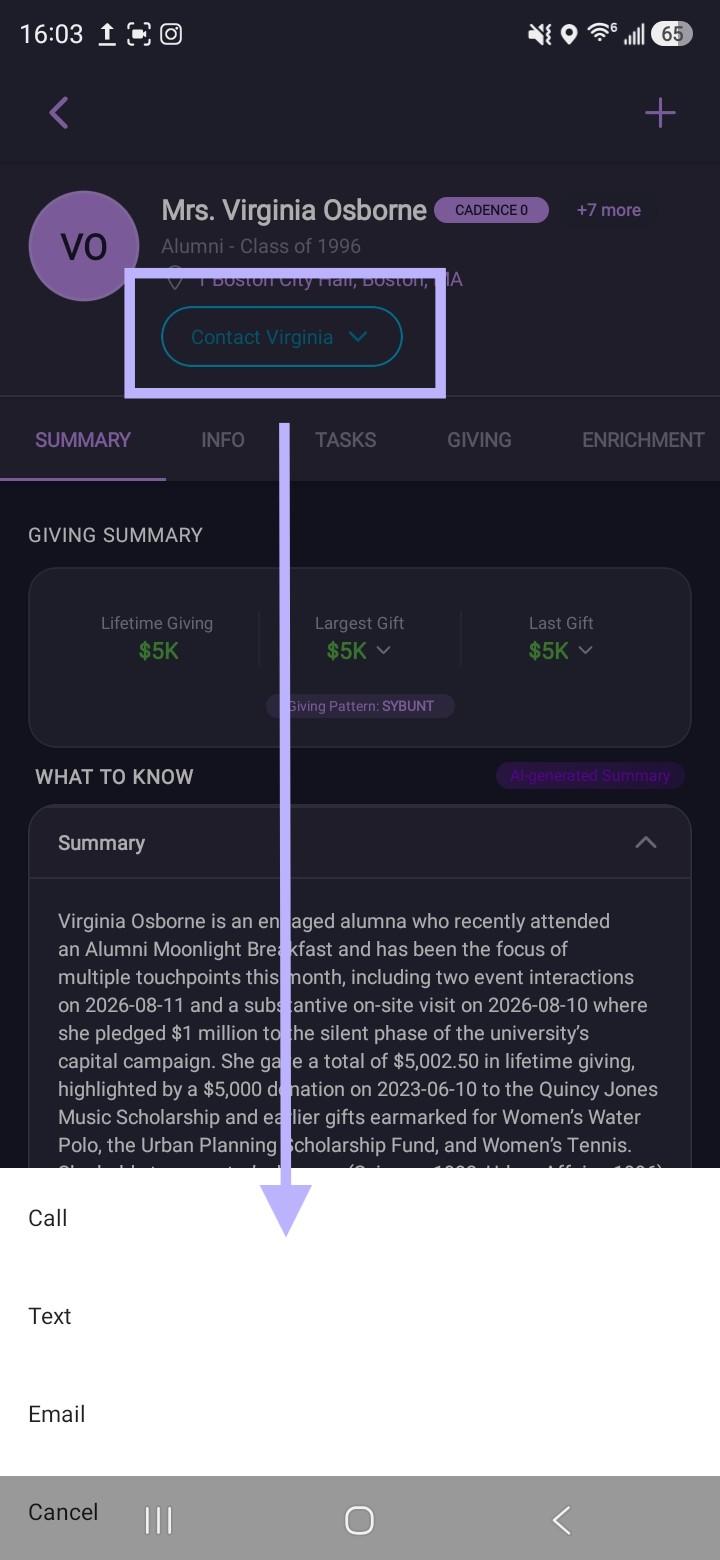
Contact [Name] button: Tap to open a dropdown with three options: Call, Text, and Email.
Profile Tabs
Below the header, a constituent's profile is organized into seven tabs:
Summary Tab
The Summary tab is the default tab. It contains the following information in this order:
Giving Summary (Lifetime Giving, Largest Gift, Last Gift),
AI-generated "What To Know" summary,
Donor Potential Score,
Pinned Comments,
Recent Interactions,
Assigned To (Solicitor),
My Top Fields (Remote ID, Constituency, Solicitation Codes, Prospect Status, Interests), and
Capacity Indicators.
This video shows each tab and its features.
https://www.loom.com/share/63fce1e30886460f85e9e7a838c56672
Info Tab
The Info tab contains the following information in this order:
Bio
Career, Education history, with a "+ More" to expand
Primary Contact Info, showing primary phone and email with inline call/text/email icons, and a "+ More" to expand to additional contact methods including Addresses
Relationships -named people connected to this constituent, each with a relationship label and ID, tappable through to their own profile if they're also a constituent
More Info -a scrollable list of your organization's own custom fields
Tasks Tab
The Tasks tab shows all tasks linked to the constituent and is separated by task status: Incomplete, Overdue, Completed. You can filter this view by All or by task type: Phone, email, sms, research, Thankview, Other. Tap on the task to see the details.
Giving Tab
This tab contains, in order: fund filter pills Total Giving and Annual Fund. This tab also shows Giving History summary cards of Last Gift, Largest Gift, Lifetime Giving, and Pledge Balance. These amounts are imported from your organization's database. Next in the tab is a graph and table for “How much has this constituent given?" by fiscal year, and an itemized Gift Transactions list below it. You can tap on the gift transactions to see more details.
Enrichment Tab
This tab is where you’ll find financial, philanthropic, real estate, Donor Potential Score, DonorSearch Rating, SEC holdings, Leadership Involvement, Interests, Career information, Social Media account links, other personal details, and noteworthy events. Visit Using Enriched Wealth Data Help article to learn more about this enrichment data.
Interactions Tab
The interactions tab includes a feed of all interactions with this constituent, including pinned comments (highlighted in green, labeled Pinned EverTrue Comment). See "Using EverTrue Pinned Comments on Your Android App" for details on pinning and unpinning. You can also add interactions on this tab.
Proposals Tab
On this tab, proposals associated with a constituent are listed using summary tiles, detail view, and the ability to create or edit a proposal. See All About: Proposals for more information on proposals.
If you have questions, contact EverTrue Support at genius@evertrue.com.
Content aside
- 1 mth agoLast active
- 9Views
-
1
Following