
Mobile: Searching on Your Android App
There are two ways to search in the app: natural language search or keyword search.
Natural Language Search
What is Natural Language Search? If your organization has EverTrue's AI features enabled, tap the search bar, then under "Search using:" select Natural language (as opposed to Keyword Search) to search using natural, conversational language — for example, "donors that are engaged with our social media."
https://www.loom.com/share/2b99cf619a0046a6ade8a6a5520302f3
If You Don't See Natural Language Search
Your organization's EverTrue Owner may have chosen to hide EverTrue's AI features. Contact your CSM to ask about enabling AI features.
Keyword Search — For All Users
Search now matches name, remote ID, email, and phone number for every user, regardless of whether your organization has AI features enabled. (Previously: name and remote ID only.)
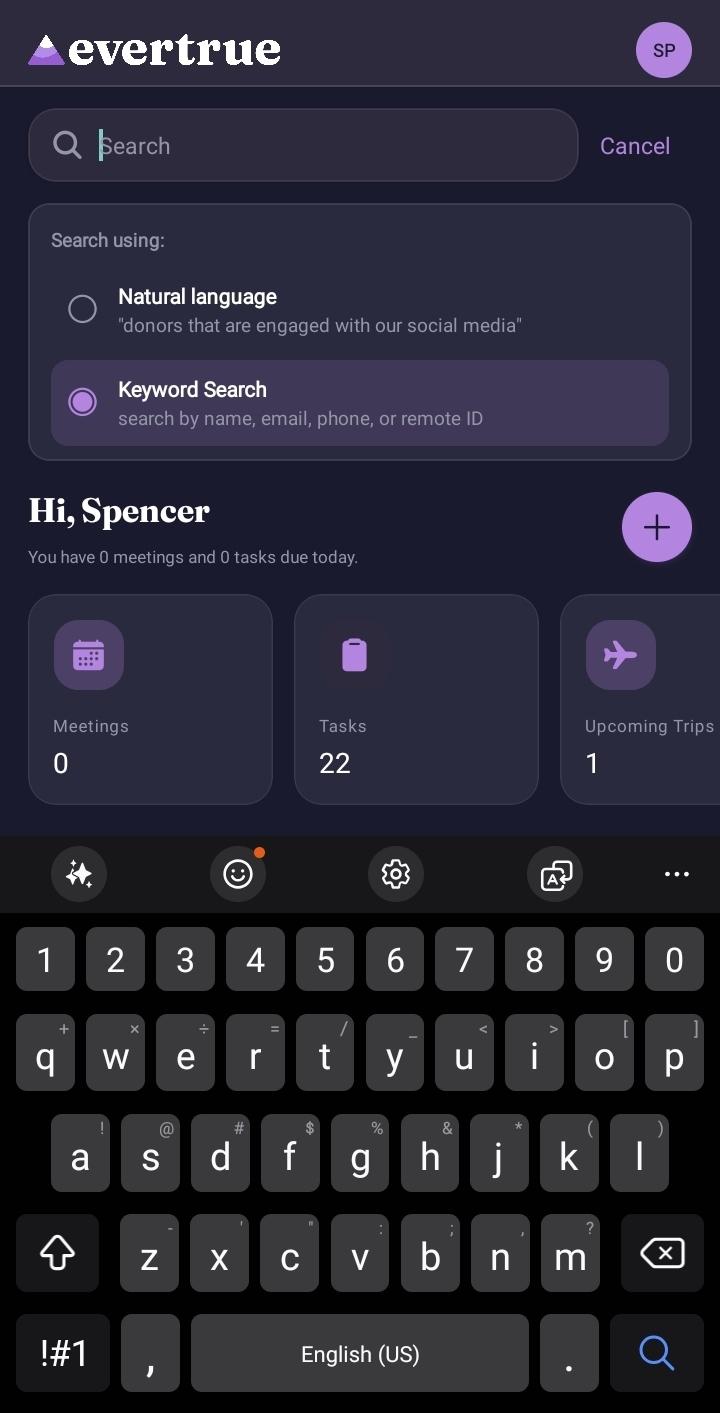
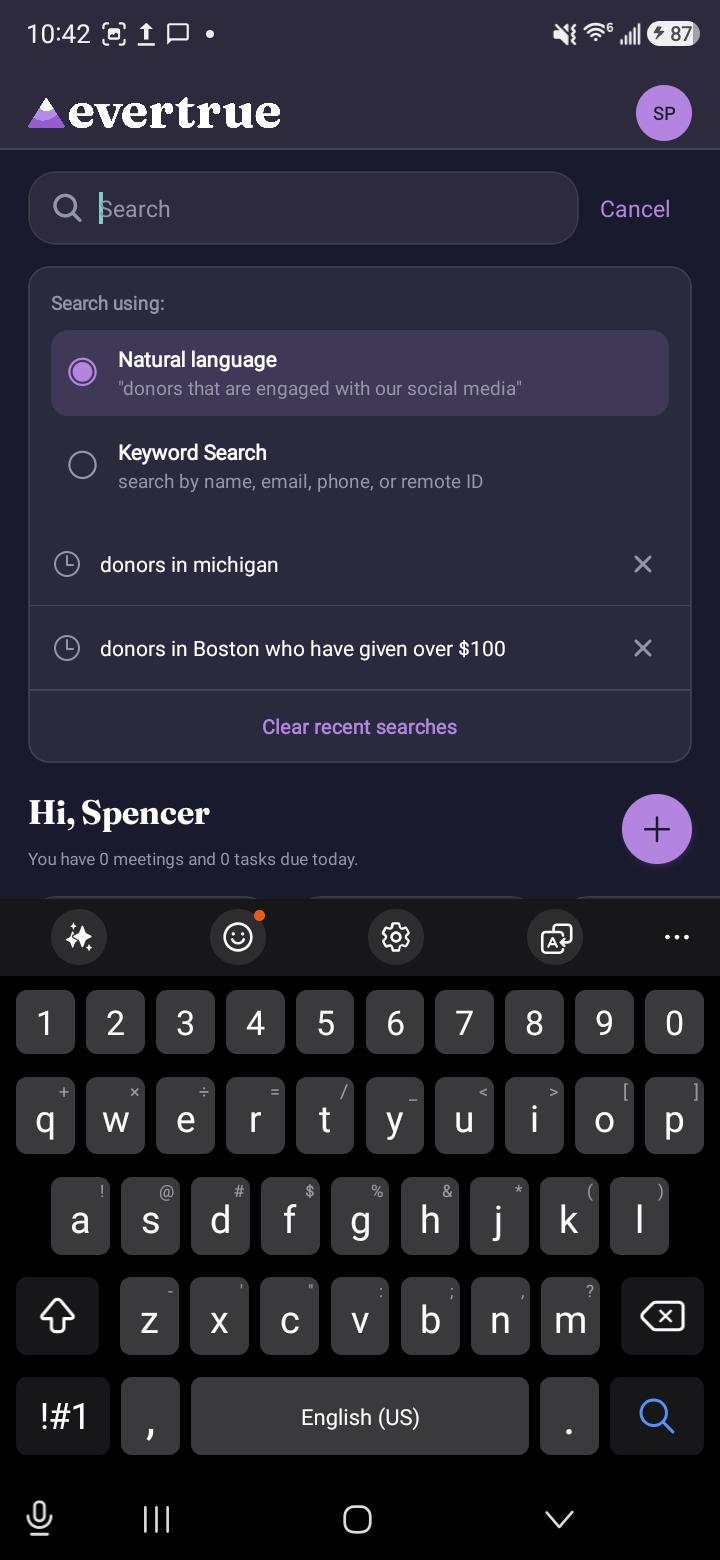
Search History — New
Tap the search bar without entering a query to see your recent searches.
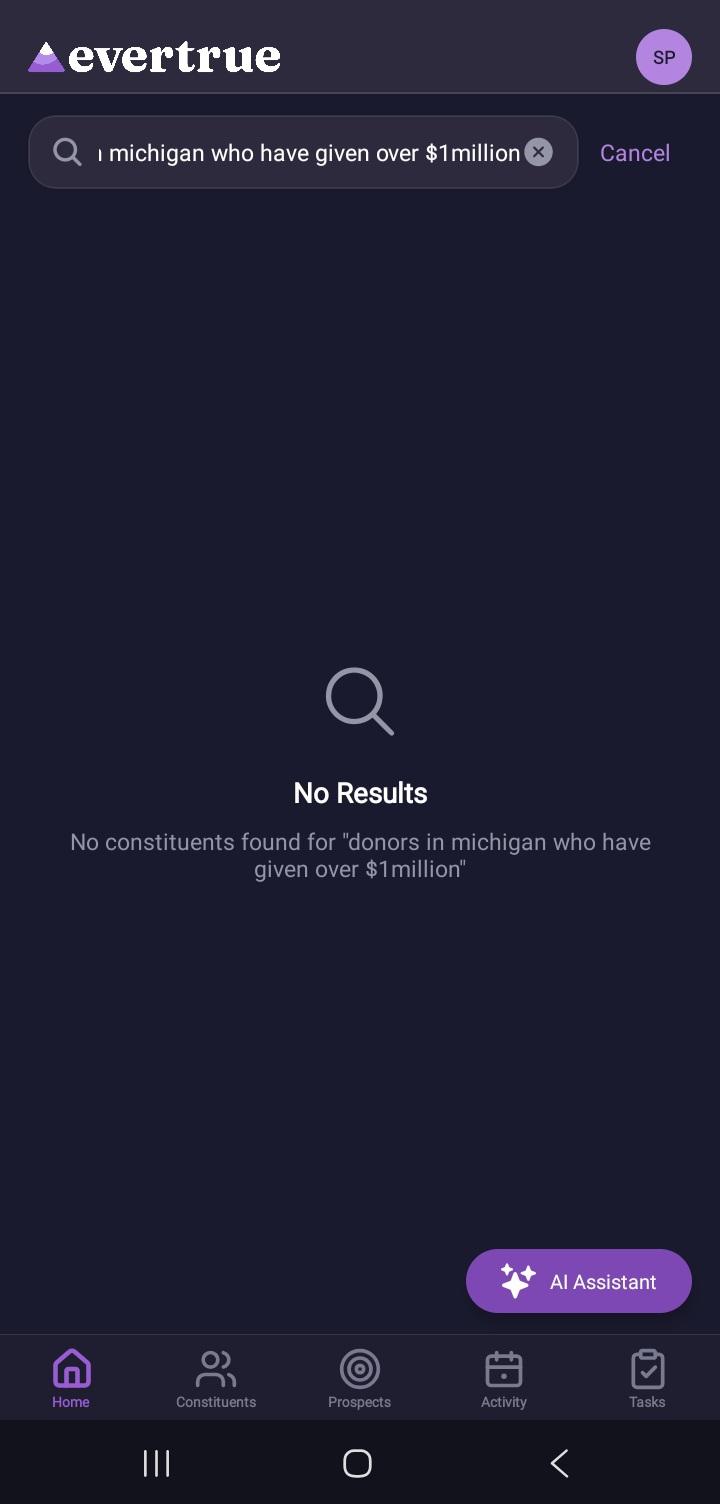
Zero-Result Searches View
If you have questions, contact EverTrue Support at genius@evertrue.com.
Check out this article: Mobile: Using the Home Page on Your Signal Android App
Content aside
- 1 mth agoLast active
- 8Views
-
1
Following