
Mobile: Creating and Viewing Lists in Your Signal iOS App
Adding a Constituent to a List
From a Constituent Profile
Tap the + button in the upper-right corner of the profile and select Add To List.
Create a new list by typing a name in the search bar or tapping Add to new list, or choose an existing list.

Viewing Existing Lists or Creating New Lists
Tap the Prospects tab from your navigation bar. Create new lists, search lists made by you or shared with you. The lists are organized alphabetically.
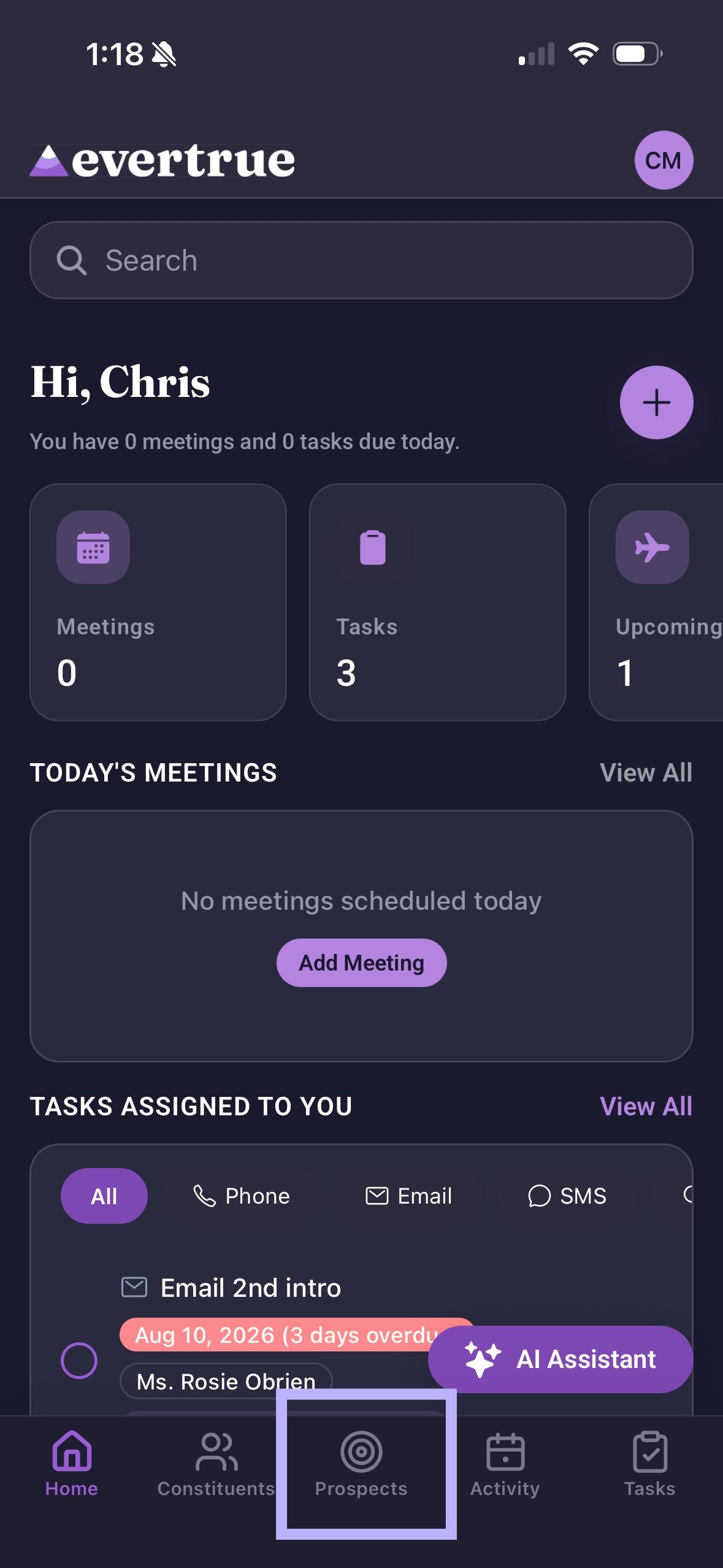
Select + to add a new list or tap the list you want to open.
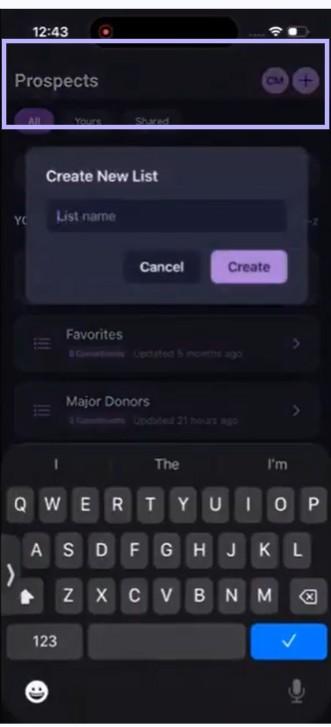
Inside a List — New
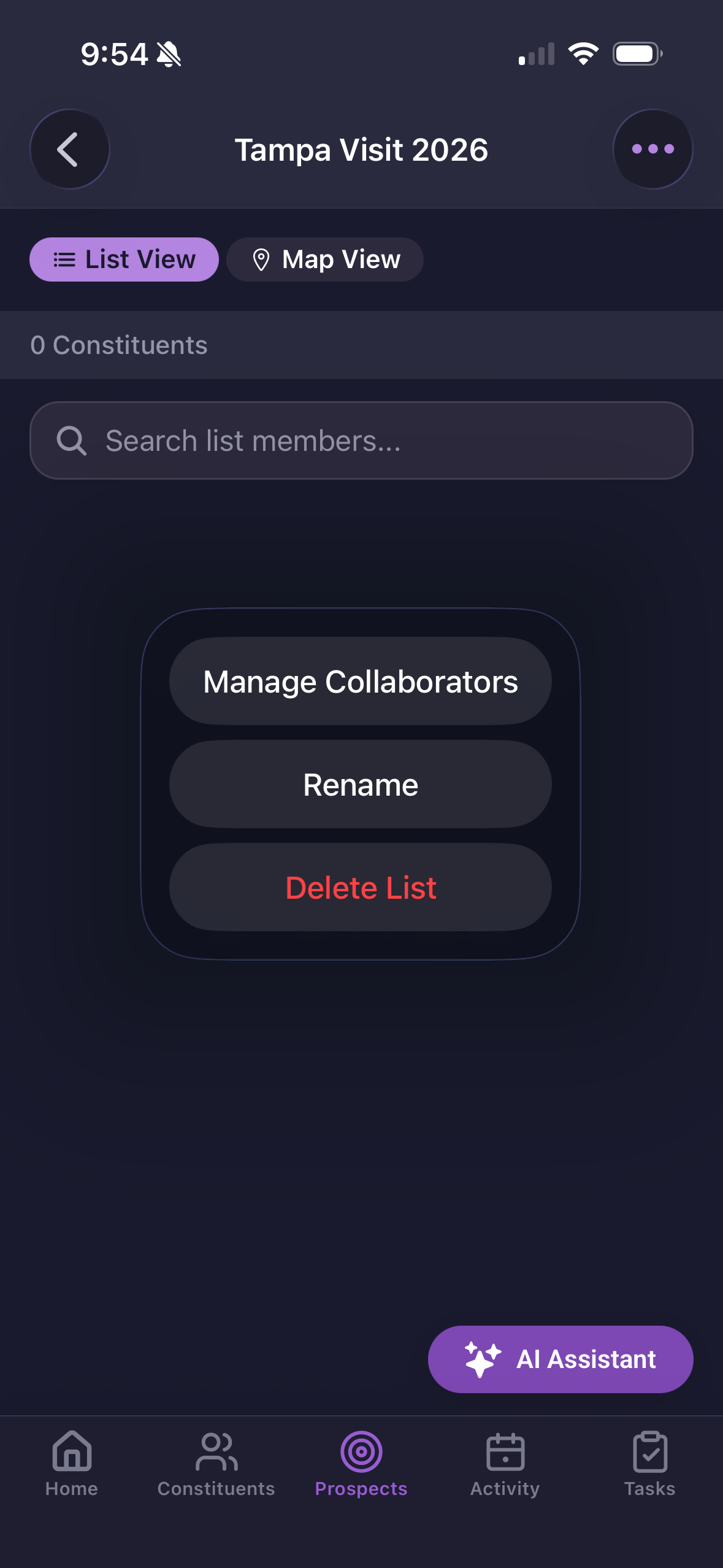
Opening a list shows:
List View / Map View toggle: Switch between a list of constituents and a map of their locations.
Constituent count: Shown below the toggle (for example, "0 Constituents").
Search list members: A search bar scoped to just this list's members.
••• menu (top-right): Opens Manage Collaborators, Rename, and Delete List.
Managing Collaborators — New
Tap the ••• menu in the upper right and select Manage Collaborators to share a list with teammates.
Removing List Members
Inside the list, press on the member and a Remove from List button will pop up. Select the button and the member will be removed from the list.
If you have questions, contact EverTrue Support at genius@evertrue.com.
Want to create a map from your list? Mobile: Using the Map Draw Function to Find Constituents on iOS
Content aside
- 1 mth agoLast active
- 14Views
-
1
Following