
Mobile: Using Tasks on Your Signal Android App
This article covers task management in the Signal Android app — creating, reviewing, and managing tasks, and assigning them to team members.
https://www.loom.com/share/43aa9c3309e54a5ab8fa5f931b594a4a
From the Tasks Page
From the Tasks home page, you can see Your Tasks, Assigned by You, and AI Suggested Tasks. They are then separated by Incomplete, Overdue, Completed, and +Add Task is right at the top.
Add a Task
Tap the + Add Task button in the upper-left corner of the Your Tasks page.
Fill in task details:
Constituent: Link a constituent by searching by name.
Task Name (required): Up to 120 characters.
Description: Up to 250 characters.
Action Type (required): Call, Email, LinkedIn, Research, Print Mail, Text, ThankView, or Other.
Assignee: Defaults to your name unless changed.
Due Date: Defaults to today unless changed. Calendar will pop up so you can select a date
3. Tap Save
From a Constituent Profile
Go to Constituents and search for the constituent.
Open the constituent profile.
Tap the + button in the upper-right corner of any profile tab and select Add Task.
Fill in details and tap Save.
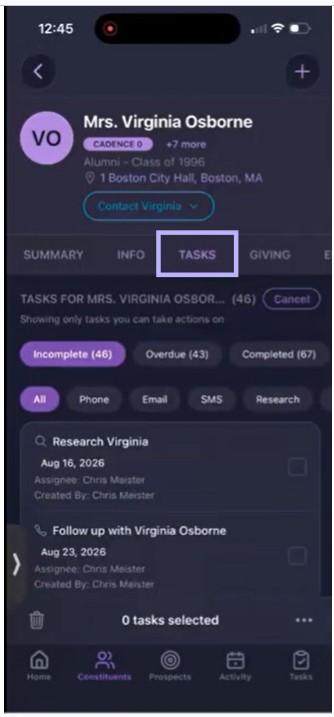
Review Your Tasks — Updated
Your tasks appear in these places in the app:
Constituent profile Tasks tab: Now shows three distinct tabs — Incomplete (X), Overdue (X), and Completed (X) — each with its own count and ordering, rather than a single combined list.
Home tab Tasks Assigned To You: Up to three upcoming tasks.
Tasks page Your Tasks tab: All tasks assigned to you.
Tasks page Assigned By You tab: All tasks you assigned to others.
Task Order Within Each Tab
You can filter your tasks by Phone, Email, SMS, Research, ThankView, Other
Tasks without due dates are at the top.
Tasks with the earliest upcoming due dates are next.
Incomplete, Overdue, and Completed Tasks are shown with the number of tasks in the pill.
In the task summary, you can see the number of days the task is overdue, or, once it’s completed, completed.
Identify Task Type at a Glance — New
Task previews now show the Assignee and Created By fields directly, so you can tell who owns a task and who created it without opening it.
Cadence steps display a cadence icon in place of the action-type icon (for example, the phone icon becomes a cadence icon when the task is a cadence step).
Manage Tasks
Individual Task Actions — Updated
Mark Complete: From task summary, tap the circle to the left of the task name, and this completes the task inline without opening its detail view.
Mark Complete: From task details, tap the check mark in the upper right corner.
Edit: Open the task, tap the Pencil and Paper symbol
Delete: From the task details, tap the trash can in the upper right corner. From the task summary, swipe the summary to the left, and the trash can icon will show. Tap the trash can to delete.
Bulk Actions — Updated
Tap Bulk Select in the upper-right corner of the Tasks page. A running count of selected tasks displays as you choose them.
Choose the tasks you want to update.
Tap the trash can icon in the bottom-left to delete the selected tasks, or the three-dot menu in the bottom-right for other bulk actions.
From the three-dot menu, select an action: Edit Due Date, Reassign, or Mark as Complete.
Note: Cadence steps cannot be reassigned in bulk. When updating due dates in bulk, you cannot modify multiple steps of the same cadence for the same constituent.
If you have questions, contact EverTrue Support at genius@evertrue.com.
Check out this resource: Mobile: Using AI-Suggested Tasks on Your Android
Content aside
- 1 mth agoLast active
- 22Views
-
1
Following