
Building Saved Searches using Enrichment Filters & Adding to a Cadence

Signal's wealth enrichment filters become more powerful when combined with saved searches. A saved search stores a filtered list of constituents and updates automatically as your database changes — so you always have a current, targeted group ready for outreach. This article walks you through creating a saved search using enrichment filters and connecting it to a cadence in Cadences 2.0.
Access varies by plan. Signal-only customers have access to 7 new wealth enrichment filters. Signal + DonorSearch customers have access to all 8 new filters, including Predictive Giving Score. See What's new: Enhanced Wealth Enrichment Filters for a full breakdown.
What saved searches do
A saved search in Signal is a dynamic constituent list built from one or more filters. Unlike a static list, a saved search updates automatically, and any constituent who meets your filter criteria is added to the search, and anyone who no longer qualifies is removed.
With the new wealth enrichment filters, you can build saved searches based on capacity ratings, giving history, financial signals, and predictive scores. For example, you can save a search for all constituents with a DonorSearch Rating of DS 1-1 and an interest in environmental causes, then use that list to drive a targeted cadence.
Create a saved search using wealth enrichment filters
Follow these steps to build and save a filtered constituent list. The video below shows the full process using DonorSearch Rating as an example.
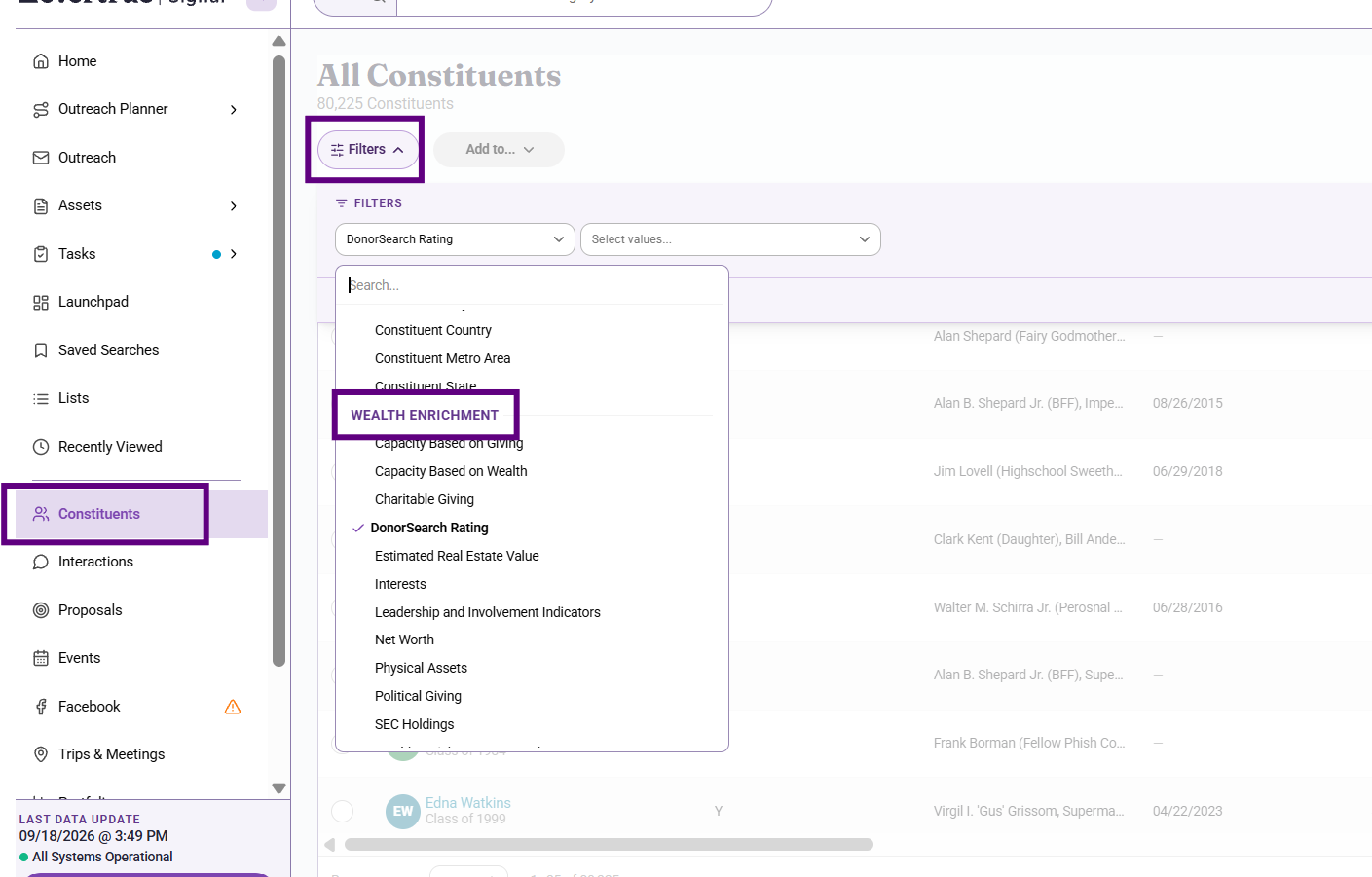
1. From the left navigation, select Constituents.
2. Select Filters at the top of the constituent list.
3. In the filter picker, scroll to the Wealth Enrichment group or type in the filter name in the Search box.
4. Select the filter you want to use — for example, DonorSearch Rating.
5. Set your operator and choose your criteria from the available options — for example, Equals → DS 1-1.
6. Add any additional filters to further narrow your list.
7. Select Saved Search. Give your saved search a name and confirm.
https://www.loom.com/share/dd829d949cb245e38d1fc4d9956a655c
 Note: Your saved search appears under Saved Searches in the left navigation. Select it at any time to view the current list of matching constituents.
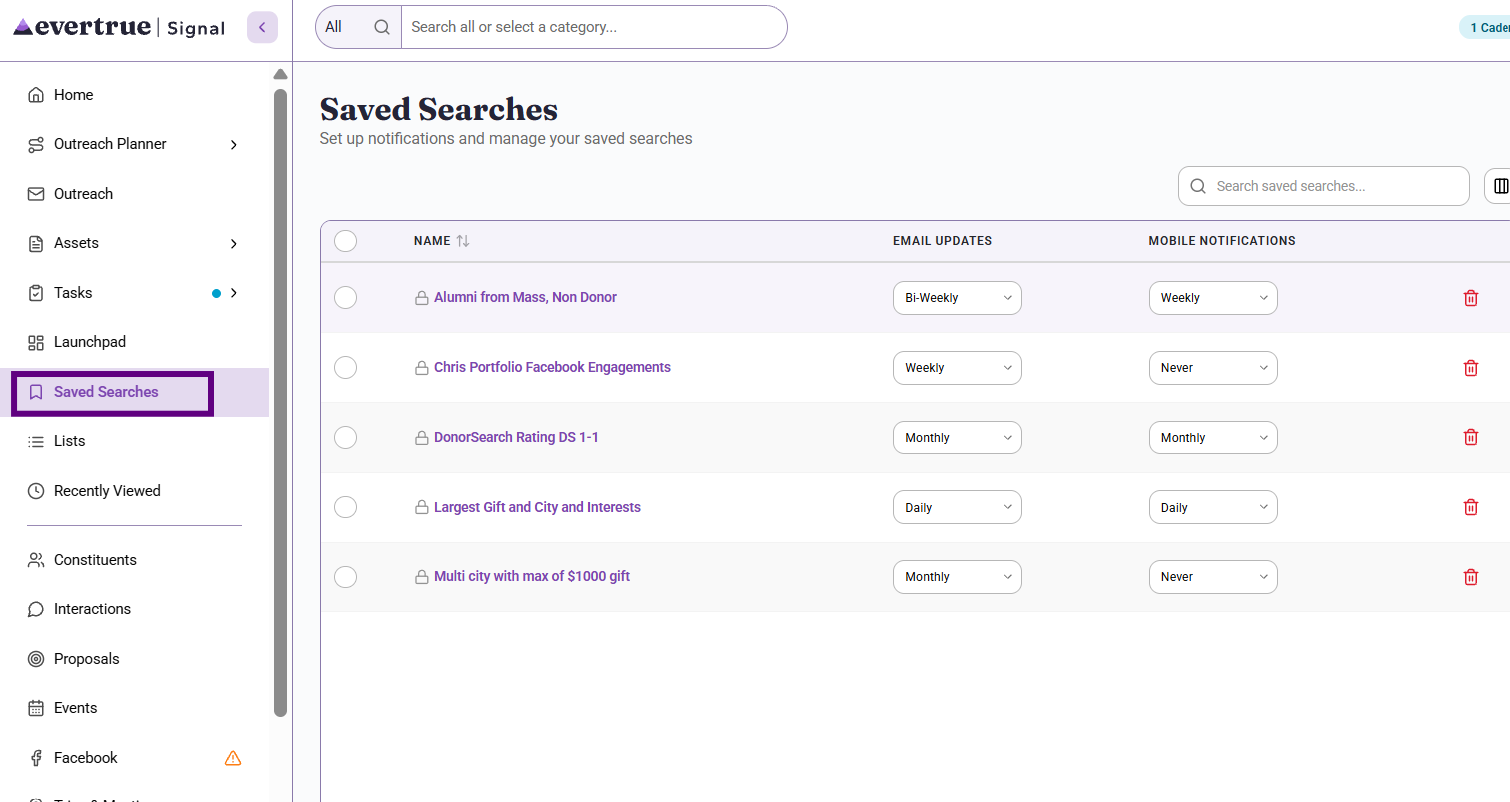
How saved searches stay current
A saved search updates automatically. You do not need to refresh or rebuild it manually. When a constituent's data changes and they meet your filter criteria, they are added to the search. When they no longer qualify, they are removed.
This means a saved search built on DonorSearch Rating or Predictive Giving Score always reflects the most current enrichment data available in Signal — giving you a live, accurate prospect list without extra work.
Add a saved search to a cadence
Once you have a saved search, you can use it as the recipients for a cadence. The video below shows how to connect a saved search to a cadence in Cadences 2.0.
https://www.loom.com/share/353479fa44184944bf4f0d9e185c0d5b
1. From the left navigation, select Outreach Planner, then open Cadences 2.0.
2. Open an existing cadence or create a new one.
3. Select Edit the Cadence and locate the Recipients.
4. Select Saved Search as your recipients.
5. Choose the saved search you created from the list.
6. Save your updates. Constituents who meet the saved search criteria will be enrolled automatically.
Note: When a new constituent qualifies for your saved search, they are enrolled in the cadence automatically. You do not need to add them manually. A true time saver!
Content aside
- 2 mths agoLast active
- 159Views
-
1
Following