
Managing Saved Searches
Saved searches help you stay on top of key prospect segments, and managing them is easy! Below, we will walk through how to organize your saved searches into folders, edit search criteria, and delete saved searches you no longer need. Let’s dive in!
Creating a Saved Search Folder
As your list of saved searches grows, folders help you stay organized and better manage your prospects. You can group saved searches into folders for quick access to specific segments or strategies! Each saved search can belong to multiple folders.
Note: Folders are private to you and cannot be shared to others on your team.
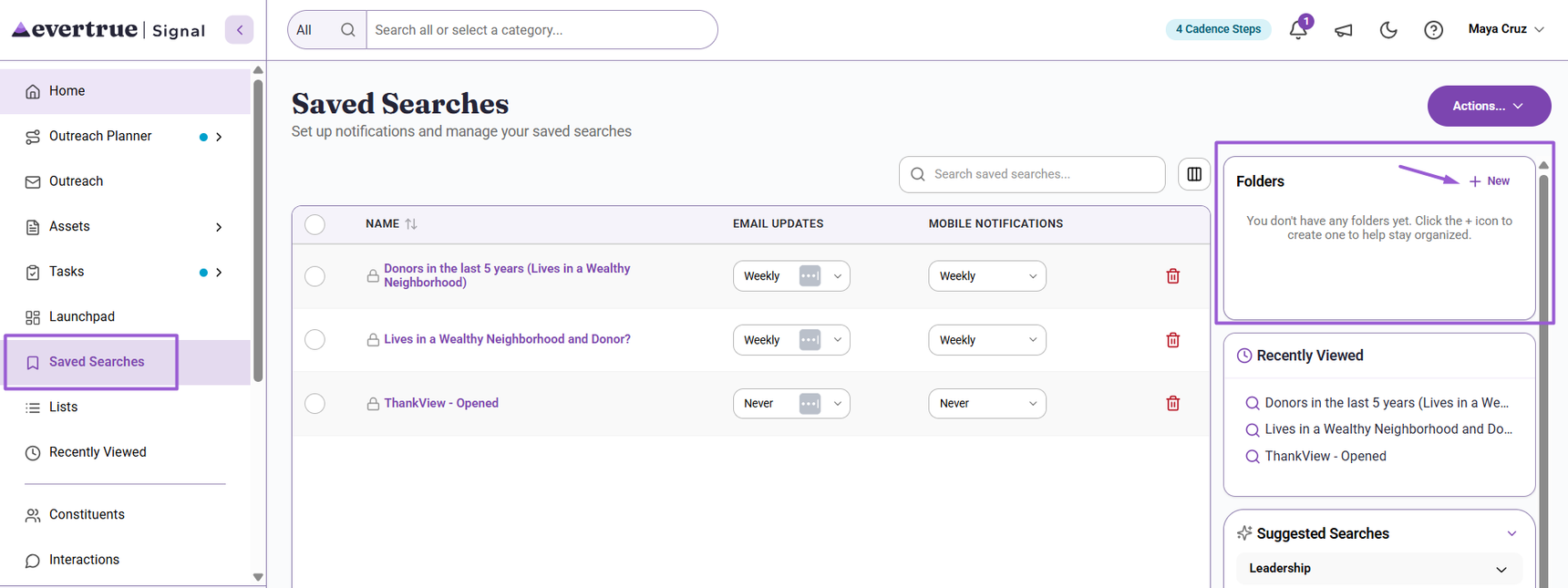
Step 1. Click the  Icon in Your Folders
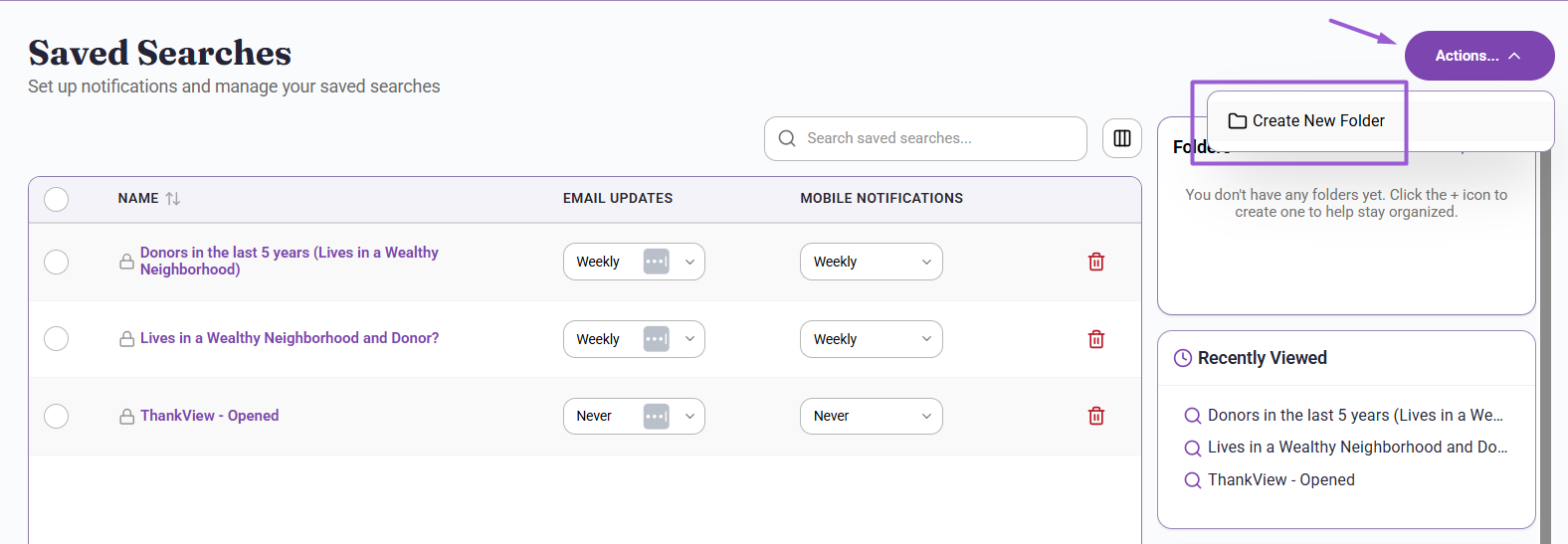
To create a folder, navigate to the Saved Searches tab and click the New button in the Folders section of the page. You can also click Actions and select Create New Folder.
Step 2. Name the Folder and Save
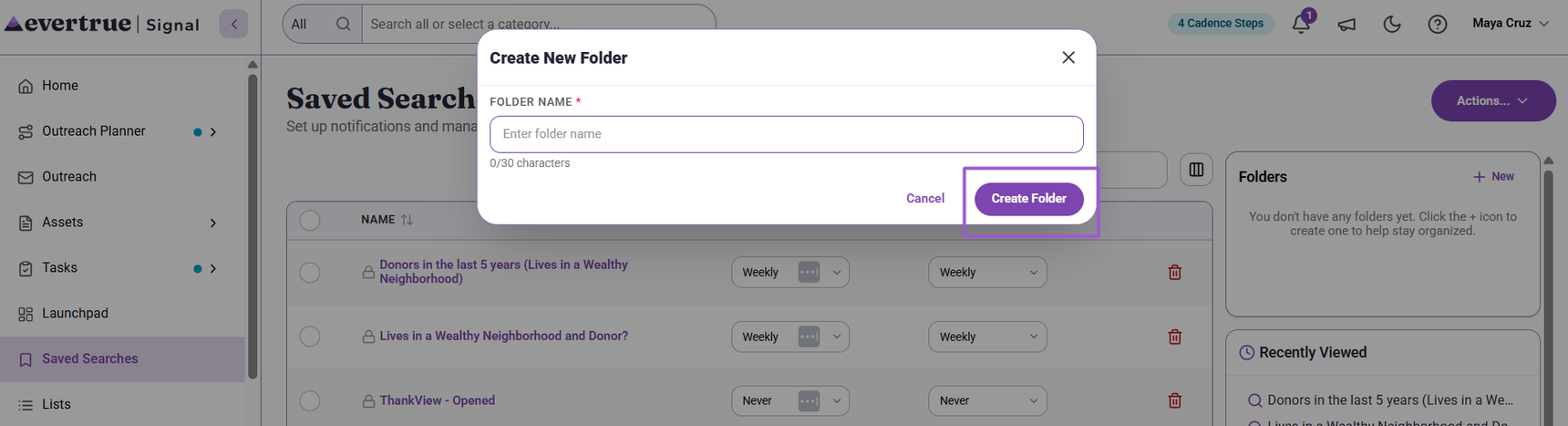
A Create New Folder popup appears where you can enter a name for the folder and click Create Folder.
Step 3. Add a Saved Search to a Folder
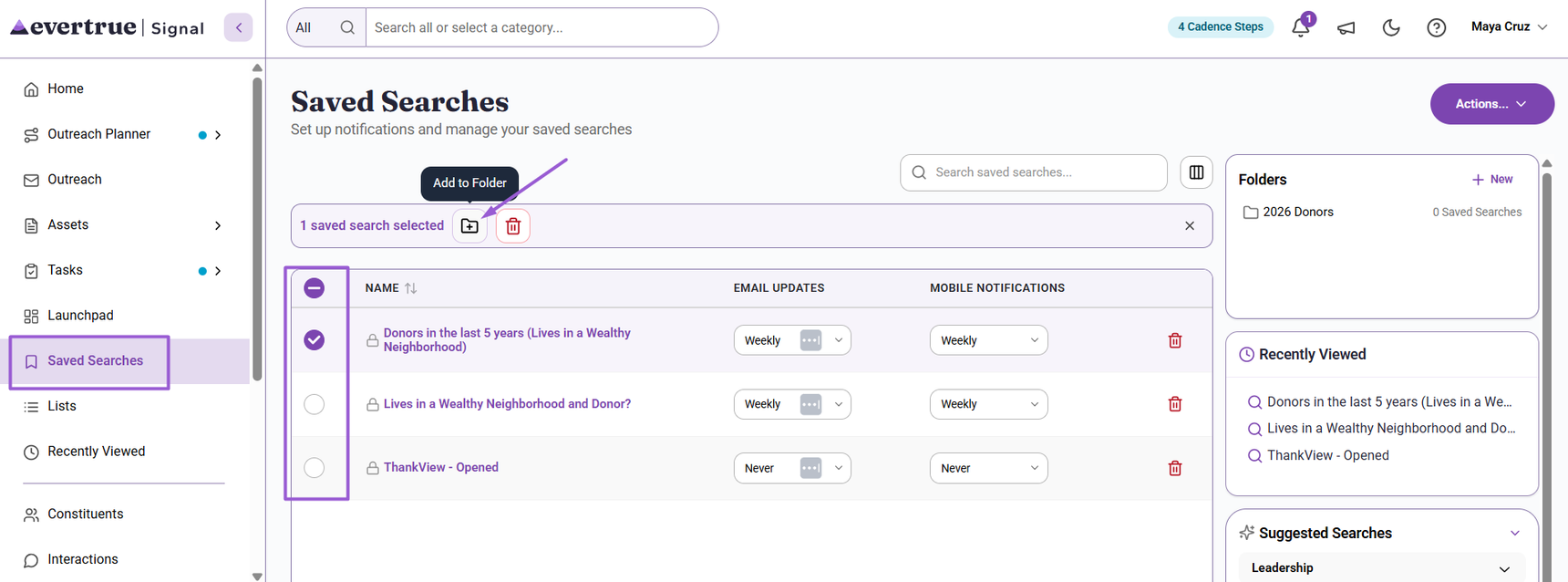
To add a saved search to a folder, click the radio button to the left of the search’s name. Then click the Add to Folder icon on the top of the Saved Searches and select Add to Existing Folder.
An Add Saved Search to Folder popup appears where you can choose from two options:
- Add to Existing Folder(s): Select one or more folders from the dropdown.
- Create New Folder: Add the search to a brand new folder.
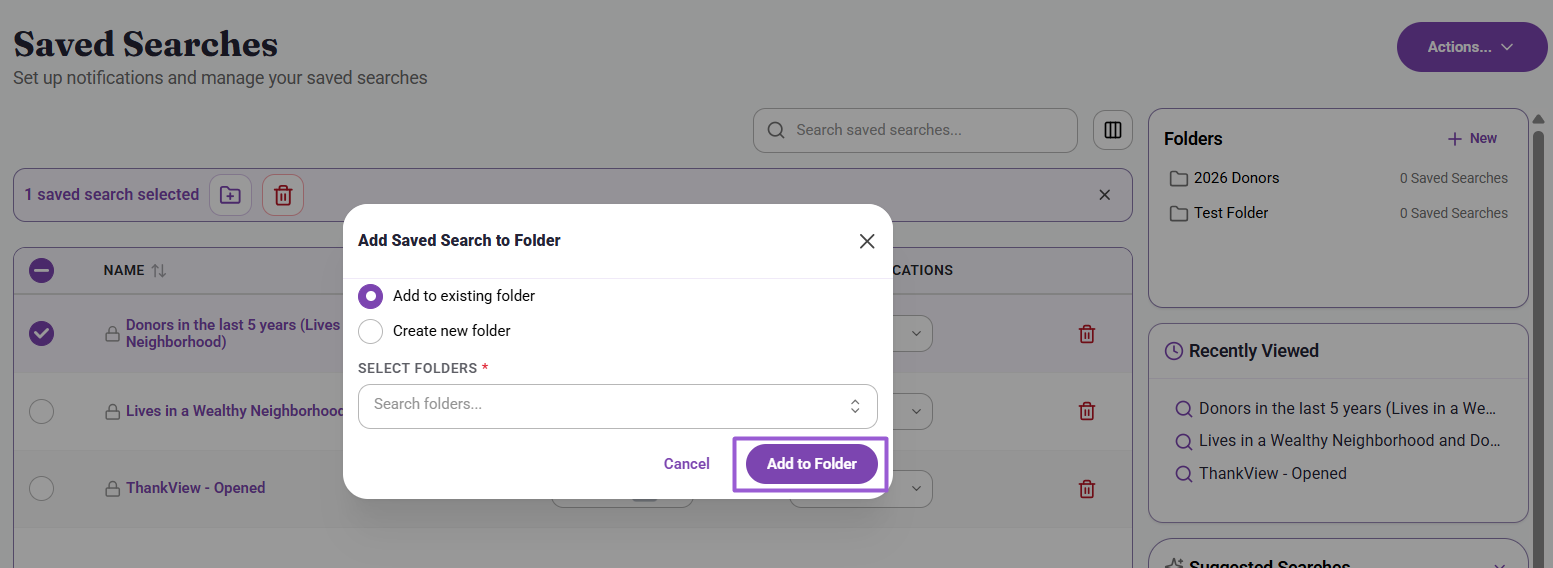
Click Add to Folder to confirm your selection.
Once a search is in a folder, you can do anything you normally would from your main saved searches list. Manage its notification frequencies, share the search with a teammate, or update the search criteria, all from a more focused view!
Step 4. Remove a Saved Search from a Folder
To remove a saved search from a folder, open the folder from the Folders section and click the radio button to the left of the search’s name and then click the Trash icon to remove it.
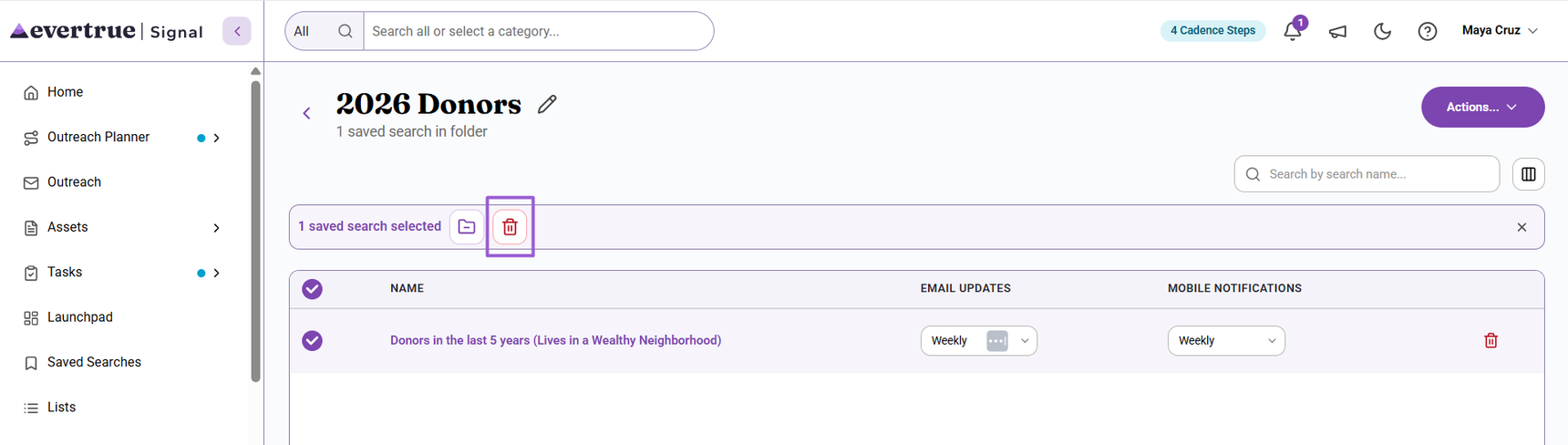
A Delete Saved Searches popup appears where you can confirm this action.
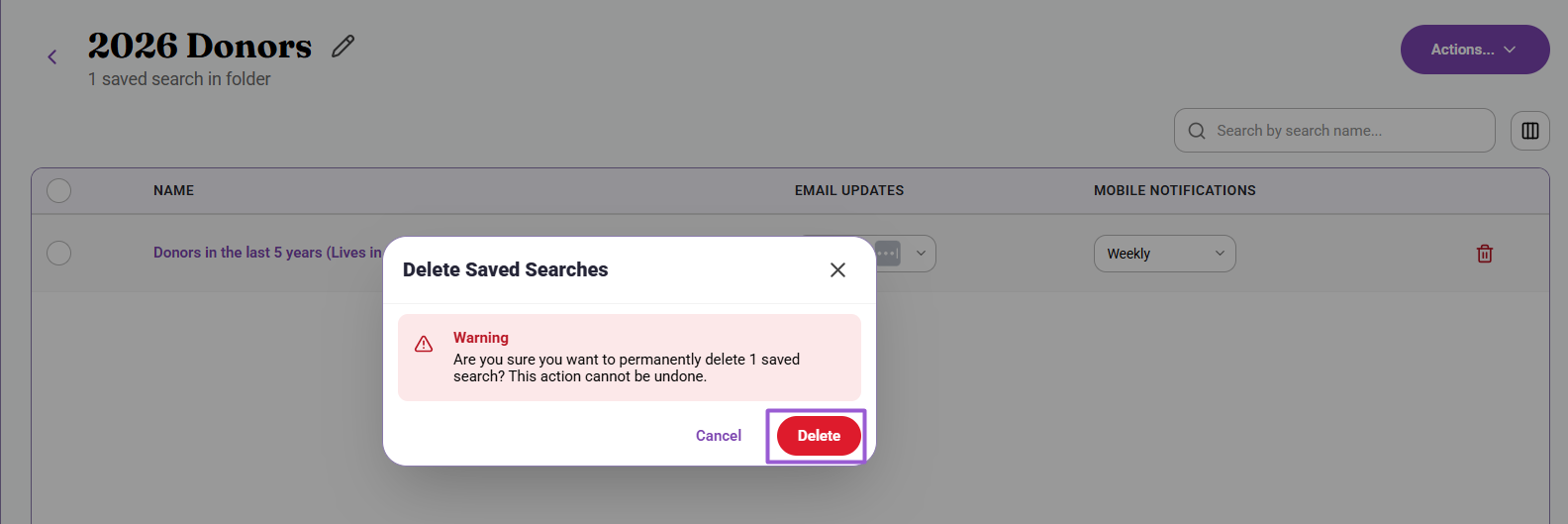
Step 5. Modify an Existing Folder
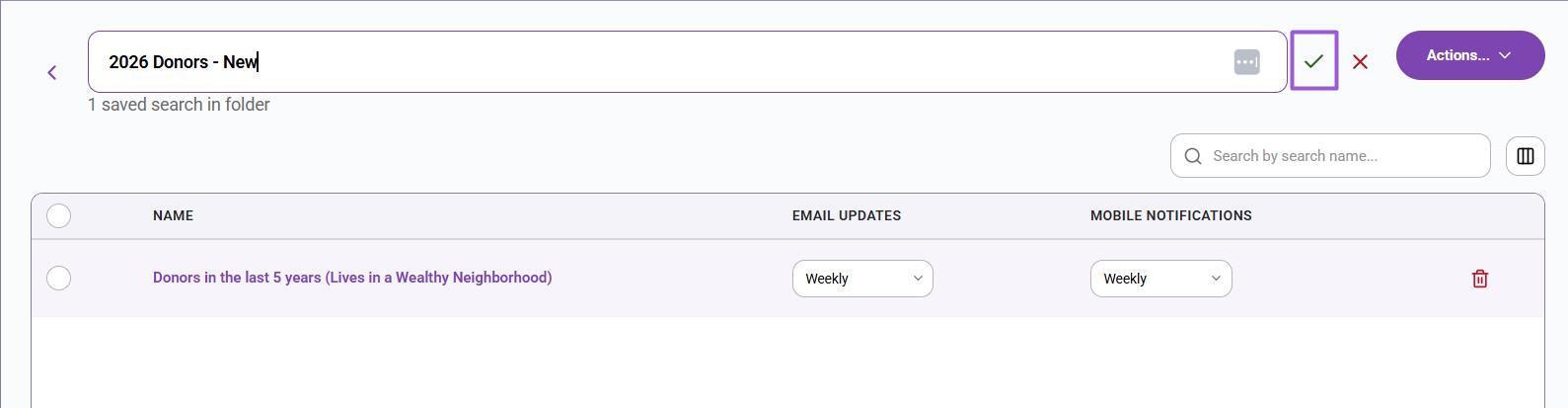
To rename a folder, open it from the Folders section and click the pencil icon next to its current name. Edit as needed, and click the ✓ icon to save the changes.
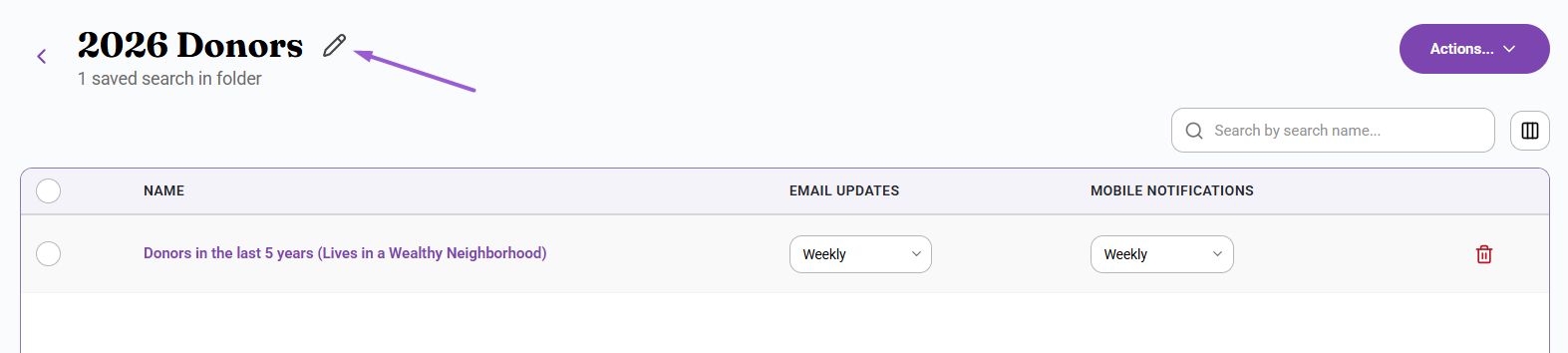
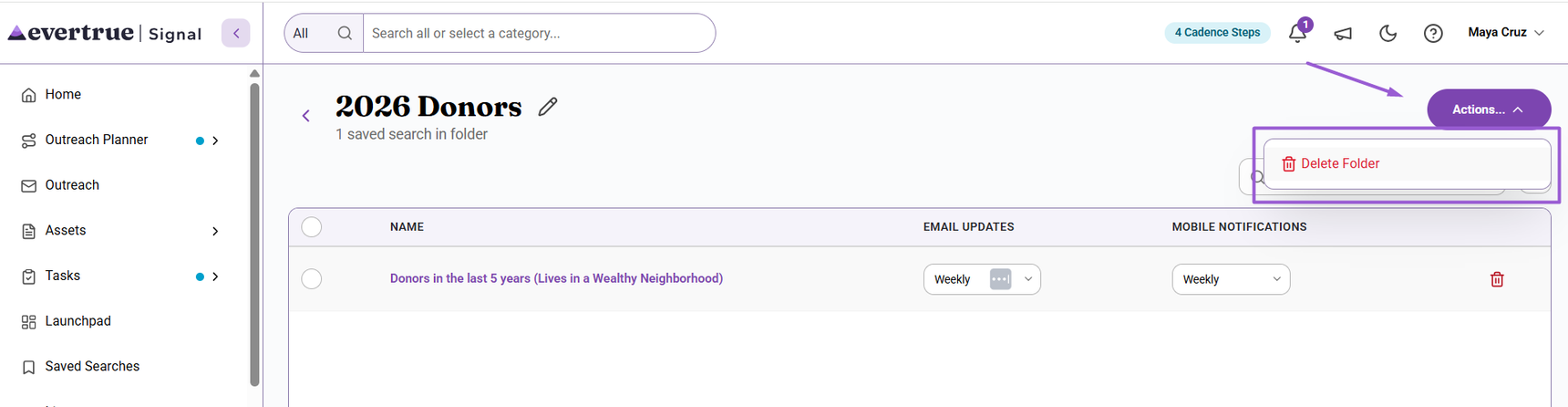
To delete a folder, open it from the Folders section, click Actions in the upper-right corner, and select Delete Folder. A Delete Folder popup appears where you can confirm this action.
Editing a Saved Search
If you need to make a change to an existing saved search, we’ve got you covered!
Step 1. Open a Saved Search
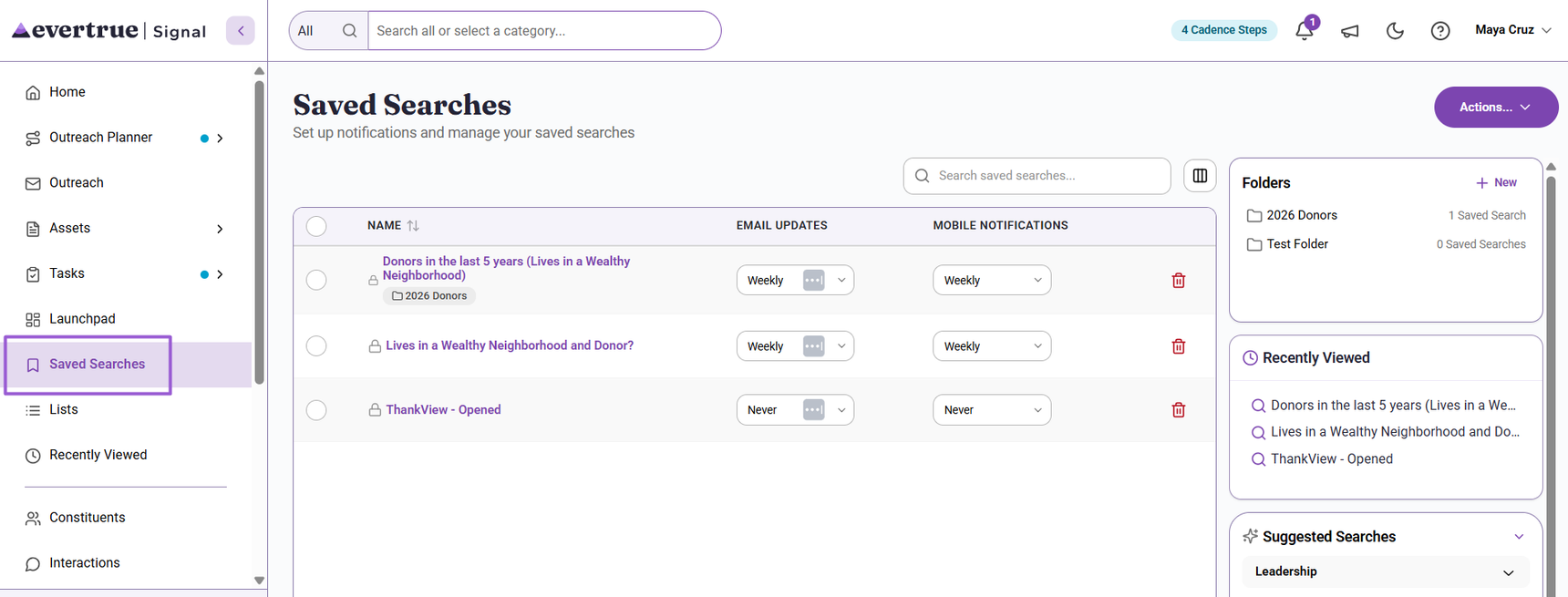
Navigate to the Saved Searches tab and select the Saved Search you want to modify.
Step 2. Adjust and Apply Filters
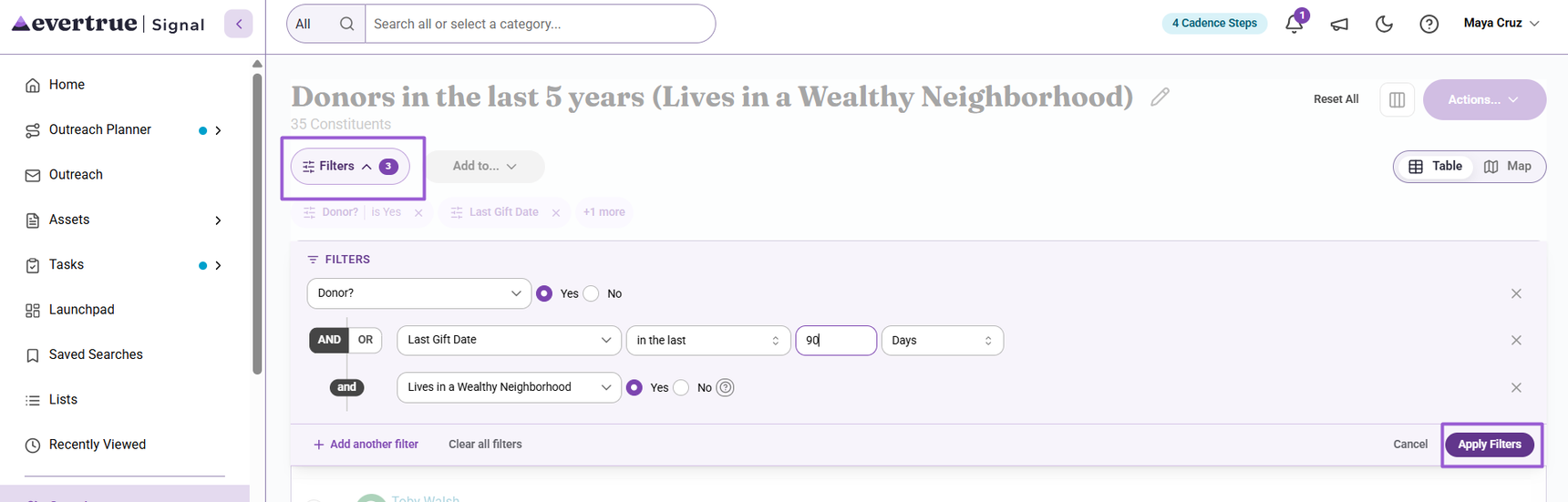
Click the Filters dropdown in the upper-left corner, and make adjustments to the existing filters or add additional filters as needed. Once ready, click Apply Filters to update the search results.
Step 3. Save Changes or Create a New Search
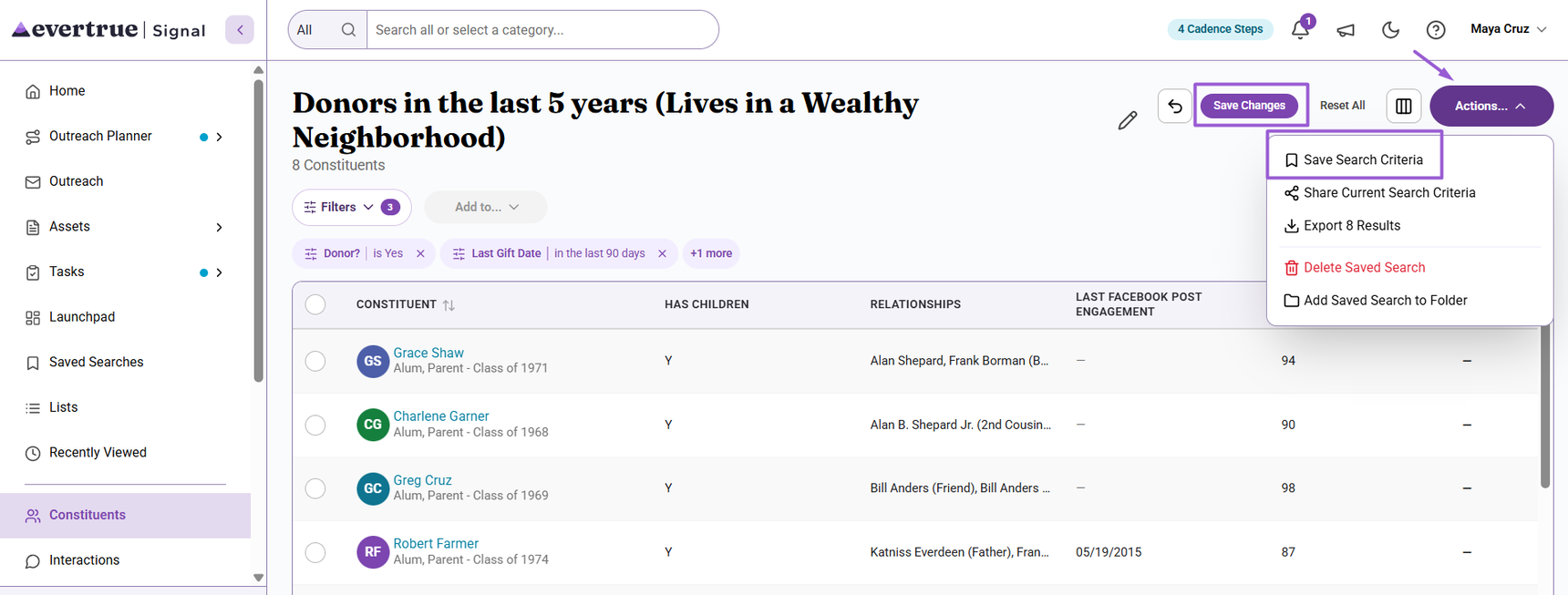
To save your updates, click Save Changes in the upper-right corner. You can also click Actions and select Save Search Criteria.
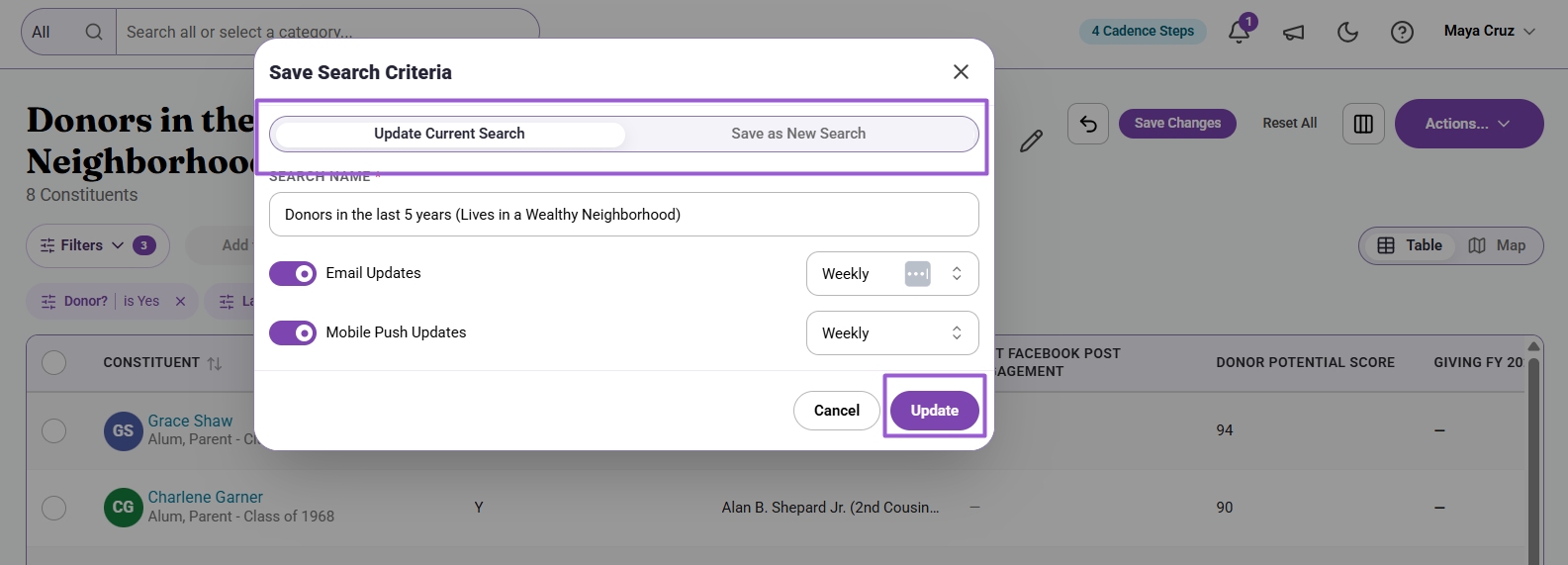
A Save Search Criteria popup appears where you can choose to:
- Update Current Search: Apply the filter changes to your existing search and reconfigure email and mobile notifications.
- Save as New Search: Create a brand new saved search while keeping the original version.
Step 4. Modify the Search’s Name
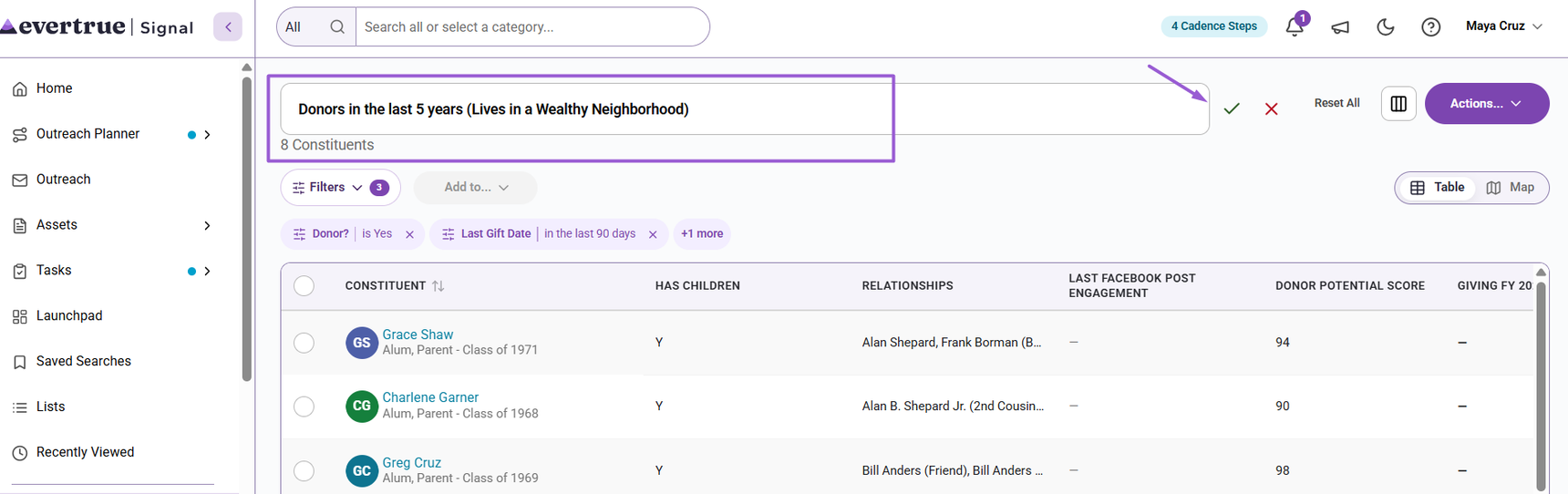
You can also update a search’s name! To do so, click the pencil icon next to the current name, edit as needed, and click the ✓ icon to save the changes.
Deleting a Saved Search
If you no longer need to track matches for a saved search, take these steps to remove it!
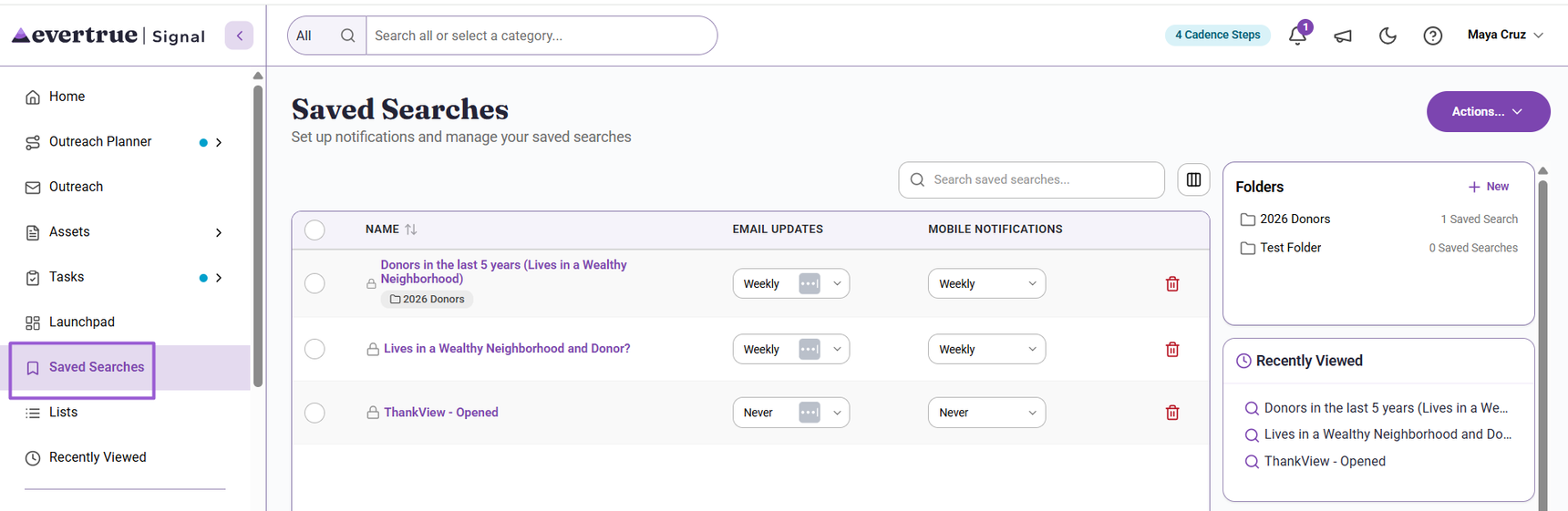
Step 1. Click a Saved Search Trash Can Icon
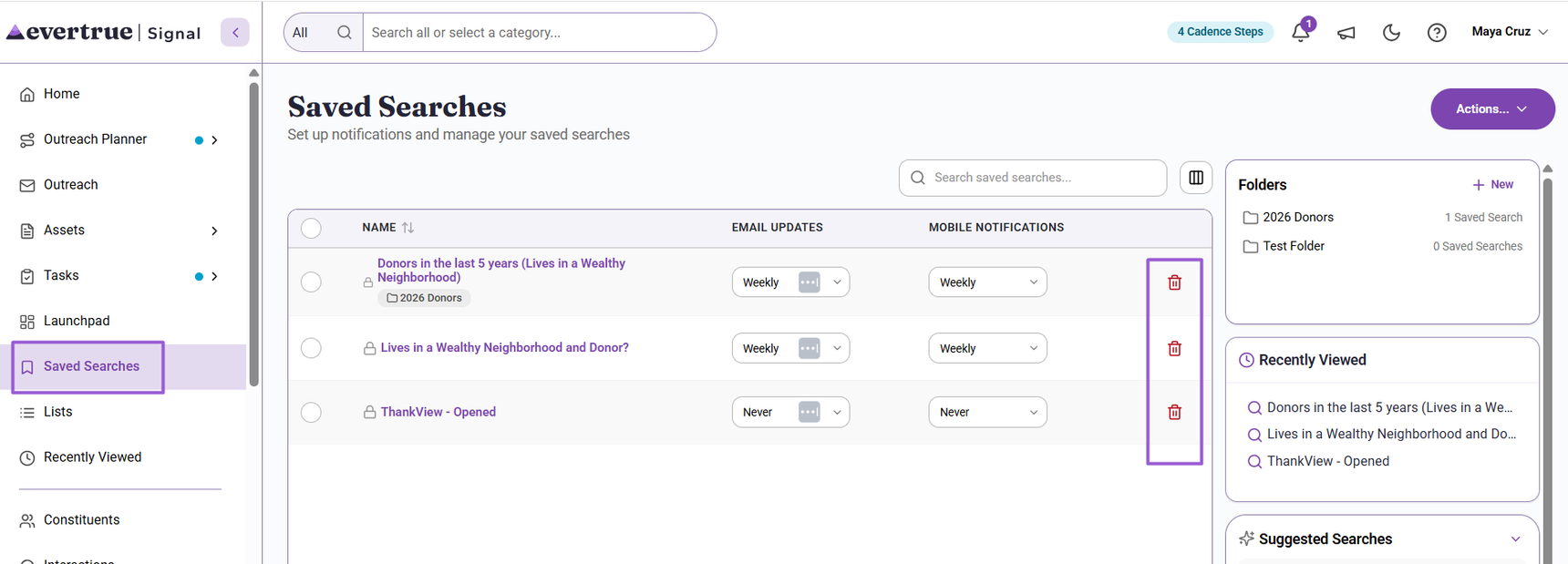
To delete a search, navigate to the Saved Searches tab and click the trash can icon next to the search you want to remove. A Delete Saved Search popup appears where you can confirm this action.
Step 2. Open a Saved Search
You can also delete an opened saved search. Navigate to the Saved Searches tab and select the Saved Search you want to remove.
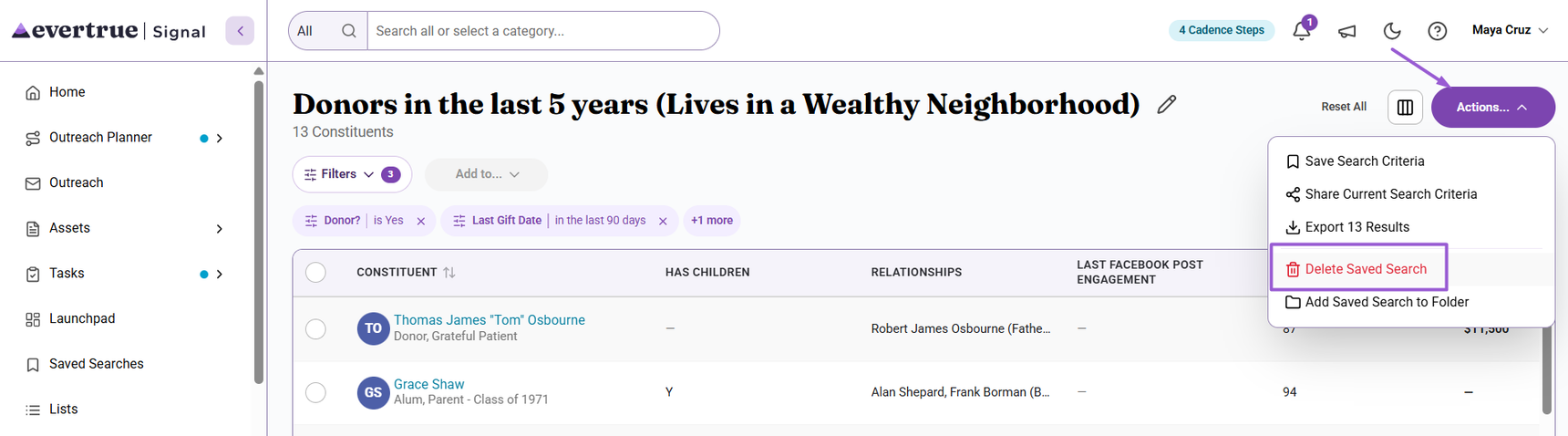
Step 3. Click Actions and Choose Delete Saved Search
Click Actions in the upper-right corner and select Delete Saved Search. The Delete Saved Search popup appears where you can confirm this action.
For any other questions, reach out to EverTrue Support at genius@evertrue.com.
Reply
Content aside
- 4 yrs agoLast active
- 998Views
-
1
Following