
How Your RE NXT Sends Data to EverTrue
Overview
For accounts using Raiser’s Edge NXT, constituent data syncs to EverTrue automatically each day through an API connection. This replaces SFTP file transfers and scheduled exports from your CRM, so you don’t need to update EverTrue manually.
How the sync works
- Setup: After a short consultation, you connect to EverTrue with a secure API key. Setup typically takes a matter of days.
- Data transfer: EverTrue pulls the data it needs from Raiser’s Edge NXT and transforms it to fit the EverTrue data model.
- Daily updates: Information updates nightly through automatic data pulls.
- Enriched data: Once your data is in EverTrue, it is enriched with career information and social media profiles. Constituents are also connected to their Facebook profiles, which shows their engagement with your Facebook pages. Wealth enrichment, Career Moves, ThankView, Eventbrite, and other sources can add further insights.
- Saved Searches: You can combine your data with EverTrue’s refreshed insights in Saved Searches and receive notifications when alumni and prospects change jobs, engage, or give.
Sending data back to your CRM
To bring data that EverTrue gathers on your constituents back to your CRM, you can set up automatic, daily exports of proposal information, contact reports or interactions, and stage moves. Pairing these exports with the sync keeps both EverTrue and your database up to date.
Setup process
Setup involves support from your Implementation Partner as well as steps you complete on your own.
1. Complete a consultation call
You will have a consultation call with the Implementation Team. During the call, they will use a screen share to walk through the steps you will take and answer your questions about the sync.
2. Connect the Signal by EverTrue app in Blackbaud Marketplace
This step is required for the sync to work.
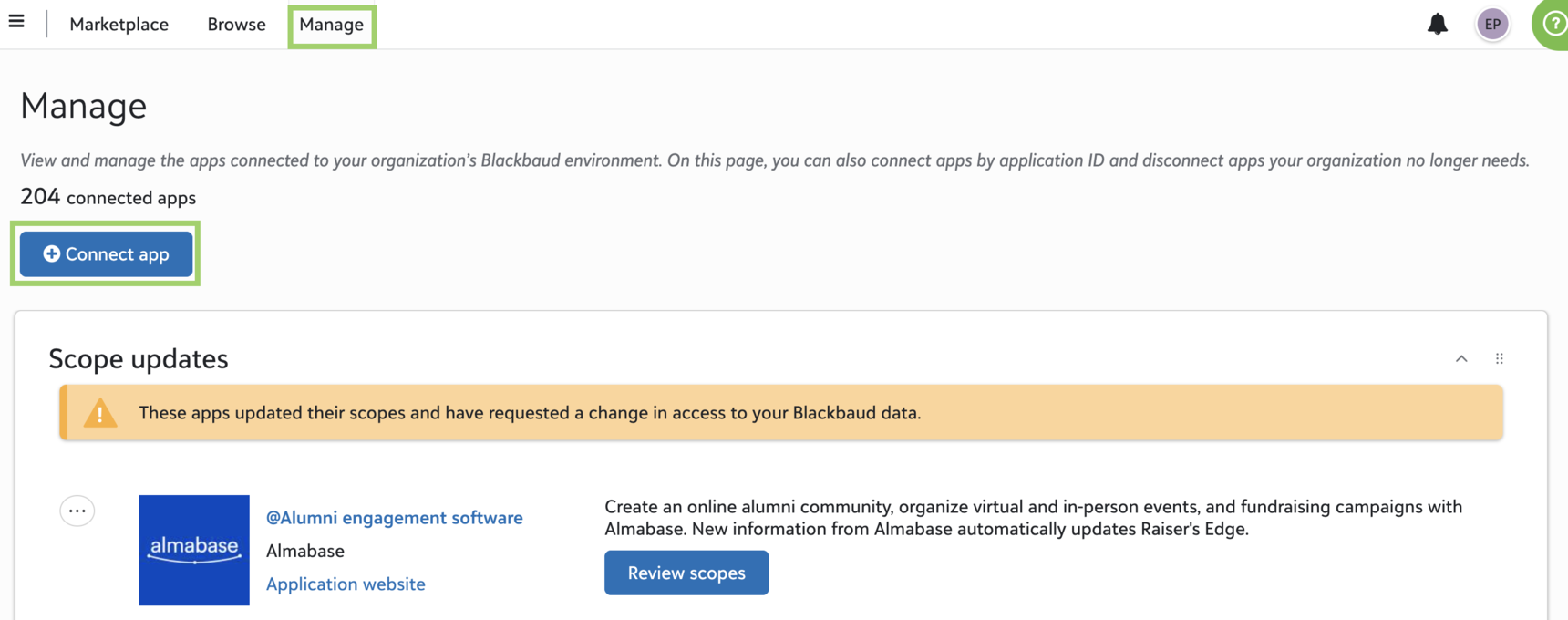
In Raiser’s Edge NXT, open the three-bar menu icon in the upper-left corner and click Marketplace.

Open the Manage tab at the top of the Marketplace and click Connect app.
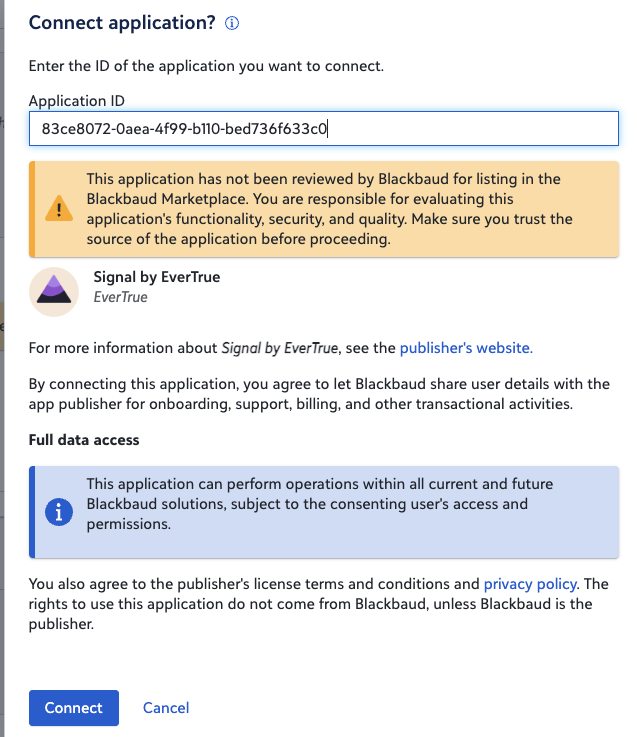
In the Connect application? popup, enter EverTrue’s Application ID: 83ce8072-0aea-4f99-b110-bed736f633c0. Click Connect at the bottom of the popup.
When the message “Signal by EverTrue is now connected” appears, select Close. This step is complete.
3. Connect Raiser’s Edge NXT to EverTrue
In EverTrue Data Manager, click Integrations in the Settings section of the left-hand navigation bar.
Open the CRM tab at the top of the Integrations page and click Connect in the Raiser’s Edge NXT box.

If prompted, enter your Raiser’s Edge NXT login credentials and click Authorize.

You will be redirected to EverTrue Data Manager, where the Raiser’s Edge NXT integration status shows as Active.
Once your Raiser's Edge NXT integration is active, you will work with your Implementation Partner to review your data.
For any other questions, reach out to EverTrue Support at genius@evertrue.com.
Reply
Content aside
- 3 yrs agoLast active
- 1688Views
-
1
Following